
In this post, you can learn how to cross out text in Discord and how to make text changes in Discord. Detailed guides are included. FYI, if you are seeking a free data recovery software, disk manager, system backup and restore software, video editor, video converter, video downloader, etc. you can go to MiniTool software.
You can use markup to cross out text in Discord. You can do this either on Discord desktop app or mobile app. Check how to cross out text in Discord below.
How to Cross Out Text in Discord
In Discord, you can use the tilde key (~) at the top-left on your keyboard to cross out text. On mobile phones, you can find this key in your keyboard punctuation menus.
To cross out the target text, you can respectively put two tilde keys before and after the Discord text message. This can do a strike though on the target text.

How to Make Text Changes in Discord
You can also make other text changes in Discord like bold, underline or italicize the text.
To make the target text in bold style, you can type two asterisks on both sides of the target text, e.g. **friend**.
To underline the target text, you can type two underscores on both sides of the target text, e.g. __friend__.
To make some texts in italic, you can type one asterisk or one underscore on both sides of the target text, e.g. *friend*, _friend_.
If you use the desktop Discord app or browser version of Discord, you can also use the context menu to make the text changes in Discord.
Locate and highlight the text you want to change the format.
Move your mouse to the target text and you will see a black bar above it.
Then you can click S to cross out the text, click B to turn the text to bold or click I to turn it italic.

Best Free Way to Recover Deleted/Lost Files on PC/Mac
Here we also introduce a free way to let you recover any deleted/lost files.
MiniTool Power Data Recovery is a professional free data recovery software that is compatible with Windows. This tool is capable of recovering any deleted/lost files from Windows computer, external hard drive, SSD, USB, SD card, and more.
MiniTool Power Data Recovery can handle various data loss situations incl. mistaken deletion, file system error, hard drive failure, computer errors like black/blue screen, etc. If the SD card is physically damaged and the SD card is not showing up on your Windows 10 computer, then even the best data recovery software can’t help you restore files.
You can go to MiniTool download center to download MiniTool Power Data Recovery on your Windows computer and follow the easy steps below to recover deleted/lost files.
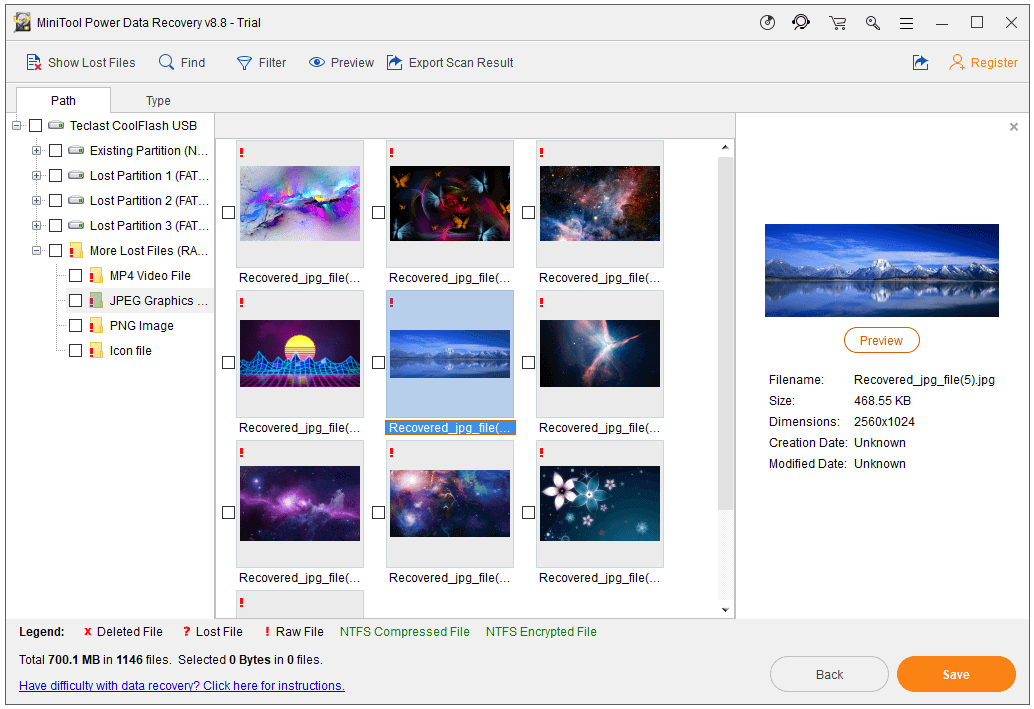
- Connect your external drive to your computer, and launch MiniTool Power Data Recovery to access its main UI.
- Choose the main device category in the left column, and click the target drive in the right window. Click Scan button.
- After the scan, you can check the recovery result to find needed files and click Save to select a destination to store the recovered files.
If you use a Mac computer, then you should turn to a top Mac data recovery software.
User Comments :