
Do SSD Drives Fail
SSD failures may not be the most common, but they are among the most critical when it comes to data loss risk. However, many users still lack a clear understanding of whether SSDs can fail and how these failures occur.
“Have you experienced SSD drive failures? I am really interested in buying SSD for storage but I have experienced many HDD failures before. So, I am kind of aware of what may cause HDD to fail, but SSD is totally a new field in that I have zero experience. So, I wanted to know from your experience what may cause SSD to fail.”reddit.com
SSDs do not have moving parts and this makes them more reliable than HDDs in some ways. However, they can still become corrupted or damaged, either logically or physically, due to various reasons. When logical or physical errors occur on your SSD, the files stored on it may become inaccessible or even lost entirely.
Logical Failure:
Logical errors are different from physical damage. They are typically caused by system or human factors and can lead to disk access or data loss issues. The most common causes of logical failures in SSDs include:
- Accidental formatting of the SSD.
- Corruption of the SSD’s file system due to system crashes or virus attacks.
- Missing or damaged partition table on the SSD.
Physical Damage:
A physical failure usually occurs when an internal hardware component of the SSD is damaged. Common symptoms of SSD physical failure include the SSD not being recognized, a dramatic drop in read/write speed, overheating, and more.
Physical failures include a malfunctioning controller chip, a damaged interface, corrupted SSD firmware, and more.
Do SSDs Lose Data Without Power
Apart from logical and physical failures, some users wonder if power loss affects SSD data. Normally, SSDs do not lose data after a power outage because the NAND flash memory SSD uses is non-volatile. Without power, SSD data can usually be stored for months to years, depending on the type of NAND, usage, and storage conditions.
How Does TRIM Affect SSD Data
The unique TRIM feature of SSDs is also one of the critical risks for SSD data loss. TRIM marks data blocks that are no longer in use as invalid and prompts the SSD to clean them up. As a result, data recovery becomes more difficult after deletion.
Useful Tips to Reduce Data Loss Risks of SSD Drives
To reduce the data loss risks of SSD drives, you can start by organizing and managing your files carefully. For example, use Ctrl + C instead of Ctrl + X when copying and pasting files, and double-check before deleting files in bulk.
In addition, it is important to use tools like CrystalDiskInfo or MiniTool Partition Wizard to monitor the health of your SSD and detect potential failures early.
MiniTool Partition Wizard FreeClick to Download100%Clean & Safe
Also, avoid using or storing your SSD in extreme environments, such as excessive heat or cold, or dropping it from a height, as these may cause physical damage.
Most importantly, the most reliable way to prevent SSD data loss is to back up your files regularly, especially before risky operations like formatting or wiping the disk.
For regular or large-scale backups, MiniTool ShadowMaker is highly recommended. It is designed for Windows systems and can back up or sync files on SSDs, HDDs, and other storage devices. It offers multiple editions, and most features in the trial edition are free to use for 30 days.
MiniTool ShadowMaker TrialClick to Download100%Clean & Safe
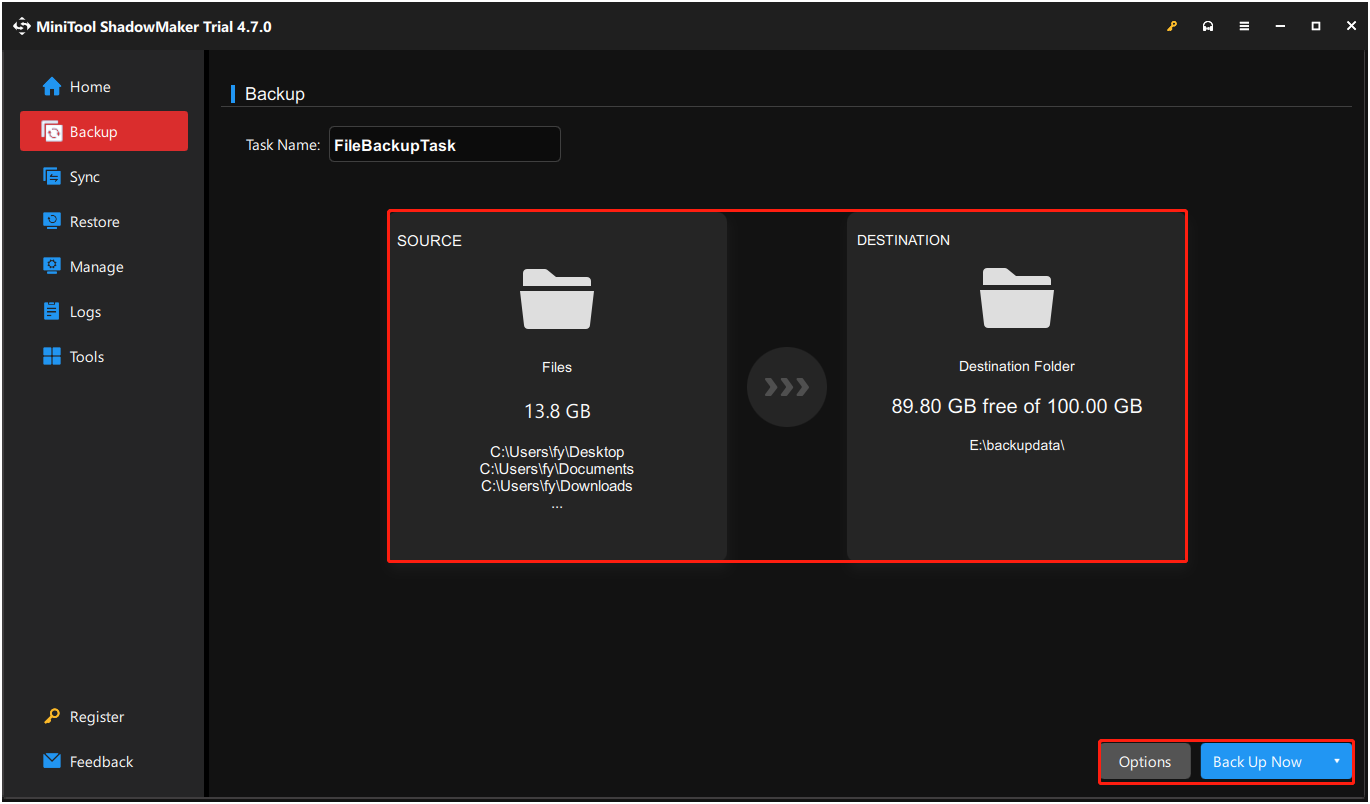
- On the main interface of this backup tool, go to the Backup tab from the left menu bar.
- In the central section, click SOURCE to select the files or partitions you want to back up. Then, click DESTINATION to select a location to store the backup file.
- Click Options to customize backup schemes (full, incremental, and differential backup) and automatic backup intervals.
- Click Back Up Now and wait for it to finish.
Read More:
If you don’t want to spend time backing up files or have already lost data without a backup, using data recovery software becomes necessary. This is where MiniTool Power Data Recovery comes in. It is designed to help recover lost data from SSD drives and other storage devices. It supports recovering files lost due to deletion, formatting, system crashes, and more, even when the SSD becomes inaccessible or the partition is missing.
You can recover up to 1 GB of data for free with the free edition.
MiniTool Power Data Recovery FreeClick to Download100%Clean & Safe
Conclusion
To sum up, this post introduces common data loss risks of SSD drives and how to prevent them from happening. Data backup is always the most reliable solution among them.
About The Author

Position: Columnist
Shirley holds a bachelor’s degree in English and has been an editor at the MiniTool Team for many years. She specializes in IT-related content, with a focus on data recovery, file backup, disk management, and other technical topics. She is committed to delivering clear, accurate, and practical solutions to help users resolve common computer issues.
User Comments :