
SSD longevity is influenced by various factors. This MiniTool guide introduces how to increase SSD lifespan with effective methods such as avoiding full disk usage, reducing write operations, and disabling hibernation.
SSDs have become the most popular storage devices for computers due to their impressive speed and durability.
However, concerns about SSD longevity and methods for extending their lifespan continue to appear in technical forums.
Now, begin by exploring how long an SSD typically lasts.
Part 1. How Long Do SSDs Last
Most consumer-level SSDs typically last from 5 to 10 years or even longer, depending on manufacturing quality and usage conditions.
In many cases, SSD failures occur not because the drive has reached the end of its expected lifespan, but due to improper usage or physical damage.
The next section outlines the common factors that affect SSD lifespan.
Part 2. What Factors Affect SSD Lifespan
The primary factors that influence SSD longevity include manufacturing quality, usage environments, and usage habits. Below is detailed information:
NAND Type
Flash memory chips are classified as SLC, MLC, TLC, and QLC. Each type differs in how much data a single cell can store and how many write cycles it can withstand.
- SLC (Single-Level Cell) stores 1 bit of data per cell. It offers the highest durability and is typically used in enterprise-grade SSDs.
- MLC (Multi-Level Cell) stores 2 bits of data per cell. It offers good performance and durability and is commonly used in high-end consumer devices.
- TLC (Triple-Level Cell) stores 3 bits of data per cell. Its durability is moderate, and it is the most common type of consumer-grade SSD.
- QLC (Quad-Level Cell) stores 4 bits of data per cell. Its durability is lower, making it suitable for scenarios with frequent reads and limited writes.
Total Bytes Written (TBW)
TBW represents the total amount of data that can be safely written within the SSD’s expected lifespan. A higher TBW value generally means the disk can last longer.
Controller and Firmware
The controller and firmware manage data reading, writing, and error correction. If they are poorly designed, they can lead to inefficient data handling and reduce the lifespan of the SSD.
Usage Methods
Since SSDs have a limited TBW, frequent and heavy write operations, such as continuous video recording, can shorten their lifespan.
In addition, when the storage space is nearly full, the SSD may write more data than requested. This is known as write amplification, which can speed up disk wear.
Environmental Conditions
If an SSD is exposed to high temperatures, dust, or unstable power for extended periods, it will accelerate the aging of the internal flash memory. In some cases, it may even lead to physical damage.
After having a basic understanding of why SSDs have different lifespans, it is time to explore how to extend the lifespan of your SSD.
Part 3. How to Increase SSD Lifespan on Windows 10/11
To increase the lifespan of an SSD, you should develop good usage habits and configure system settings appropriately.
Common tips include avoiding full disk usage, reducing massive writes, enabling write caching, and more.
Keep reading to learn these approaches and choose the ones that best suit your needs.
Keep Free Space on the SSD
Garbage collection and wear leveling are essential mechanisms in SSDs that improve write efficiency and intelligently allocate write tasks. However, they require sufficient free space to organize data effectively.
When available space is low, these processes become less efficient, which can accelerate wear and reduce the disk’s lifespan.
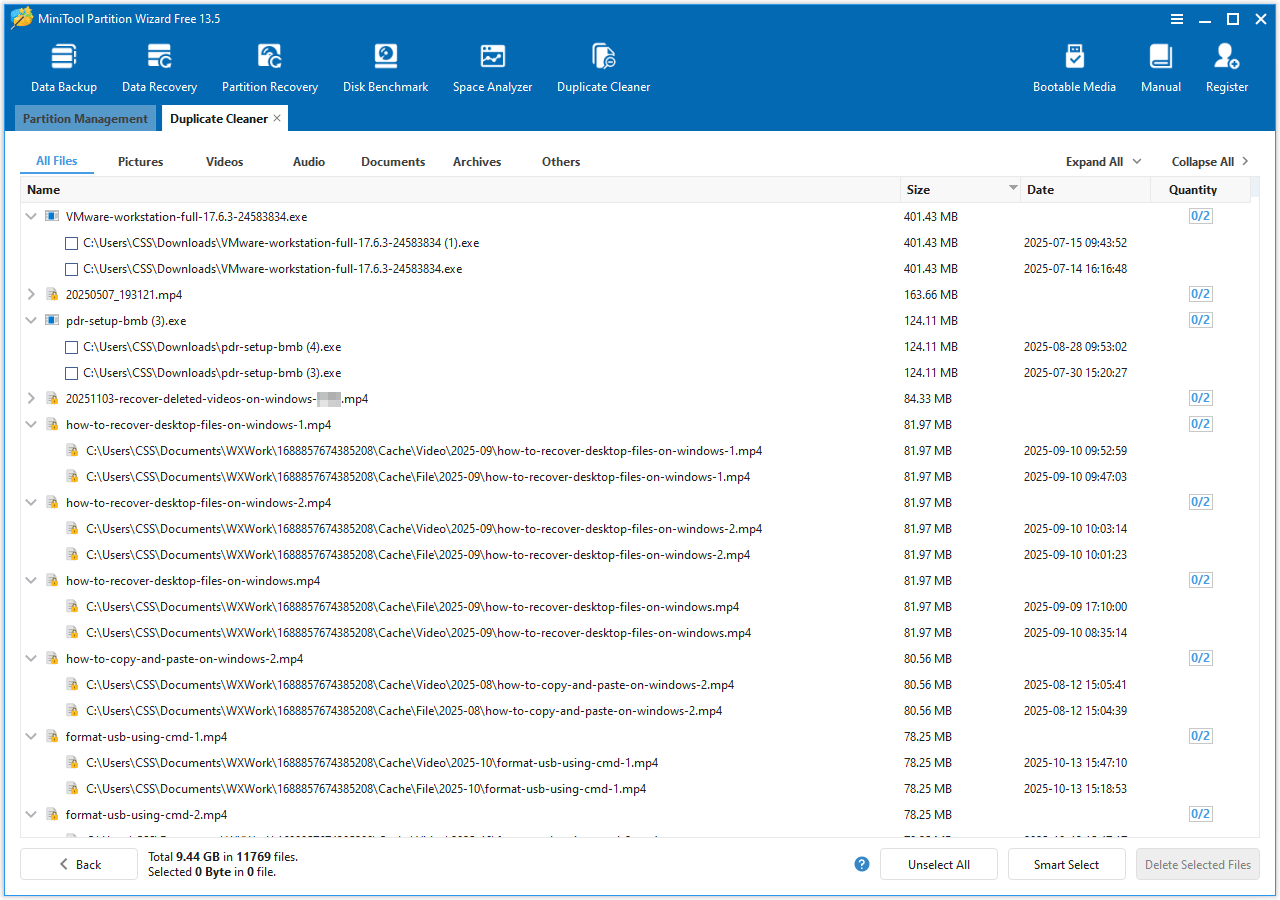
It is generally necessary to reserve at least 10% to 20% of the total capacity as free space. You can manually delete unnecessary files or run a duplicate file cleaner to remove large redundant files.
For example, MiniTool Partition Wizard includes a Duplicate Cleaner feature that helps detect and remove duplicate files for free.
It provides flexible scan settings, allowing you to specify file types and protect important items from deletion.
MiniTool Partition Wizard FreeClick to Download100%Clean & Safe
Read More:
If you accidentally delete important files while freeing up disk space, check the Recycle Bin to recover them.
If the files are no longer there, MiniTool Power Data Recovery may be able to help. This secure tool supports data recovery from SSDs and other storage devices, and allows you to recover up to 1 GB of data for free.
MiniTool Power Data Recovery FreeClick to Download100%Clean & Safe
Enable TRIM
TRIM is a command that allows the operating system to inform an SSD which data blocks are no longer in use and can be safely erased.
This improves disk space management and enhances write performance, which can help reduce wear.
Most modern SSDs have TRIM enabled by default. To check if TRIM is enabled on your computer, follow the steps below:
Step 1. Type cmd in the Windows search box, then right-click Command Prompt and choose Run as administrator.
Step 2. Type fsutil behavior query disabledeletenotify and press Enter.
If you see DisableDeleteNotify = 0, TRIM is enabled. If you see DisableDeleteNotify = 1, TRIM is disabled.
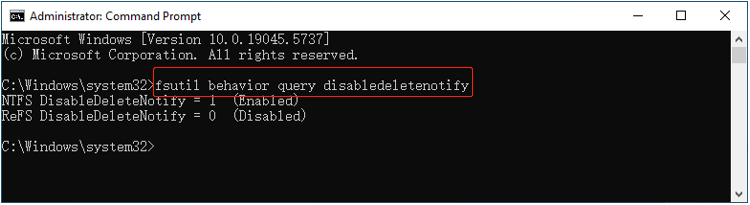
If TRIM is disabled, execute this command to enable it: fsutil behavior set DisableDeleteNotify 0.
Avoid Unnecessary Write Operations
The lifespan of each SSD is limited, depending on TBW and daily write volume. To estimate your SSD’s lifespan, you need the following parameters:
- TBW: Check the SSD packaging or official specifications. Additionally, some brands offer dedicated tools, such as Kingston SSD Manager, to display TBW and other disk information.
- Total Host Writes: Use free tools like CrystalDiskInfo to view it.
- Power On Count: Use CrystalDiskInfo to check it.
Remaining Lifespan (days) = (TBW − Total Writes) ÷ Daily Write Volume
For example, if the TBW is 100 TB, the total writes are 15 TB, and the power on time is 200 days, then the remaining lifespan = (100 − 15) ÷ (15 ÷ 200) = 1133 days.
To avoid using up the TBW, it is necessary to pay attention to the following things:
- Do not frequently download, transfer, paste, or delete large files.
- Do not use consumer-level SSDs for daily video editing or rendering.
- Avoid using consumer-level SSDs to store multiple surveillance camera video streams.
- Do not enable system restore points at very short intervals.
Shrink the Paging File or Add a Memory Stick
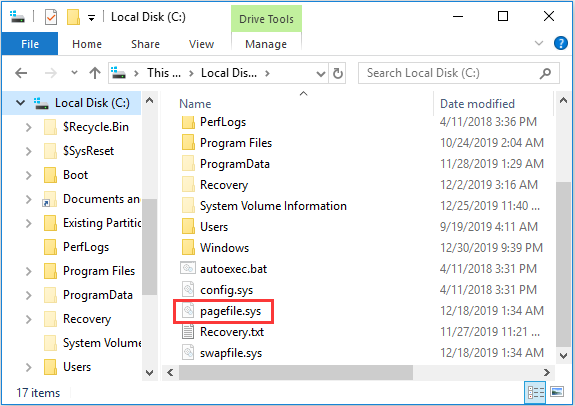
When RAM is insufficient, the system uses part of the disk as virtual memory, known as the paging file. This process involves frequent data reading and writing and may shorten the disk’s lifespan.
To extend the SSD lifespan, you can:
- Add more memory (RAM).
- Shrink the paging file or move the paging file to another disk with higher durability.
How to shrink the paging file:
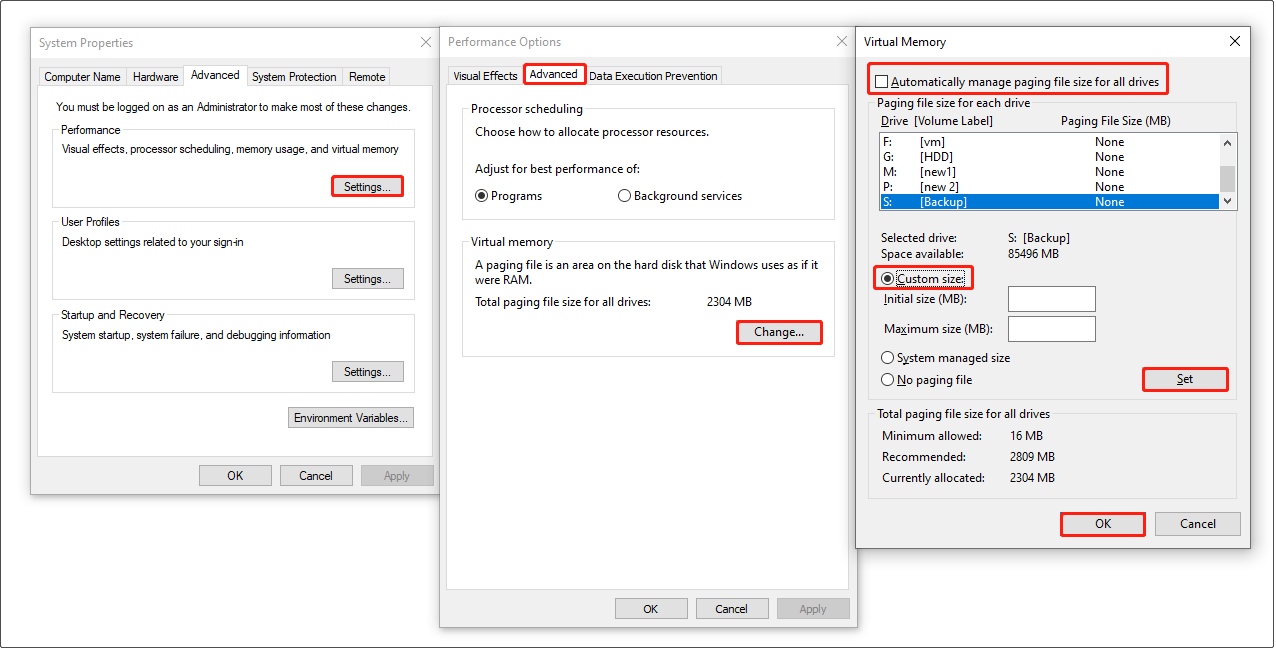
Step 1. In the Windows search box, type View advanced system settings, and then open it.
Step 2. Click Settings in the Performance section.
Step 3. Switch to the Advanced tab and click Change in the Virtual memory section.
Step 4. Uncheck Automatically manage paging file size for all drives. Select your SSD drive and choose Custom size. Then set the initial size and maximum size.
Step 5. Click Set > OK.
How to move the paging file:
Step 1. In the Virtual Memory window, select the drive you do not want to use for the paging file and click No paging file > Set.
Step 2. Select the drive you want to use for the paging file. Then check the System managed size option and click Set.
Step 3. Click OK to confirm.
However, setting the paging file too low can also cause some problems, such as failed system updates or program errors. Therefore, it is advisable to increase the memory.
Disable Hibernation
When hibernation is enabled, the system writes a large amount of data to a hidden file on the disk.
Frequent use of hibernation can significantly increase the SSD’s TBW. This may shorten SSD’s lifespan, especially for drives with a small capacity.
Therefore, disabling hibernation is an effective option to reduce unnecessary write operations. Here is how to do it:
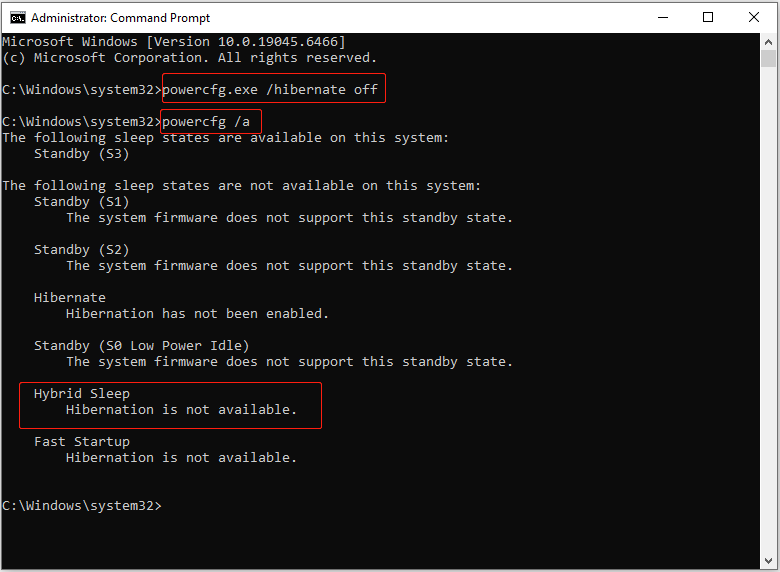
Step 1. Open an administrative Command Prompt.
Step 2. Type powercfg.exe /hibernate off, and then press Enter.
Step 3 (optional). Input powercfg /a and press Enter to check the hibernation status. If you see Hibernation is not available, it indicates that hibernation is disabled.
Enable Write Caching
The write caching mechanism temporarily stores data in RAM before writing it to the SSD. This reduces write amplification and the number of writes, which can help extend the SSD’s lifespan.
However, it is not recommended to enable write caching for internal SSDs. If the system loses power unexpectedly, data in the cache may be lost before it is written to the disk.
For external SSDs with a UPS, you can enable write caching to improve performance and reduce wear.
Step 1. Right-click the Start button and choose Device Manager.
Step 2. Expand the Disk drives section.
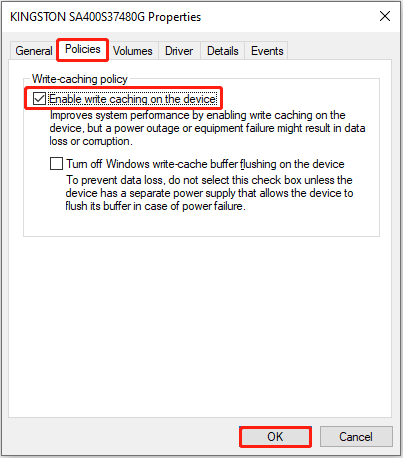
Step 3. Right-click the SSD you want to configure write caching and choose Properties.
Step 4. Switch to the Polices tab. Check the option of Enable write caching on the device, and click OK to save this change.
Keep SSD Firmware Updated
As mentioned above, SSD firmware controls how data is written and read. Manufacturers continuously release firmware updates to fix potential bugs and improve performance.
In addition, some firmware updates enhance write amplification strategies and improve compatibility and stability.
However, the Windows operating system does not provide notifications for SSD firmware updates.
To check for updates, consider installing the official disk management tool provided by your SSD manufacturer. Then, navigate to the firmware update section to check if a new firmware version is available.
Monitor SSD Health
Although there are many tips to optimize data write operations and extend SSD lifespan, disk failure can still occur.
Therefore, monitoring the health of your SSD is essential. By doing this, you can detect potential issues early and take action before they lead to serious disk damage or data loss.
There are many reliable disk monitoring tools available, such as CrystalDiskInfo, Samsung Magician, and others.
If you need to scan and repair file system errors on NTFS, FAT32, and other file systems for free, use MiniTool Partition Wizard.
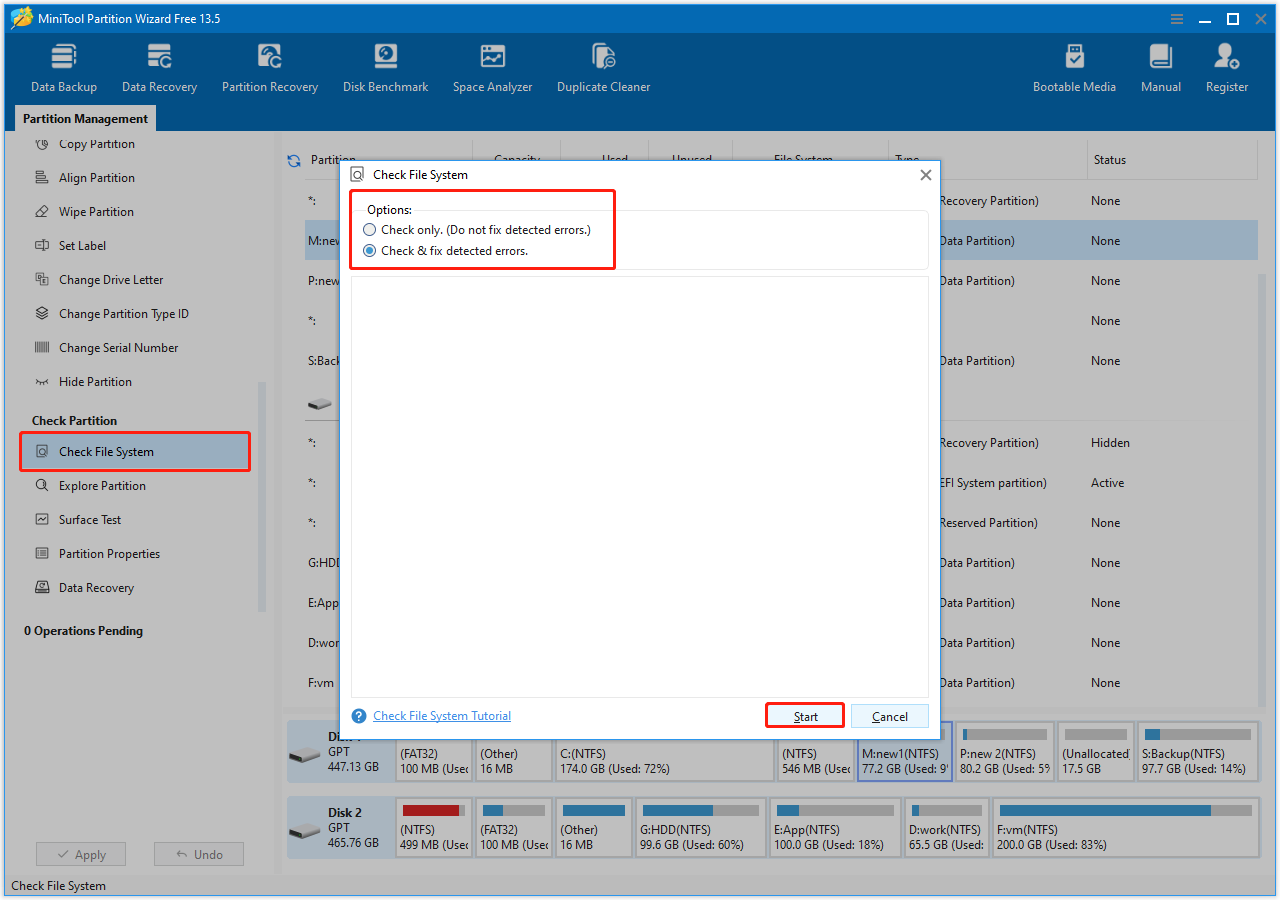
Step 1. Launch the free partition manager to get its main interface. Select your SSD partition, scroll down the left sidebar, and click Check File System.
Step 2. In the new window, choose Check only or Check & fix detected errors, and then click Start.
Avoid Physical Damage
Besides software-level protection, preventing physical damage is also important for extending an SSD’s lifespan.
An SSD consists of a circuit board populated with chips, flash memory, and other components. Any damage to these internal parts or the interface connectors can lead to disk failure.
To extend the lifespan of your SSD, handle it carefully during storage and installation. Use the SSD in a clean and dry environment, as high temperatures and humidity may accelerate NAND wear and reduce SSD lifespan.
Additional Information:
During everyday disk usage, creating regular data backups is crucial. With a backup, you can easily restore your files in the event of unexpected issues such as accidental deletion, system crashes, or hardware failure.
There are several backup methods, including manually copying files to another drive, uploading them to cloud storage, or using professional backup software.
If you are looking for a reliable backup tool, MiniTool ShadowMaker is a great option. It allows you to back up files, folders, partitions, and disks, and offers a 30-day free trial.
MiniTool ShadowMaker TrialClick to Download100%Clean & Safe
Part 4. Bottom Line
In conclusion, this article has explored many methods for extending the lifespan of an SSD.
In fact, most modern SSDs are built to be highly durable. In general, developing good usage habits is sufficient to ensure great SSD performance for many years.
During the disk management process, MiniTool software can be helpful for file system repair, data backup, and data recovery.
If you encounter any issues while using MiniTool products, contact the support team at [email protected] for assistance.
How to Increase SSD Lifespan FAQ
About The Author

Position: Columnist
Shirley holds a bachelor’s degree in English and has been an editor at the MiniTool Team for many years. She specializes in IT-related content, with a focus on data recovery, file backup, disk management, and other technical topics. She is committed to delivering clear, accurate, and practical solutions to help users resolve common computer issues.
User Comments :