
DeepSeek AI Not Working
Do you know DeepSeek? Did you use it to answer your questions or complete your work? DeepSeek’s rise has been meteoric, right? Due to the immense global popularity of DeepSeek AI, usage has surged significantly, leading to some issues in DeepSeek, like DeepSeek AI not working or DeepSeek AI Assistant not working.
Recently, users have indicated trouble logging in or setting up new accounts, as the app has limited new registrations to mitigate these problems. Fortunately, it is a common issue and several effective methods can resolve it.
If you are having trouble with your DeepSeek AI or Assistant, this guide will assist you in troubleshooting and getting it back up and running. Keep reading to get more details.
Common Causes of DeepSeek Not Working
The DeepSeek AI Assistant not working issue typically arises from server outages and malicious attacks that have recently affected the service. Except, there are other triggers for this issue below:
- Login Issues: Users may face challenges accessing their accounts due to server problems or incorrect login details.
- Delayed Responses: The AI might take more time than usual to handle requests, which can be frustrating during important tasks.
- App Failures: The application might close unexpectedly, preventing access to its features.
- Server Downtime: Increased demand or malicious attacks can result in temporary downtime, impacting all users.
- Error Notifications: Users might see specific error messages pointing to issues with the assistant’s operation.
- Connectivity Issues: An unreliable or poor internet connection can hinder performance.
- Device Incompatibility: The app might not be compatible with the operating system or hardware of your device.
- Cache Issues: Built-up cache data can lead to operational glitches.
- Permission Problems: The app may not have the required permissions to operate effectively.
How to Fix DeepSeek AI Not Working
In this part, you can try the methods mentioned below one by one until the DeepSeek not working issue is gone.
Fix 1. Check the Network
A poor or unstable internet connection may hinder the DeepSeek app’s functionality, leading to the DeepSeek AI not working issue. Make sure you have a robust and consistent connection to prevent any interruptions.
Some Simple Steps to take:
- Verify your internet speed by using an online speed testing tool.
- If needed, restart your router.
- If possible, connect to a different network.
Run the Network Troubleshooter on Windows:
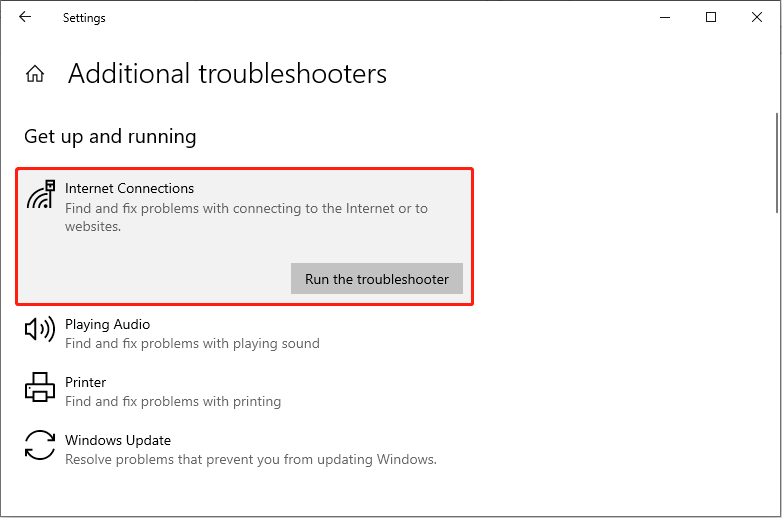
To eliminate this possibility, you can check your network connection by using the Internet Connections troubleshooter.
- Press Win + I to launch Windows Settings.
- Go to Update & Security. In the left panel, select Troubleshoot and then click Additional troubleshooters in the right pane.
- Click Run the troubleshooter under Internet Connections.
MiniTool System Booster TrialClick to Download100%Clean & Safe
Fix 2. Clear the Browser Cache Data and Cookies
Cached information can build up and become corrupted, leading to performance problems. Removing the cache and app data can assist in fixing these issues.
>>For Google Chrome:
- Launch the browser and click on the three vertical dots located in the upper right corner.
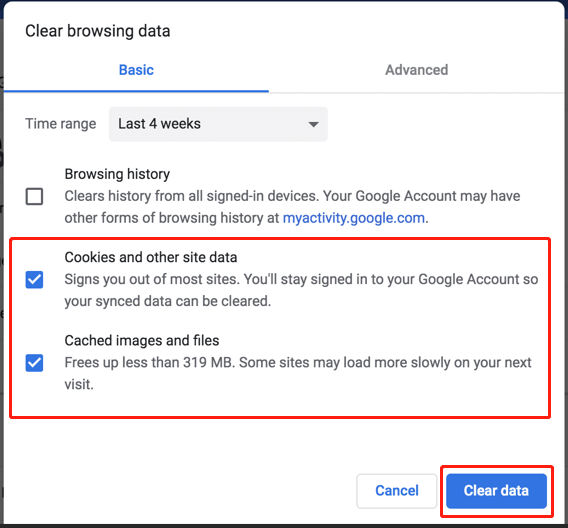
- Go to the More tools option and choose Clear browsing data. Alternatively, you can press the Ctrl + Shift + Delete key combination to access the Clear browsing data window directly.
- In the pop-up window, select the time frame for which you wish to clear the data. To perform a complete reset, pick All time from the dropdown menu.
- Tick the boxes for Cookies and other site data and Cached images and files.
- Hit the Clear data button.
>> For Mozilla Firefox:
- Click the menu button (three horizontal lines) in the top-right corner.
- Choose Options, then proceed to Privacy & Security.
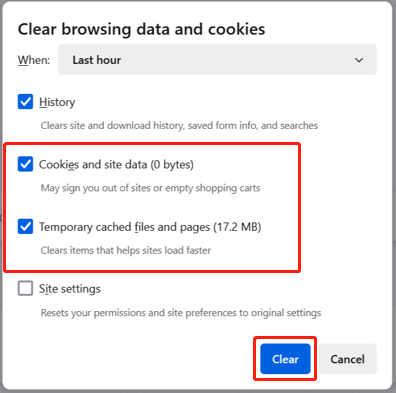
- In the Cookies and Site Data section, click on Clear Data.
- Select the boxes for both Cookies and Site Data and Temporary cached files and pages, then click on Clear.
Fix 3. Log Out and Log Back In
Some users reported logging out of their DeepSeek accounts and logging back in resolved their DeepSeek AI not working issue. Here’s how to do it:
- Launch the DeepSeek AI Assistant website on your Windows PC.
- Navigate to the Account Settings section.
- Select the Log Out option and confirm your choice.
- After a few moments, sign back in using your login details.
Fix 4. Verify Server Status
Sometimes, the issue might not lie with your account or network, but rather with the servers of DeepSeek. Look for updates regarding the server status from the developers or their official site to see if there are any outages. Here are some simple ways:
- Look for notices about server maintenance or updates by visiting DeepSeek’s status page or website.
- Search for announcements about server problems on Twitter or Facebook.
- Go to Downdetector.com to check if others are experiencing similar issues.

Verdict
This post provides 4 feasible ways to fix the DeepSeek AI not working issue. You can give them a shot and hope the information can be helpful for you.
User Comments :