
Check the guides for how to delete desktop background images in Windows 10, how to clear recently used desktop background pictures, how to delete lock screen image in Windows 10, etc. For Windows users, you can find many useful free tools from MiniTool Software, e.g. MiniTool Power Data Recovery, MiniTool Partition Manager, etc.
You can freely set the desktop background image in Windows 10. You can use the default Windows 10 background images, download HD or 4K wallpapers from image sites, or use your own image as the Windows 10 desktop wallpaper.
Every image you used as the background is stored in computer. If you want to delete the desktop background or clear recently used desktop background images in Windows 10, you can check the step-by-step guide below.
How to Delete Desktop Background Images in Windows 10
How to Delete System Background Images
- Double-click This PC to open File Explorer.
- Click as the following directory: C:\Windows\Web. This is Window 10 wallpaper location.
- Open Wallpaper folder, and you can check the Windows 10 system background images in those folders.
- Open one folder and right-click one image to select Delete. This will delete the desktop background images from your Windows 10 computer.
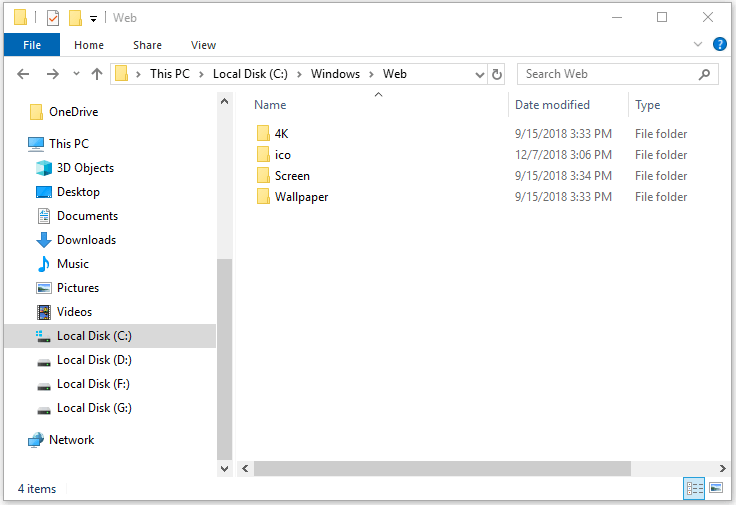
How to Delete Uploaded Desktop Background Images
If you can find the image location, you can locate it and right-click it and select Delete to delete the picture. If you can find the location of the picture, you can follow the steps below to find and delete it.
- Right-click the blank area of desktop and select Personalize.
- Click Themes from the left column, and you can see the image name under Background.
- Search the image name in File Explorer. Find the target image and delete it.
How to Clear Recently Used Desktop Background Images in Windows 10
If you want to remove recently used desktop background images and clear the Windows 10 background history, you can follow the steps below.
- Press Windows + R, type regedit, and press Enter to open Registry Editor in Windows 10.
- Click as follows: HKEY_CURRENT_USER\Software\Microsoft\Windows\CurrentVersion\Explorer\Wallpapers.
- After you click Wallpapers key, you can find a few values in the right window named BackgroundHistoryPath followed by numbers.
- You can right-click one value and click Delete to delete the desktop background image in Windows 10. You can delete the history background images in batch. After you delete the backgrounds, Windows will rebuild these values with its default wallpapers.
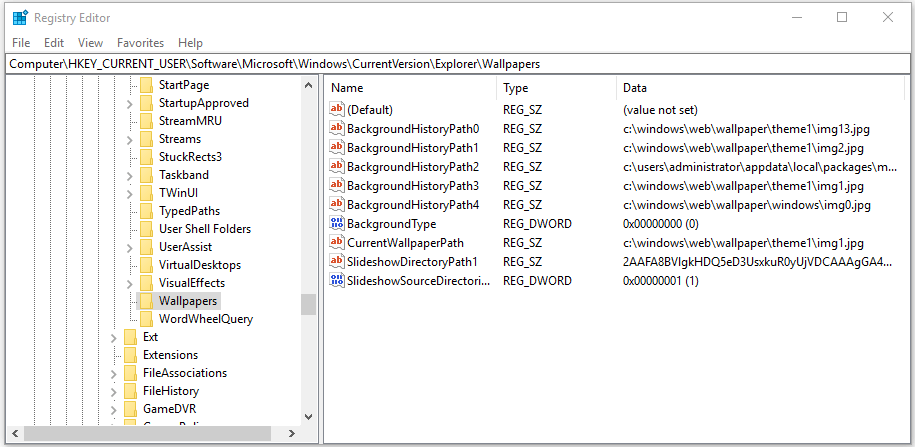
Tip: You should be careful to edit the registry. Before you edit the Windows Registry, it’s advised you back up registry first in case something goes wrong and causes computer crash. Learn: backup and restore registry.
How to Delete Lock Screen Image in Windows 10
You can go to C:\Windows\Web\Screen folder, right-click the lock screen image and select Delete to delete lock screen image in Windows 10.
To change the lock screen image in Windows 10:
- Right-click the blank area on the desktop and click Personalize.
- Click Lock screen in the left panel.
- Click Picture under Background. You can change the lock screen image in this window.
Bottom Line
If you want to delete desktop background images/wallpapers or lock screen images, clear recently used desktop background images in Windows 10, you can follow the above guide.
User Comments :