
It’s important to know your Dynasty Warriors Origins save file location on Windows 10/11 because it enables you to access and manage your saved game data. In this post from MiniTool, we will show you how to access Dynasty Warriors Origins Dynasty Warriors Origins game saves and what to do when they are missing.
Dynasty Warriors Origins Save File Location
As the latest installment in the Dynasty Warriors series, Dynasty Warriors Origins has improved its storytelling and deepened its combat. Like other games, you must be aware of how to find its game files to control your game progress. Usually, different games store save game files in different directories like AppData, Documents, Saved Games and more on your computer. The default Dynasty Warriors Origins save file location is:
C:\Users\Username\Documents\KoeiTecmo\DYNASTY WARRIORS ORIGINS\Saved\SaveGames
In the following section, we will show you 2 ways to locate them on Windows 10/11.
Option 1: via File Explorer
Step 1. Press Win + E to open File Explorer.
Step 2. Go to This PC and then navigate to the following path:
C:\Users\Username\Documents\KoeiTecmo\DYNASTY WARRIORS ORIGINS\Saved\SaveGames
Here, remember to replace Username with your actual username. Dynasty Warriors Origins save file is located in the SaveGames folder in the .dat format.
Option 2: via the Run Dialog
Step 1. Press Win + R to open the Run box.
Step 2. Input the following content and hit Enter:
%USERPROFILE%/Documents/KoeiTecmo/DYNASTY WARRIORS ORIGINS/Saved/SaveGames
# Back up Dynasty Warriors Origins with MiniTool ShadowMaker
After grasping how to find Dynasty Warriors Origins save file location, it’s strongly recommended to back up the entire Dynasty Warriors Origins folder to store your game progress and configurations. To do this task, MiniTool ShadowMaker comes in handy.
This free PC backup software is designed to back up local data on your computer including crucial files, the operating system, selected partitions and even the whole disk easily. With a backup copy of game files, you can troubleshoot issues with Dynasty Warriors Origins’ saving function. Here’s how to back up Dynasty Warriors Origins game saves:
MiniTool ShadowMaker TrialClick to Download100%Clean & Safe
Step 1. Launch this freeware and head over to the Backup page.
Step 2. Go to SOURCE > Folders and Files to select the entire Dynasty Warriors Origins folder as the backup source.

Step 3. Navigate to DESTINATION to pick a USB flash drive or external hard drive as the backup destination.
Step 4. Click on Back Up Now on the lower right to start the task at once.
Dynasty Warriors Origins Not Saving Progress
Some users on Reddit and Steam claimed that they are unable to save their progress in Dynasty Warriors Origins along with error code 0x5EB1A235. The most common culprit of Dynasty Warriors Origins saves missing or not saving is interference of OneDrive and Dropbox. When these backup services are on, they can restrict Dynasty Warriors Origins from creating a save file. After disabling OneDrive and Dropbox, you can save your progress locally with MiniTool ShadowMaker. If Dynasty Warriors Origins not saving still persists, try the following solutions.
MiniTool ShadowMaker TrialClick to Download100%Clean & Safe
Way 1: Allow DWOrigins.exe Through Controlled Folder Access
Windows Security comes with a feature called Controlled Folder Access that protects files or folders from unauthorized changes by applications. Therefore, this feature can also block Dynasty Warriors Origins from modifying, creating, or saving files. Follow these steps:
Step 1. Close all the processes related to Dynasty Warriors: Origins.
Step 2. Press Win + S to evoke Windows Search.
Step 3. Type controlled folder access and then select the best match.
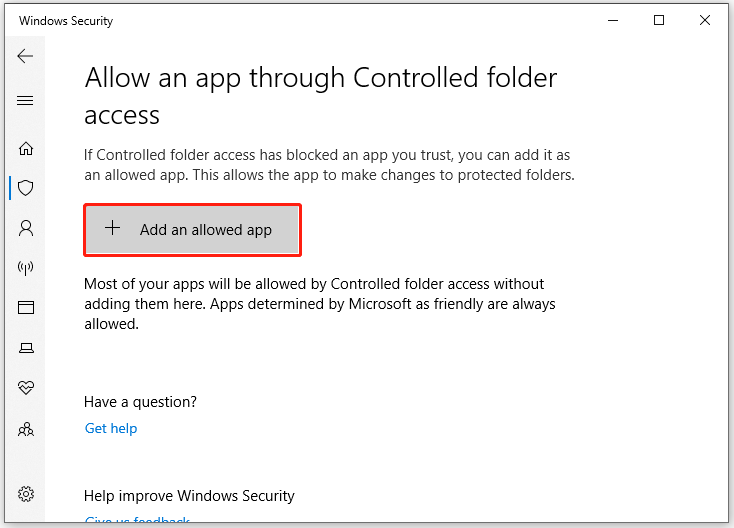
Step 4. Under Controlled folder access, tap on Allow an app through Controlled folder access.
Step 5. Click on Add an allowed app, locate DWOrigin.exe (the executable file of Dynasty Warriors: Origins) and select it.
Way 2: Launch the Game with Administrative Rights
Dynasty Warriors Origins not saving is usually related to file permissions. To access local game data without errors, you also need to grant the game with sufficient administrative rights. To do so:
Step 1. Locate Dynasty Warriors: Origins in your Steam Library.
Step 2. Right-click on it to choose Manage > Browse local file to locate the installation folder of the game.
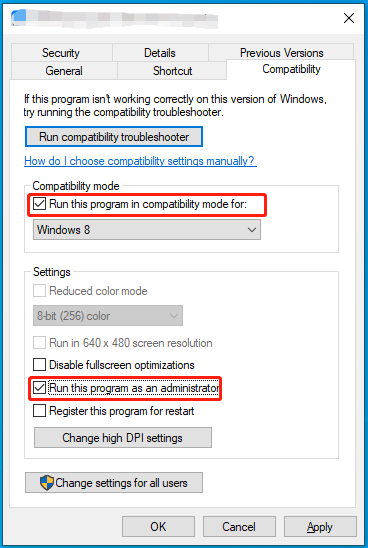
Step 3. Find DWOrigin.exe and right-click on it to choose Properties.
Step 4. In the Compatibility tab, check Run this program as an administrator and hit OK to save the change.
Way 3: Disable Third-Party Antivirus Programs
Sometimes, third-party antivirus programs will mark certain games as a threat, causing Dynasty Warriors Origins not saving progress or error code 0x5EB1A235. If this is the case, you should disable the antivirus software or add its executable file to the whitelist before launching the game.
Final Words
That’s everything you should know about Dynasty Warriors Origins save file location and what to do when the game is not saving progress. We sincerely hope that you can manage to overcome these obstacles and enjoy the game to the fullest!
User Comments :