
Good news is that dark mode for the Paint app is available in Windows 11. But this feature is for testers in Windows Insider currently. MiniTool introduces how to enable dark mode for Paint in Windows 11 in this post. It also tells you how to recover deleted Paint files using MiniTool Power Data Recovery.
Paint Dark Mode Is Available in Windows 11 (for Testers in Windows Insider for Now)
Since the initial release of Windows 11, Microsoft keeps introducing new features to this new Windows version. Recently, the company has added dark mode to Microsoft Paint. But this feature is not available for all public Windows 11 users. Microsoft is rolling it out to testers in the Windows Insider Program. As you know, the new features will first be open for users in the Windows Insider Program for testing.

The Paint app is redesigned in Windows 11 and it is released to the testers in the Windows Insider Program of Dev and Canary channel. If you want to enjoy the Paint dark mode before others, you need to join one of the above channels.
How to Enable Dark Mode for Paint in Windows 11?
Move 1: Get the New Paint App
Perhaps you haven’t got the latest update even if you are in the Dev or Canary channel. If you want to immediately experience Paint dark mode, you can use the following steps to manually replace the old Paint with the new version that has the dark mode:
If you are in the Dev or Canary channel:
You can open Microsoft Store and update the Paint app.
If you are in the production channel:
Step 1: You need to download Paint Version 11.2304.17.0 from the cloud storage.
Step 2: Right-click the downloaded .msixbundle file to install the Paint app. If required, you need to click the Update or Install button to continue.
Step 3: Open Paint and the dark mode is there directly.
Move 2: Enable Paint Dark Mode in Windows 11 if It Is Disabled
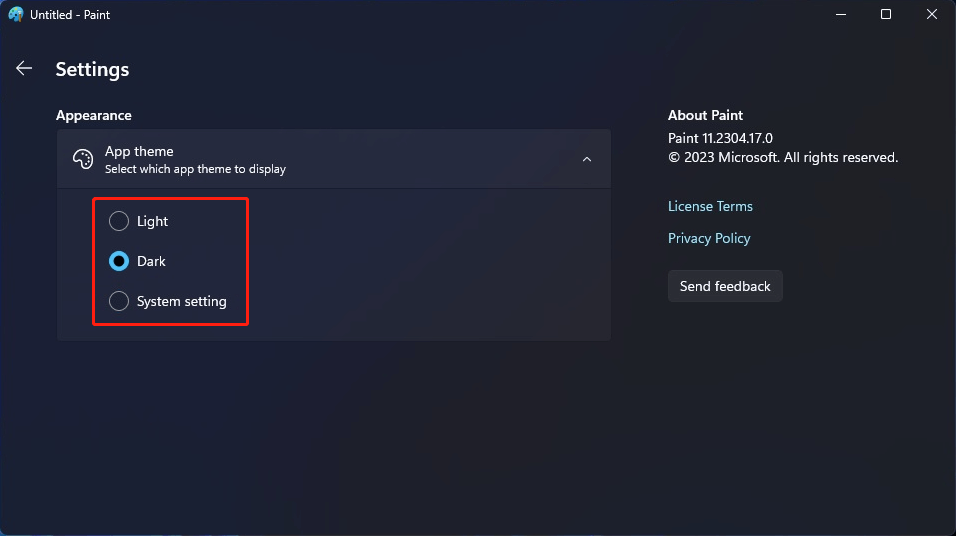
By default, the Paint app will use the theme of your system set by yourself. But you can change the theme for Paint separately. You can go to the Settings page in Paint to select your needed theme. Currently, there are three choices: Light, Dark, and System setting.
How to Recover Deleted Paint Files?
You can use Paint to create images. The files created should be important to you. If some of them get deleted or lost by mistake, do you know how to get them back?
You can try MiniTool Power Data Recovery, the best free data recovery software for Windows, to recover deleted files. This software has a free edition. You can use it to recover all kinds of files from different types of storage devices. The Paint file is a supported file type.
MiniTool Power Data Recovery FreeClick to Download100%Clean & Safe
After downloading and installing this data restore tool on your PC, you can launch it and select the drive where the deleted Paint files were saved to scan.
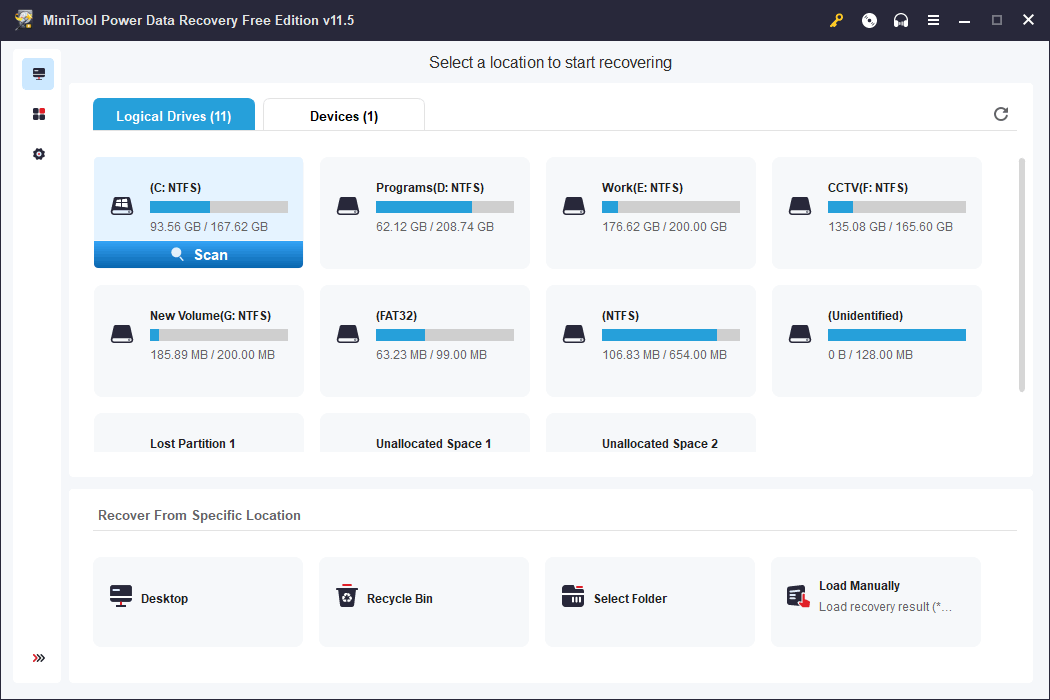
When the scanning process ends, you can see the files found by this software. You can find your needed files from the scan results and click the Save button to save your selected files.
Additionally, you can find more ways to rescue your missing Paint files from this article: 4 Ways to Recover Deleted Microsoft Paint Files.
Bottom Line
From this post, you can know how to get the new Paint app and how to enable dark mode for Paint in Windows 11. If you want to use the Paint dark mode, you can just try the methods here.
Besides, you can try MiniTool Power Data Recovery to recover your lost and deleted files when necessary.
MiniTool Power Data Recovery FreeClick to Download100%Clean & Safe
Should you have issues related to MiniTool software, you can contact MiniTool Software via [email protected].
About The Author

Position: Columnist
Stella has been working in MiniTool Software as an English Editor for more than 8 years. Her articles mainly cover the fields of data recovery including storage media data recovery, phone data recovery, and photo recovery, videos download, partition management, and video & audio format conversions.
User Comments :