
The Windows 10 Action Center often shows the notifications of systems. But now, the famous web browsers – Firefox gains the support of Windows Action Center; it is able to show notifications here for user to look conveniently.
Firefox Gains Windows 10 Notifications Support
Not long ago, Mozilla released its plan to replace the notification system that Firefox often uses on any Win10 devices with the native notification system of Windows 10. Till now, changes have been applied to the Nightly version of the Firefox web browser; it’s easy for users who run a Nightly version on any Win10 devices to notice that the web notifications can be shown directly in the Windows 10 Action Center thanks to the Windows 10 notification support. That is to say, Firefox finally gets the notifications support of Window 10.
Deleted files in Windows 10 by mistake? Click to know how to regain the deleted files in Win10.
Though this feature is only available in Firefox Nightly versions right now, it will be added to Firefox 65, which is scheduled to be released in January, 2019.
Up to now, Firefox is not the first browser to enjoy native support for Windows 10 notifications. The support for native notifications had been already applied to Google Chrome (Chrome 68) as early as July this year.
Firefox New Notification Prompt vs. Old Notification Prompt
The switch of Firefox old notification system to the new native notification system brings a lot of changes.
In the old notification system, notifications will be displayed in the settings in the lower right corner. The Firefox users could do the following things:
- Open the notification settings directly in Firefox.
- Pause notifications till the next restart of the Firefox.
- Disable the notifications for an accurate site that pushed it to the desktop.
Well, in the new native notification system, there are no longer these options. That is simply because notifications are now controlled by the native operating system, instead of Firefox. The Firefox users need to make sure that the notifications is enabled on their Windows 10 devices; otherwise, the Firefox notifications won’t be pushed to the desktop.
Generally, the notifications are enabled on Windows 10 devices. If no, you should do the following things to change:
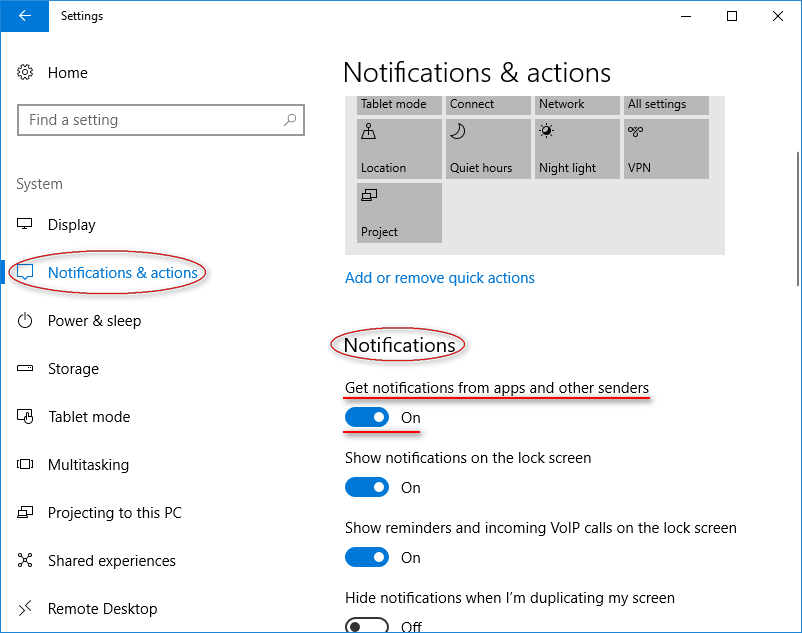
- Access the Settings app by pressing “Windows” + “I” at the same time on the keyboard.
- Click on “System” and choose “Notifications & actions”.
- Make sure the button under “Get notifications from apps and other senders” is turned on.
- Scroll down to see the “Get notifications from these senders” option and now make sure 2 things: one is that Firefox is in the list and the other is that the button next to it is turned on.
Click to see other ways to open Settings in Windows 10.
Advantages of Using Native Windows 10 Notifications
The notifications in old Firefox will disappear after showing up for a few seconds, but in the native system, the notifications will last.
- A copy of each alert in the native Windows 10 notifications will be stored in Windows 10 Action Center.
- The new feature allows users to review past notifications so as to pick up the missed ones.
- All the notifications can be cleared from the Action Center by users with just the push of a button.
Notifications Control in Firefox
Yes, users are allowed to set the notifications permissions off in order to disable notifications entirely for Firefox.
Yet, it is still necessary to allow some sites to use the notifications feature indeed. In this way, they can display notifications on the desktop.
There are four steps to manage permissions for individual sites:
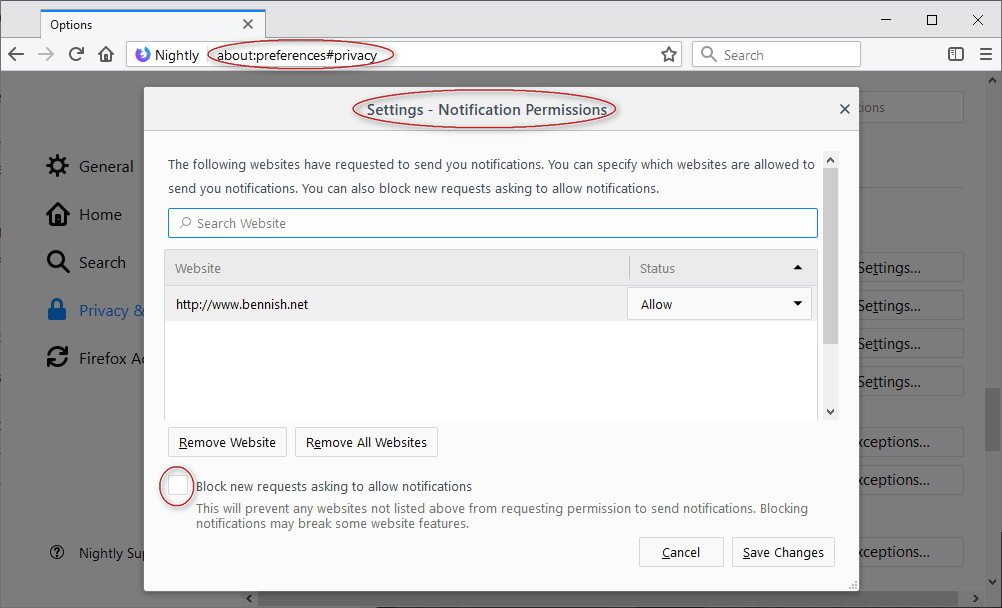
- Firstly, the “about:preferences#privacy” should be loaded in the browser’s address bar.
- Next, users should scroll down to see the “Permissions” section, in which the “Settings” option (next to “Notifications”) should be selected.
- Then, you can see all sites allowed or blocked and you can change their status easily.
- Finally, you can also check to “Block new requests asking to allow notifications”.
Wrong operations may lead to data loss, so a piece of wonderful data recovery software for Windows 10 is necessary.
User Comments :