
If you can’t install an AMD driver due to AMD driver install stuck, do you know how to fix the issue? In this post, MiniTool Software will show you some simple solutions that can effectively solve this problem.
AMD Driver Install Stuck on Windows 10/11
When you install an AMD GPU driver on your Windows 10/11 computer, the installation process may get stuck. For example, the AMD installer gets stuck at verifying drivers. The AMD driver installation process may get stuck at a message saying please wait while detecting hardware AMD or AMD driver install stuck at 0 or 92. Even at times, your computer freezes while you are trying to install an AMD driver.
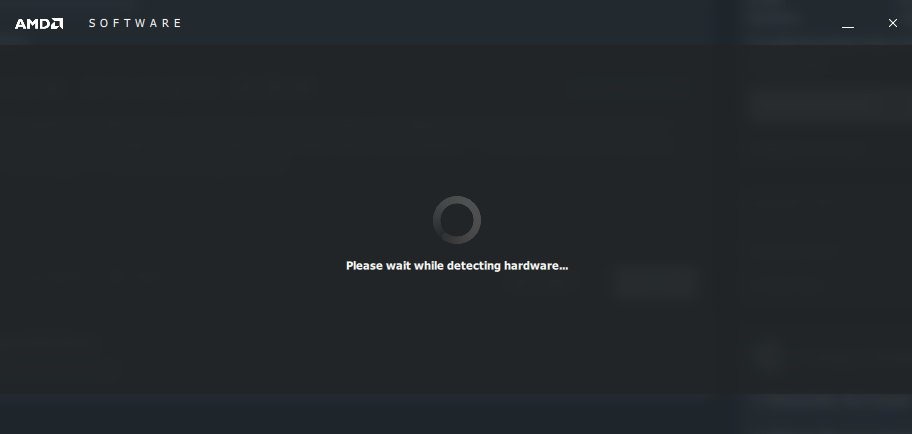
No matter the AMD driver install stuck at 0, 32, or 92, or the AMD drivers not installing due to some reason, you need to take some measures to solve the issue. In this post, we will show you some methods you can try.
Method 1: Update the AMD Driver
AMD driver install stuck always happens when you manually install an AMD driver. To prevent the issue, you can update the AMD driver to the latest version using Device Manager. If you have a trusted third-party driver updater, you can also use it to have a try.
Method 2: Make sure You Downloaded the Right Installation Package of the AMD Driver
You also need to make sure that the AMD driver installation package you have downloaded is right. To guarantee this, you need to download the driver from AMD’s official site. You should not download one from a third-party site. Besides, when you select the driver, you need to choose one according to the device you are using.
Method 3: Install the AMD Driver in Safe Mode
If AMD driver install stuck on your Windows 10/11 computer, you can try to install it in Safe Mode and see if the installation process is successful. Many users solve the issue using this method. You can also have a try.
When you see the following interface, you need to select Enable Safe Mode with Networking because the driver installation process requires a network connection.
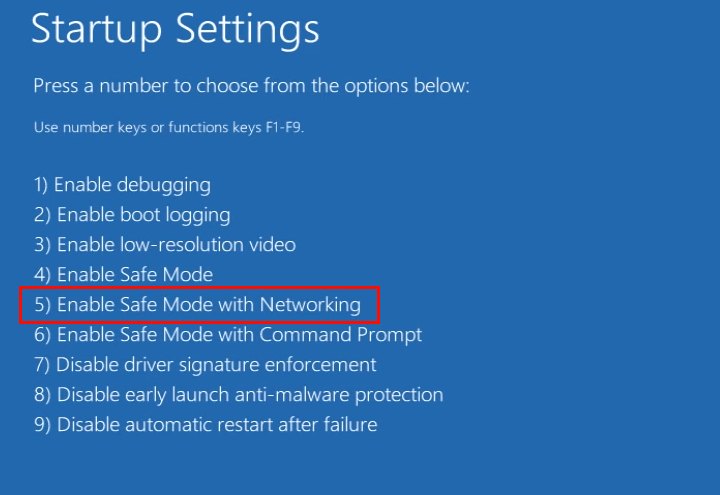
In Safe Mode, you can use the universal method to install the AMD driver again to see if the issue disappears.
Method 4: Uninstall the AMD Driver Completely and Reinstall It Again
Before you install an AMD driver on your Windows 10/11 computer, you’d better completely uninstall the device driver from your computer.
- Right-click Start and select Device Manager.
- Find the device driver you want to uninstall and right-click it. Then, select Uninstall device.
- Click the Uninstall button on the pop-up window to confirm the deletion.
- Wait until the uninstallation process ends.
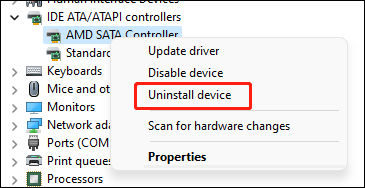
After these steps, the target driver is removed from your device. You should be able to manually install it again.
Method 5: Turn off or Remove Your Anti-Virus Software
The third-party anti-virus software on your PC can be the cause of AMD driver install stuck. It may block the installation of the AMD drivers. So, you can turn off or remove the anti-virus software on your device to have a try.
Method 6: Disable Windows Defender Antivirus
Windows Security offers real-time protection to protect your PC. When you install an AMD driver on your computer, it may think the driver is a threat and then block the installation. To rule out this possibility, you can disable Windows Defender Antivirus to have a try.
Method 7: Turn off the Windows Firewall
If you don’t install third-party anti-virus software, you can turn off the Windows Firewall and check if the issue can be solved. Many users use this method to solve the problem. You can also do this to try.
These are the methods you can use when AMD driver install stuck on your Windows 10/11 device. We hope you can find a suitable method here. Should you have any other related issues, you can let us know in the comments.
About The Author

Position: Columnist
Stella has been working in MiniTool Software as an English Editor for more than 8 years. Her articles mainly cover the fields of data recovery including storage media data recovery, phone data recovery, and photo recovery, videos download, partition management, and video & audio format conversions.
User Comments :