
If you meet the error message “Something went wrong” when trying to use Cortana, here are 7 tips to help you fix this problem. If you need to recover data on PC, backup system and data, manage hard drive partition, MiniTool software provides you solutions.
Cortana is the virtual voice assistant app built-in Windows 10. You can use your voice to awake Cortana and ask it to do many things like launching an app, opening a file, or searching something in browser on your Windows computer.
However, some users may encounter Cortana “Something went wrong” error and can’t use it. You can check below the 7 tips to fix Cortana something went wrong error.
How to Fix Cortana Something Went Wrong Error
Tip 1. Restart PC
Restarting computer can sometimes help fix many issues of your Windows computer. You can click Start -> Power -> Restart to reboot your computer. Then check if Cortana can work.
Tip 2. Log out of Your Account
You can also try to sign out of your account on your Windows 10 computer to see if the something went wrong Cortana issue can be fixed.
You can click Start, click Administrator/User icon, and click Sign out option. Then you can sign in again with your account and password.
![[SOLVED] How to Revive Windows 10 With Recovery Drive | Easy Fix](https://images.minitool.com/minitool.com/images/uploads/2019/05/windows-10-repair-recovery-disk-thumbnail.png)
Tip 3. Check Computer Language Settings
- You can click press Windows + I to open Windows Settings.
- Click Time & Language in Settings window.
- Click Region & Language, select a language that is supported by Cortana, and choose a country or region and make sure it supports the language you chosen.
- Click Speech and choose the language you speak with your device.
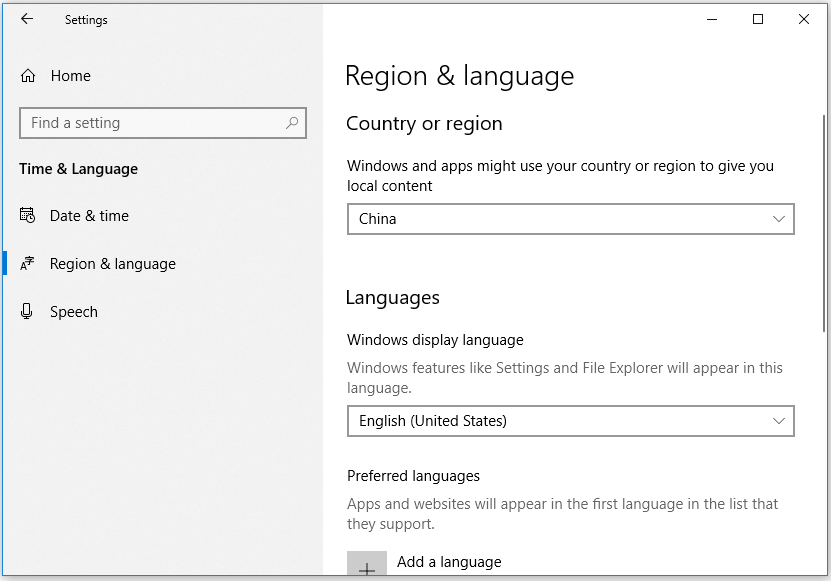
After you make the device, speech and region language the same, you can start Cortana again to see if it can work.
Tip 4. Check Cortana Language
You can also check Cortana language to use a supported language.
- Click Start -> Settings, and click Cortana to open Cortana settings window.
- Scroll down to find Cortana language section in the right window, and select the same language as in Tip 3.
Tip 5. Troubleshoot Cortana Problems
To fix Cortana something went wrong error, you can also troubleshoot Cortana problems with Windows built-in troubleshooter.
- Press Windows + I to open Settings, and click Update & Security.
- Click Troubleshoot in the left pane, and scroll down to find Search and Indexing option in the right window. Click it and click Run the troubleshooter to find and fix problems with Windows Search.
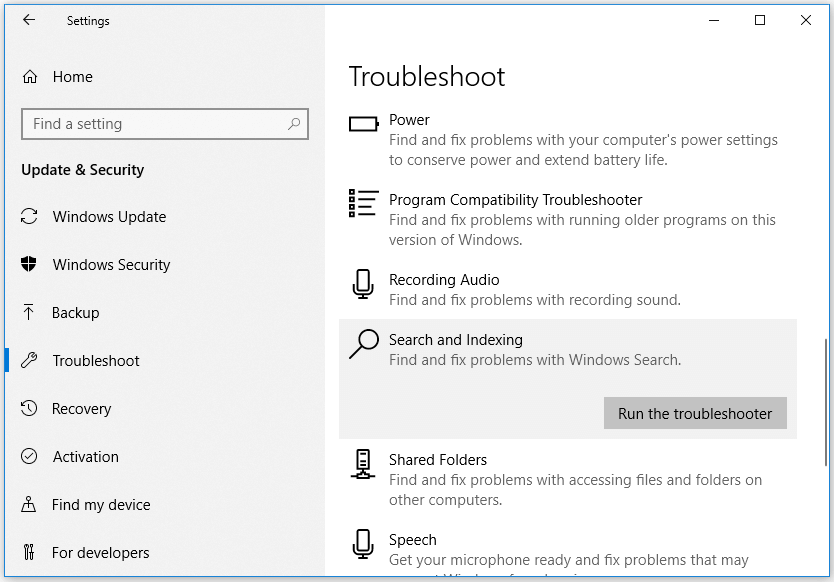
After the troubleshooting process is finished, you can restart your computer to check if Cortana can work well.
Tip 6. Update Windows 10
If your computer has a bug, it may also cause Cortana something went wrong error in Windows 10. You can run a Windows update to see if it can fix it.
You can click Start -> Settings -> Update & Security, then click Check for updates button to check and download Windows new updates.
Tip 7. Reinstall Cortana
If the above methods fail to fix Cortana something went wrong error in Windows 10, you can reinstall Cortana with PowerShell to have a try.
- You can press Windows + X key at the same time, and choose Windows PowerShell (Admin) to open it.
- Then input Get-AppXPackage -AllUsers | Foreach {Add-AppxPackage -DisableDevelopmentMode -Register “$($_.InstallLocation)\AppXManifest.xml”} in PowerShell window and hit Enter button to reinstall Cortana.
Bottom Line
These are the 7 tips to fix Cortana something went wrong error in Windows 10. If you have other ways to fix this issue, please do not hesitate to share with us.
User Comments :