
When you want to create a username for your Facebook Page, you can only receive an error saying Username Isn’t Available, This Page isn’t eligible to have a username. If so, do you know how to get rid of this error? In this MiniTool post, we will show you how to effectively solve the issue.
Facebook This Page Isn’t Eligible to Have a Username
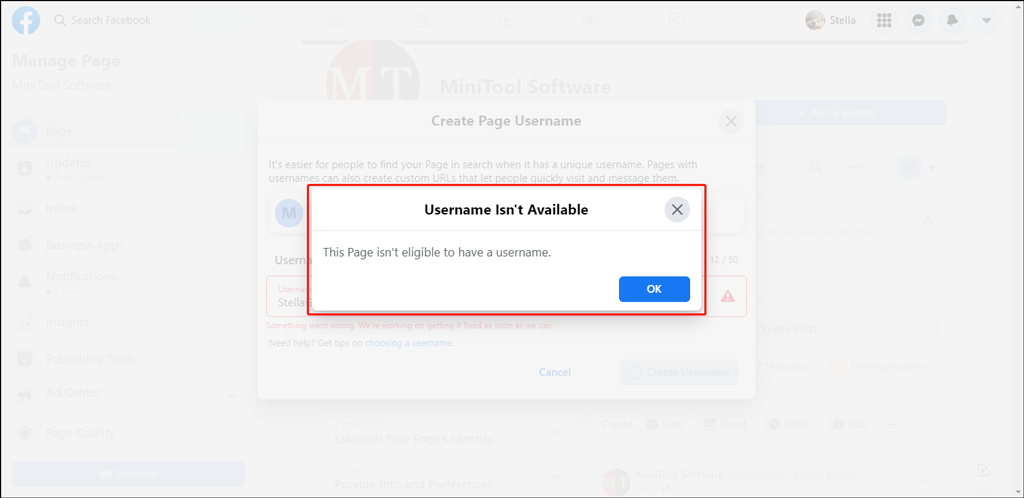
Facebook Page allows you to manage your professional presence on Facebook. You can create a Facebook Page to show your corporate image. After creating, you need to add a username for the Page. Usually, the process is smooth. However, at times you may see an error message saying:
Username Isn’t Available
This Page isn’t eligible to have a username.
The following image is just an example:
We believe that many of you are troubled by this issue. Don’t worry. This issue can be fixed: you can assign a new Page role (Admin) temporarily.
Solution: Assign a New Page Role on Facebook
Here is how to assign a new Page role on Facebook:
Step 1: Assign a new Page role
1. Go to your Facebook Page. You need to sign into with the admin account.
2. Scroll down the Manage Page list (on the left side of the screen) to the bottom and click Settings.
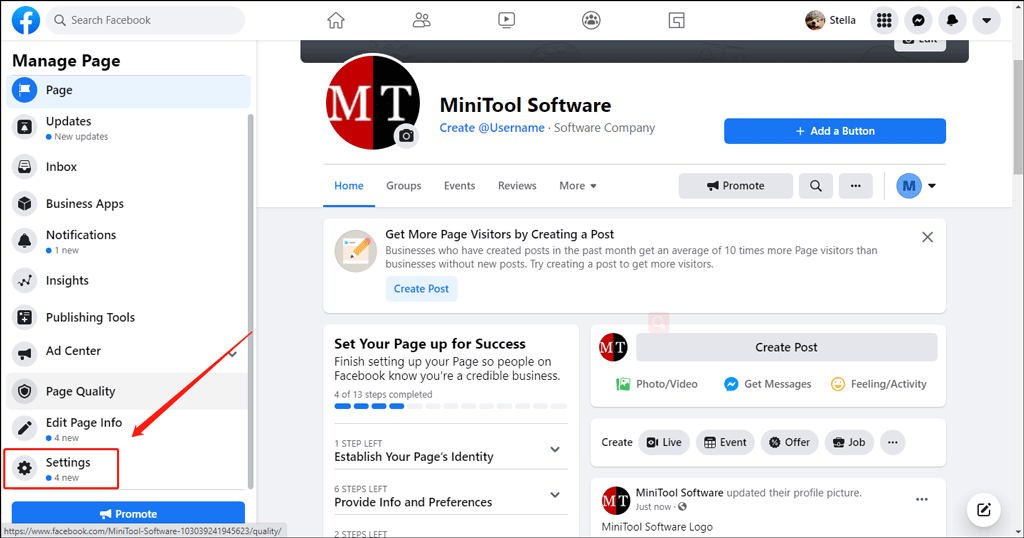
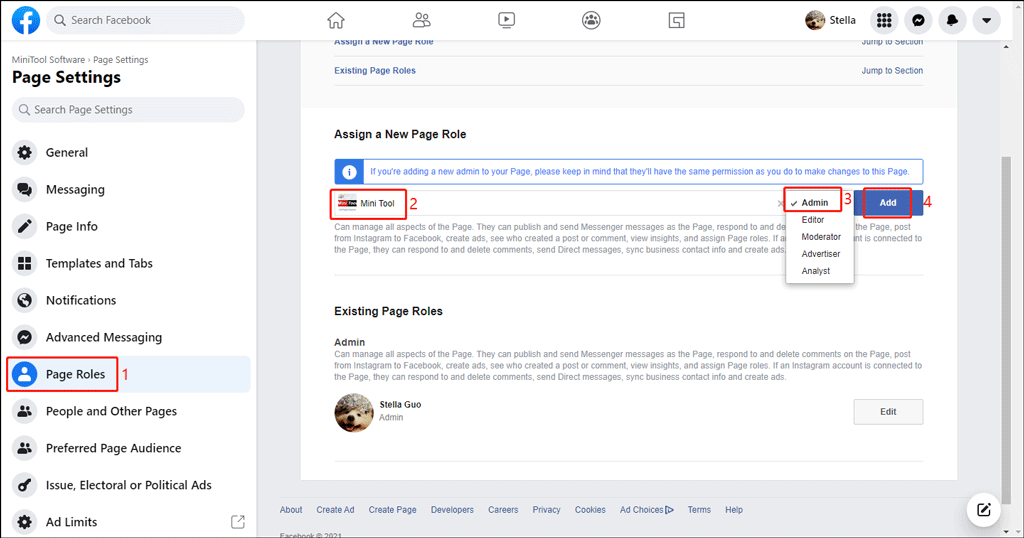
3. Select Page Roles from the left list on the next page.
4. Find the Assign a New Page Role In the following box, you need to type the username or email of the user you want to add as the admin.
5. Select the user from the search result.
6. Select Admin for the role.
7. Click Add.
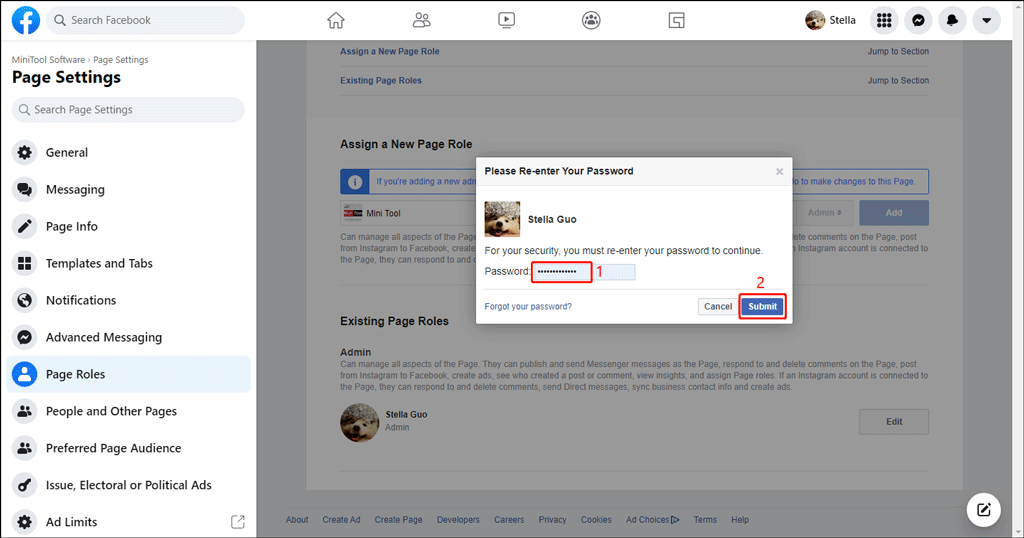
8. There will be a small pop-up window on which you need to re-enter your password. Just do it to continue.
9. You can see the user appear on the bottom of the page, with a Pending status. If you assign the wrong user, you can click the Cancel Invitation button to withdraw the invitation.
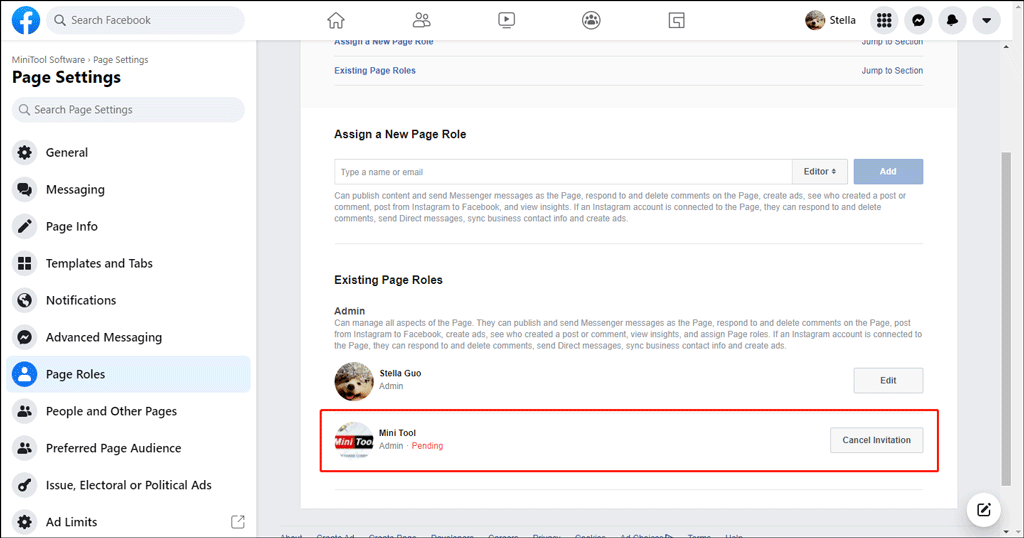
10. You need to ask your assigned user to accept the invitation. You can also use your friend’s account to do this if he/she trusts you.

Step 2: Create a Username for the Page
You should do the following steps using the Admin account. That is, the account you have signed as the admin in the above step.
1. Sign in to the admin account.
2. You can find the Page on the right side of the Home page. Click it to enter it.
3. Click Create @Username.

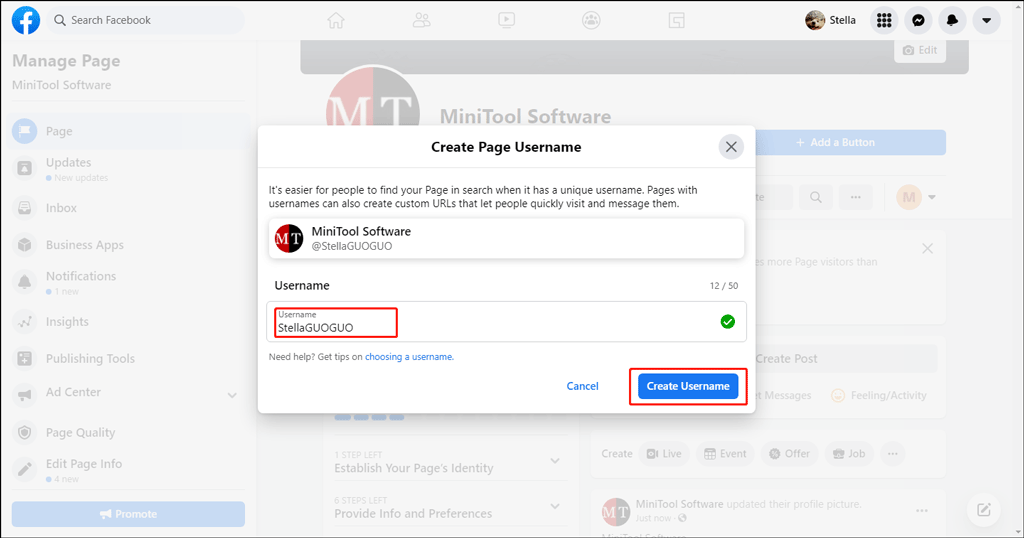
4. On the pop-up window, you need to enter your username you want to use.
5. Click any blank space on the window. Then, there will be a green check icon in the box and the Create Username button will turn blue.
6. Click Create Username.
Conclusion
The reason for Facebook This Page isn’t eligible to have a username is not sure currently. But the method we mentioned in this post can remove the error. You can just have a try. This method also prompts you to prepare an alternate account to solve this kind of unexpected problem.

If you have other related issues, you can let us know in the comments.
About The Author

Position: Columnist
Stella has been working in MiniTool Software as an English Editor for more than 8 years. Her articles mainly cover the fields of data recovery including storage media data recovery, phone data recovery, and photo recovery, videos download, partition management, and video & audio format conversions.
User Comments :