
Five Nights at Freddy’s: Secret of the Mimic Crashes at Startup
Five Nights at Freddy’s: Secret of the Mimic is the eleventh official work in the FNaF series, developed by Steel Wool Studios and published by ScottGames. It was officially released on June 13, 2025.
However, some gamers said that they encounter the problem of Five Nights at Freddy’s: Secret of the Mimic not launching. This annoying issue may prevent you from playing this game. if you are confused about how to get rid of it. The following content is beneficial for you.
First of all, I want to introduce the common causes of this crash problem to you.
- Plugin conflicts (such as sl.pcl.dl). Certain plugins used by the game (especially those related to NVIDIA Streamline) may cause launch failures.
- Corrupted configuration files. Corrupted game save settings or configuration files may prevent the game from loading properly.
- Graphics driver or DirectX issues. Outdated or incompatible graphics drivers, missing Visual C++ runtime libraries, mismatched DirectX versions, etc., may cause crashes.
- Interference from third-party software. Tools such as Steam Overlay, Discord Overlay, MSl Afterburner may conflict with the game.
- Influence of external devices or multiple monitors. Certain peripherals (such as steering wheels, handles, RGB controllers) or multi-screen settings may cause the game to fail to recognize the launch environment.
You can restart Steam and the game first, verify the integrity of the game files, and update graphics driver. If that doesn’t work, try the following more advanced methods.

Fix Five Nights at Freddy’s: Secret of the Mimic Crashing
Fix 1: Rename/Delete sl.pcl.dll File
The sl.pcl.dll file is part of the NVIDIA Streamline framework, and some versions of NVIDIA drivers conflict with this file, which may cause the game to crash. Renaming or deleting this file can resolve crashes problem.
Step 1: Press the Win + E keys to open File Explorer.
Step 2: Navigate to the following path:
C:\Program Files (x86)\Steam\steamapps\common\FNAF_SOTM\Engine\Plugins\Runtime\Nvidia\Streamline\Binaries\ThirdParty\Win64
Step 3: Right-click the sl.pcl.dll file to choose Delete or Rename.
Fix 2: Delete the Config Folder
Deleting the game’s Config folder can reset the application’s settings and solve configuration errors, interface anomalies, or startup failures.
Step 1: Open File Explorer and go to the following path:
C:\Users\Test\AppData\Local\FNAF_SOTM\Saved\SaveGames
Step 2: Select them all and right-click the area to choose Delete.
Fix 3: Run the Game From the Game Installation Folder
The game may rely on relative paths to load DLLs, resource files, or plugins. If launched from a desktop shortcut or other location, inconsistent paths may cause crashes. In this case, you can run the game from the game installation directory.
Step 1: Type Five Nights at Freddy’s: Secret of the Mimic in the Windows search, right-click it, and choose Open file location.
Step 2: Right-click the .exe file and choose Properties.
Step 3: Switch to the Compatibility tab and tick the box for Run this program as administrator.
Step 4: Click Apply > OK to confirm the change.
Fix 4: Allow the Game exe File to Antivirus
Many antivirus software programs will misidentify certain game files as potential threats during the scanning process. Allowing game files to pass through antivirus software can be a solution to crashes.
Step 1: Open Control Panel and click Windows Defender Firewall.
Step 2: Click Allow an app or feature through Windows Defender Firewall.
Step 3: Click Change settings > Allow another app to add the game.
Step 4: Make sure both the Private and Public boxes are ticked. Finally, click OK.
Fix 5: Run the Game on a Dedicated Graphics Card
Setting the game to run using a dedicated GPU can provide better performance, image quality, and stability, and help resolve game crash issues.
Step 1: Open Settings and click System > Display > Graphics settings.
Step 2: In the Choose an app to set preference section, click Browse to add the game.
Step 3: Select the game you just added and hit Options.
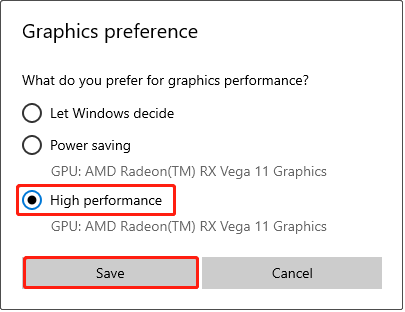
Step 4: In the new window, tick High performance.
Step 5: Finally, click Save to confirm the change.
Fix 6: Install Visual C++ Files
Many games rely on the Visual C++ runtime library (usually Microsoft Visual C++ Redistributable) to start and run properly. If this runtime is missing, the game may crash. So, installing Microsoft Visual C++ Redistributable can enable your system to run programs written in Visual C++.
MiniTool Power Data Recovery FreeClick to Download100%Clean & Safe
Final Words
That’s all the information about how to fix Five Nights at Freddy’s: Secret of the Mimic crashing. Hope these methods can help you.
User Comments :