
Face ID is a useful feature on the iPhone and iPad. You can use it to unlock your device, authenticate purchases, and sign in to apps. If your iPhone Face ID not working, you can read this post to learn what to do.
How to Fix iPhone Face ID Not Working?
- Check whether Your Device Supported Face ID
- Upgrade Your iPhone or iPad
- Check Your Face ID Settings
- Make sure that Nothing Is Covering the TrueDepth Camera
- Make sure Nothing Is Covered Your Face
- Face the TrueDepth Camera
- Restart Your Device
- Set up an Alternate Appearance
- Reset Face ID
Fix 1: Check whether Your Device Supported Face ID
Not all iPhone and iPad supports Face ID. When you think your iPhone Face ID not working, you’d better check whether your device supports Face ID.
These iPhone and iPad support Face ID:
iPhone:
- iPhone 12 Pro Max
- iPhone 12 Pro
- iPhone 12 mini
- iPhone 12
- iPhone 11 Pro Max
- iPhone 11 Pro
- iPhone 11
- iPhone XS Max
- iPhone XS
- iPhone XR
- iPhone X
iPad:
- iPad Pro 12.9-inch (4th generation)
- iPad Pro 12.9-inch (3rd generation)
- iPad Pro 11-inch (2nd generation)
- iPad Pro 11-inch
Fix 2: Upgrade Your iPhone or iPad
If you are sure your iPhone supports Face ID and your iPhone Face ID stops working, you need to make sure that you are using the latest iOS version on your device. That is, you need to check for updates and update iOS if necessary.
Update your iPhone, iPad, or iPod touch
Fix 3: Check Your Face ID Settings
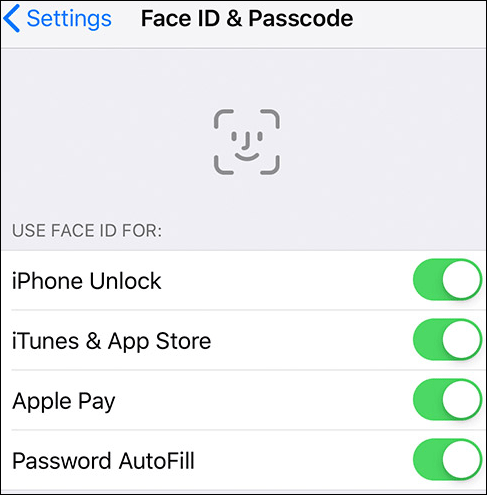
If your iPhone Face ID fails to work, you need to check its settings and see whether the feature you want to use Face ID with is turned on. You can go to Settings > Face ID & Passcode to make a confirmation.
Fix 4: Make sure that Nothing Is Covering the TrueDepth Camera
If your Face ID is not available on iPhone after using the above methods, you should check whether you have covered the TrueDepth camera inadvertently.
For example, you need to make sure that the camera is not covered by a case or a screen protector. When you’re using an iPad in landscape orientation, you need to make sure that your finger or palm doesn’t cover the TrueDepth camera. If yes, you will see an alert of Camera covered.
Fix 5: Make sure Nothing Is Covered Your Face
When you want your iPhone to recognize your face, you need to make sure that your face is not covered by something else. For example, you should not wear a face mask or a pair of sunglasses.
Fix 6: Face the TrueDepth Camera
Your iPhone Face ID will work only when it is in portrait orientation and you are facing the TrueDepth camera for face recognition. If it can’t capture your face, it will not work. So, you need to make sure that you are facing the TrueDepth camera but not somewhere else.
Fix 7: Restart Your Device
If your iPhone Face ID still fails, you can restart your iPhone or iPad and then try again. This process can remove some temporary issues on the device that may cause the problem.
Fix 8: Set up an Alternate Appearance
If your face looks different from the current Face ID on your iPhone, you need to set up an alternate appearance.
This guide tells you how to set up an alternate appearance:
- Unlock your device using the passcode.
- Go to Settings > Face ID & Passcode.
- Enter your passcode is asked.
- Tap Set Up an Alternate Appearance.
- Face your device and place your face inside the frame on the screen.
- Move your head slowly to complete the circle.
- Tap Continue when the first Face ID scan ends.
- Gently move your head to complete the circle once again.
- Tap Done when the Face ID setup ends.
Fix 9: Reset Face ID
If all of the above methods don’t work for you, you need to reset your Face ID. You can go to Settings > Face ID & Passcode, tap Reset Face ID, and then reset your Face ID according to the on-screen instructions.
These are the methods to fix iPad or iPhone Face ID not working. We hope they are useful to you. Should you have any related issues, you can let us know in the comment.
About The Author

Position: Columnist
Stella has been working in MiniTool Software as an English Editor for more than 8 years. Her articles mainly cover the fields of data recovery including storage media data recovery, phone data recovery, and photo recovery, videos download, partition management, and video & audio format conversions.
User Comments :