
You can use your computer to play HDR content as long as your display supports it. However, after your upgrade your Windows 10 to the latest version, you may find that Windows 10 HDR won’t turn on. In this post, MiniTool Software will show you how to fix Windows 10 HDR disabled and enable Windows 10 HDR successfully.
Windows 10 HDR Won’t Turn on
The full name of HDR is high-dynamic-range. As long as your computer display supports HDR, you can play HDR content using your PC. However, you may discover that your Windows 10 HDR won’t turn on for some reason.
Why is Windows 10 HDR disabled? This issue always happens after you upgrade your Windows 10. When your computer is trying to enable the HDR streaming settings, the HDR option is not turned on successfully. Besides, an incompatible HDMI connection can also cause this problem.
How to enable Windows 210 HDR? Now we will show you some methods in this post.
How to Fix Windows 10 HDR Won’t Turn on?
- Use Registry Editor to Enable Windows 10 HDR
- Use Command Prompt to Enable Windows 10 HDR
- Restore Your Windows to the Previous Version
- Check the Display and HDMI Port on Your Device
Method 1: Use Registry Editor to Enable Windows 10 HDR
If Windows 10 HDR is not enabled successfully, you can follow this guide to enable it using Registry Editor:
1. Press Win+R to open Run.
2. Type regedit and press Enter to open Registry Editor.
3. Go to the following path:
Computer\HKEY_CURRENT_USER\SOFTWARE\Microsoft\Windows\CurrentVersion\VideoSettings
4. Find the EnableHDRForPlayback option from the right panel and right-click it. Then, select Modify from the pop-up menu.
5. Modify the number in the Data value box to 1 and click OK to save the changes.
6. Go to Start > Settings > System to open Display. Then, you can try to enable HDR streaming to see whether it can work.
Method 2: Use Command Prompt to Enable Windows 10 HDR
If you can’t use the above method to enable Windows 10 HDR, you can use Command Prompt to have a try:
1. Use Windows Search to search for cmd.
2. Select Run as administrator for the first search result.
3. Type the following command in Command Prompt and press Enter:
reg add “HKCU\Software\Microsoft\Windows\CurrentVersion\VideoSettings” /v EnableHDRForPlayback /t REG_DWORD /d 1
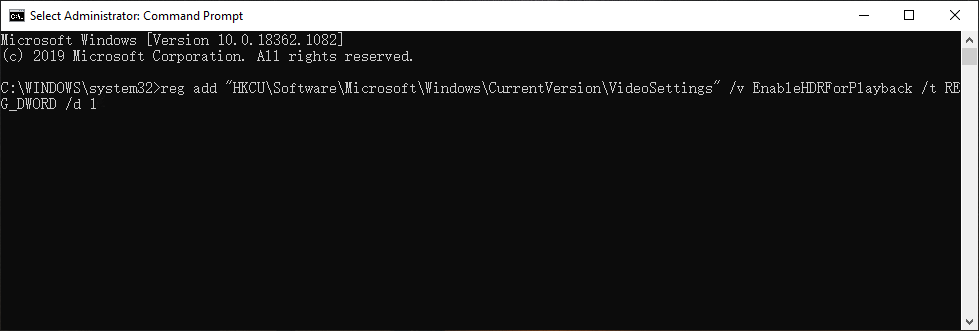
4. When the command is executed successfully, you can exit Command Prompt and reboot your computer. Next, you need to check whether your Windows 10 HDR is enabled successfully.
Method 3: Restore Your Windows to the Previous Version
As mentioned in the beginning, Windows 10 HDR won’t turn on always happens after upgrading Windows 10. You can restore your computer to the previous version to see whether the issue disappears.
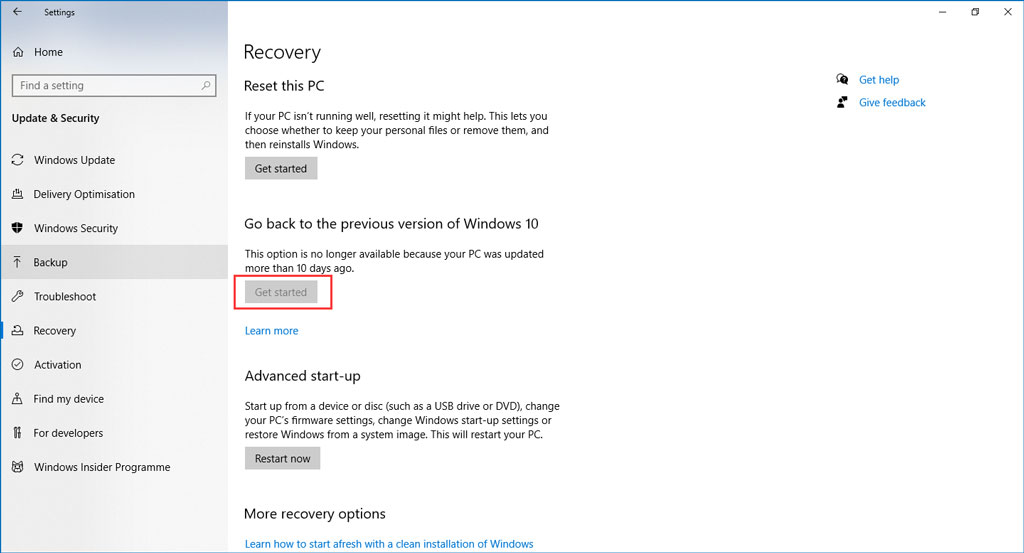
You can go to Start > Settings > Update & Security > Recovery and click Get Started under Go back to the previous version of Windows 10 to restore your Windows 10.
But this method only works when you upgrade your Windows 10 within 10 days. When the update period exceeds 10 days, the Get started button will be greyed out. If so, you can refer to this post to solve go back to an earlier build not available: 3 Fixes for Go Back to an Earlier Build Not Available Windows 10.
Method 4: Check the Display and HDMI Port on Your Device
If you are using multiple HDR-enabled displays, you need to make sure that the multi-monitor setup is correct. If you are using a monitor plus TV setup, you need to turn on the HDR stream when your TV is connected to your PC.
An incompatible HDMI cable can also lead to Windows 10 HDR won’t turn on. In this case, you need to use an HDMI 2.0b cable to transmit the signal. So, please make sure that you are using the right cable.
Moreover, if you can’t find the HDR Streaming option, it is likely that your monitor or TV doesn’t support HDR.
Bonus: How to Recover Your Lost Data?
If you delete or lose your data by mistake, you can use MiniTool Power Data Recovery, a free file recovery tool, to get it back.
This software is specially designed to recover data from different kinds of data storage devices like internal hard drives, external hard drives, SD cards, memory cards, and more. With the trial edition, you can scan the drive and then check whether this software can find your needed files. If yes, you can use a full edition to restore them to a suitable location.
MiniTool Power Data Recovery TrialClick to Download100%Clean & Safe
After reading this post, you should know how to fix Windows 10 HDR won’t turn on. Should you have any related issues, you can let us know in the comment.
About The Author

Position: Columnist
Stella has been working in MiniTool Software as an English Editor for more than 8 years. Her articles mainly cover the fields of data recovery including storage media data recovery, phone data recovery, and photo recovery, videos download, partition management, and video & audio format conversions.
User Comments :