
GitHub Desktop not opening has bothered some users for a long time. Why does it work improperly? According to many users, bugs in the installed version, incomplete installation, compatibility problems, and corrupted app cache are the common factors of GitHub Desktop not opening. In this post from MiniTool Website, we will discuss how to make this app run properly again.
GitHub Desktop Not Opening
GitHub Desktop is an open-source tool that helps you adapt the best practices for git through an interactive user interface. With it, you can work with Git without the hassle of command line. However, you will find GitHub Desktop not opening, loading or responding at times. What’s wrong with it? If you wonder what to do when encountering GitHub Desktop not responding, then this guide is for you!
# Back up Your Files with MiniTool ShadowMaker!
Some computer issues are pretty hard to tackle and they might lead to severe data loss if not dealt with properly. Hence, why not develop a habit of backing up your data regularly? With a backup copy in hand, you can restore your data easily and you will be never afraid of data loss. Make sure to back up your files with reliable PC backup software such as MiniTool ShadowMaker, which can back up and restore your files, folders, systems, and partitions easily.
MiniTool ShadowMaker TrialClick to Download100%Clean & Safe
How to Fix GitHub Desktop Not Opening?
Fix 1: Open GitHub Desktop via Windows PowerShell
If you are unable to open GitHub Desktop with the conventional method, you can launch it via Terminal. Here’s how to do it:
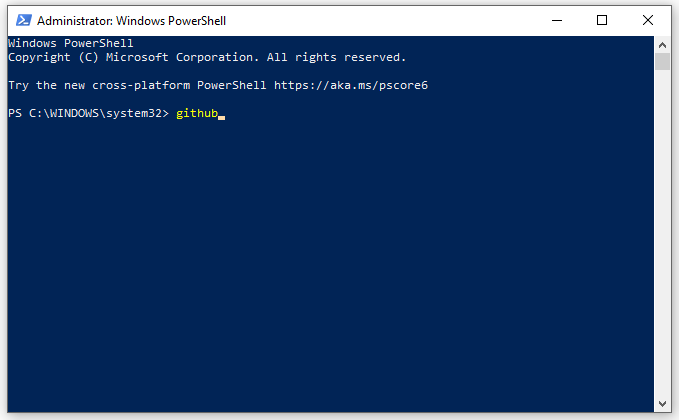
Step 1. Right-click on the Start icon to choose Windows PowerShell (Admin).
Step 2. Type github and hit Enter to launch GitHub Desktop.
Fix 2: Update GitHub Desktop
If you can open this app for a while after restarting your computer, you can consider updating GitHub Desktop to check for any improvement. If you cannot open it at all, please skip this solution.
Step 1. Open the app and hit Help.
Step 2. In the drop-down menu, choose About GitHub Desktop and then press Check for Updates.
Step 3. If there is an update available, download and install it to the latest version.
Fix 3: Run GitHub Desktop as an Administrator
Missing permission or compatibility can also lead to GitHub Desktop blank screen or not opening. Follow these guidelines to run this app as an administrator in compatibility mode:
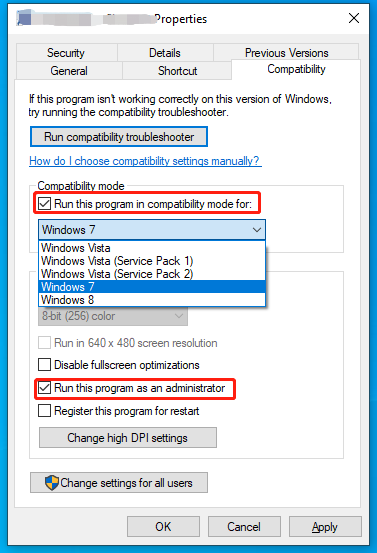
Step 1. Right-click on GitHub Desktop and choose Properties.
Step 2. Under the Compatibility tab, tick Run this program in compatibility mode for and select a previous Windows version from the drop-down menu.
Step 3. Tick Run this program as an administrator and tick Apply & OK.
Fix 4: Clear the App Cache
Another common approach for GitHub Desktop not working is to delete the app cache. This operation will remove any inconsistency or file corruption that triggers GitHub Desktop not loading. To do so:
Step 1. Reboot your system.
Step 2. Press Win + E to open File Explorer.
Step 3. In the address bar, navigate to the following path:
%LocalAppData%\GitHubDesktop
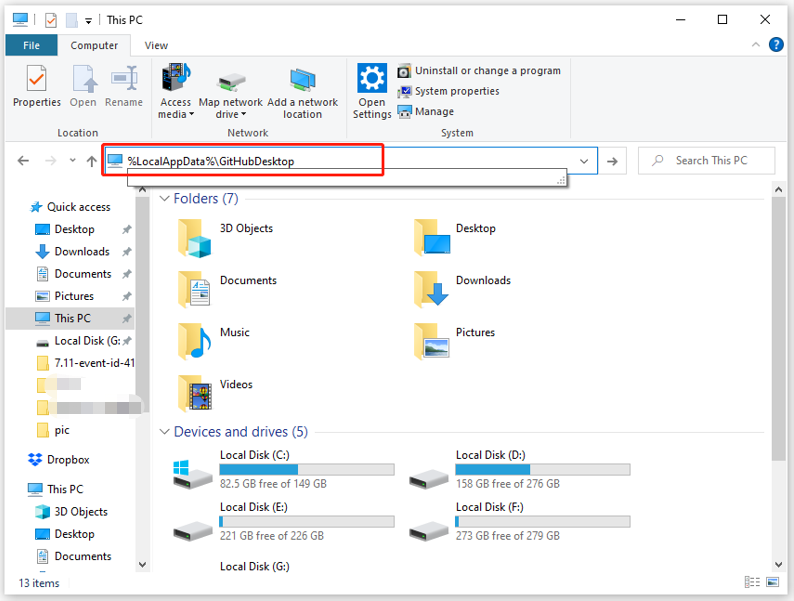
Step 4. Press Ctrl + A to select all the files and right-click on them to choose Delete.
Step 5. After these files are all deleted, relaunch the app to inspect if GitHub Desktop not opening disappears.
Fix 5: Reinstall GitHub Desktop
If GitHub not working not opening is still there, the last option is to reinstall the app. Here’s how to do it:
Step 1. Press Win + R to evoke the Run box.
Step 2. Type appwiz.cpl and hit Enter to open Programs and Features.
Step 3. Scroll down to find GitHub Desktop and right-click on it to choose Uninstall.
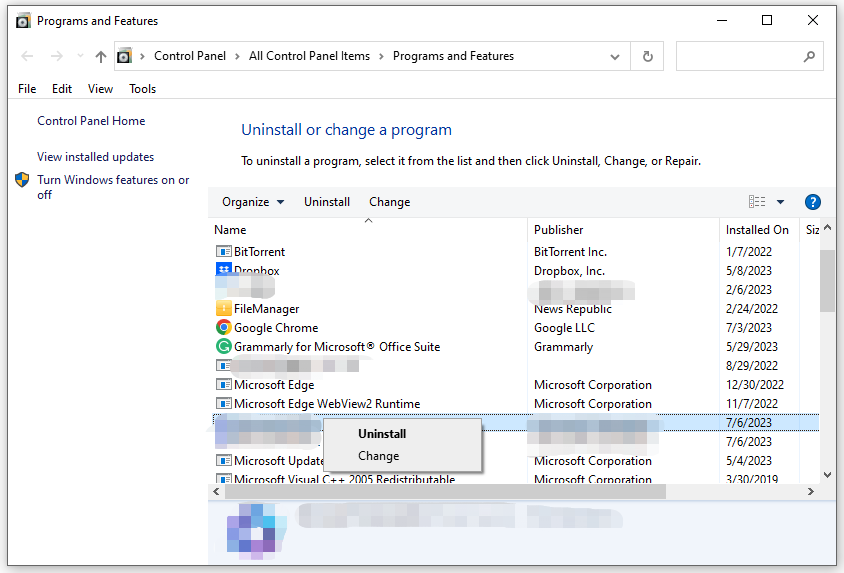
Step 4. Then follow the uninstallation wizard to complete the rest process.
Step 5. Navigate to this path in File Explorer to delete all the files in the GitHubDesktop folder:
%LocalAppData%\GitHubDesktop
Step 6. Restart your computer and then go to the official website to download GitHub Desktop again.
User Comments :