
The advanced image search feature included in Google Chrome is very useful when people are searching for images; it allows users to find a certain picture or related images quickly. MiniTool Solution offers this post to help people know better of what Google images search advanced is and how to make the most of this feature.
What Is Advanced Image Search
Have you ever used Google Chrome to search images? If not, do you know how to Google an image? If yes, did you use the advanced image search? As one of the most popular browsers in the world, Google Chrome provides users with different ways to search for the information they’re interested: Google voice search, Google song search, reverse image search, etc. By using these features, users can find what they need accurately and quickly. Apart from these, Google is still working on optimizing Google search and developing more features to assist users’ search.
MiniTool Power Data Recovery TrialClick to Download100%Clean & Safe
Ok, let’s get down to business. What is Google advanced image search? How to make the most of the Google image search? Please let me tell all about them for you.
How to Search for Images in Google
To tell the truth, searching for images on Google is a simple process.
- You should first navigate to the app icon and double click on it to open Google.
- After that, you can type the keywords of what you’re looking for into the search box.
- Then, press Enter and select the Images option under the search box.
- Many images will be found and list in rows. You can click one to go to the corresponding website using it.
- You may browse the search results to find the image you want. (You could download the image to computer by right clicking on it and choosing Save image as.)
Full Fix: Google Chrome Not Working (Not Responding/Won’t Open).

Most people tend to look through the results to find the suitable image manually. They forget to use the advanced image search feature in Google, which allows them to find images more accurately (this is what we called refined image search).
How to Do Advanced Image Search Google
This part will talk about how to search for Google advanced images and the advanced search tools (or filters) you can use to make clear what you are looking for even further.
Google Advanced Image Search
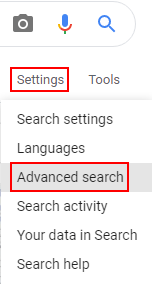
After you performed a standard image search on Google, you could see an option called Settings under the search box. Just click on the Settings option and then choose Advanced search from the drop-down menu; this will bring you to the Advanced Image Search page.
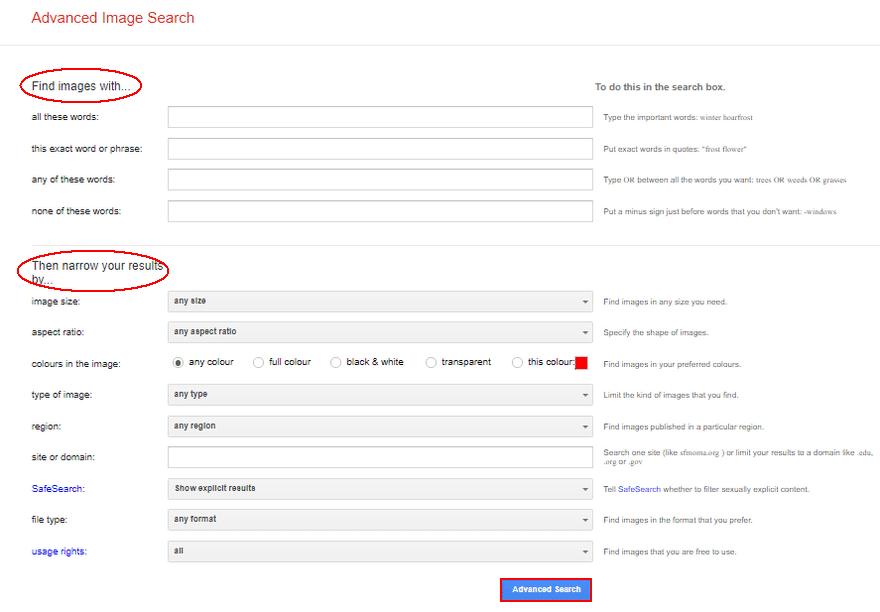
- Define the words or phrases you want to find images with.
- Use the filters I’ll discuss later (image size, image color, image type, etc.) to narrow the image search results.
- Click on the blue Advanced Search button at the bottom.
- Browse the search results to find the one you need.
This feature helps you get the image you want more quickly.
Google Advanced Tools/Filters
After you performed a standard image search on Google, you could also see an option called Tools on the right side of Settings. Just click on it and you’ll see a line of filters appeared under this line of options: Size, Color, Type, Time, and Usage Rights. What are these tools and how to use them in Google advanced search image?
Size:
It refers to the image size you can appoint to narrow the search results. Just click Size and choose a proper option from: Any size, Large, Medium, and Icon.
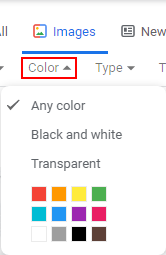
Color:
It refers to the colors in the image you are searching for. Just click Color and choose from these options: Any color, Black and white, and Transparent (you need to appoint a specific color under it).
Type:
It refers to the type of Google advanced images you want. Please click Type and choose from the following options: Any type, Clip Art, Line Drawing, and GIF.
Time:
It refers to the time when the images are published. You can click Time and choose a time range from: Any time, Past 24 hours, Past week, Past month, and Past year.
Usage Rights:
This tool helps you confirm which photos can be reused and which ones cannot. Please click Usage Rights and choose from: All, Creative Commons licenses, and Commercial & other licenses.
How to find images you can use & share?
Hope the advanced image search feature and the filters mentioned above can help you find the images you need quickly!
User Comments :