
The Windows Defender icon is automatically displayed on the Taskbar or on the system tray since Windows 10 Anniversary Update. But do you know how to hide Windows Defender icon? This post shows you 5 different ways. Besides Windows Defender, you can also use MiniTool software to protect your PC.
Windows Defender is a built-in anti-malware program of Windows. It was first released in the Windows XP and later shipped with Windows Vista and Windows 7. The Windows Defender icon is automatically displayed on the Taskbar or on the system tray since Windows 10 Anniversary Update.
So, the Windows Defender notification icon will make it easier for users to access the built-in security suite. However, to some users, they say that the Windows Defender notification icon is totally useless for them. So they ask whether they can remove or hide Windows Defender icon.
Fortunately, you can dismiss the Windows Defender notification icon. You can remove Windows Defender icon from Taskbar without disabling its functionality.
And in the following section, we will show you how to hide Windows Defender icon.
Way 1. Hide Windows Defender Icon via Task Manager
The first way to hide Windows Defender icon is to hide it via Task Manager. Now, here is the tutorial.
Step 1: Right-click on the Taskbar and choose Task Manager from the context menu to continue.
Step 2: In the pop-up window, go to the Startup tab. Then right-click Windows Defender notification icon and choose Disable to continue.
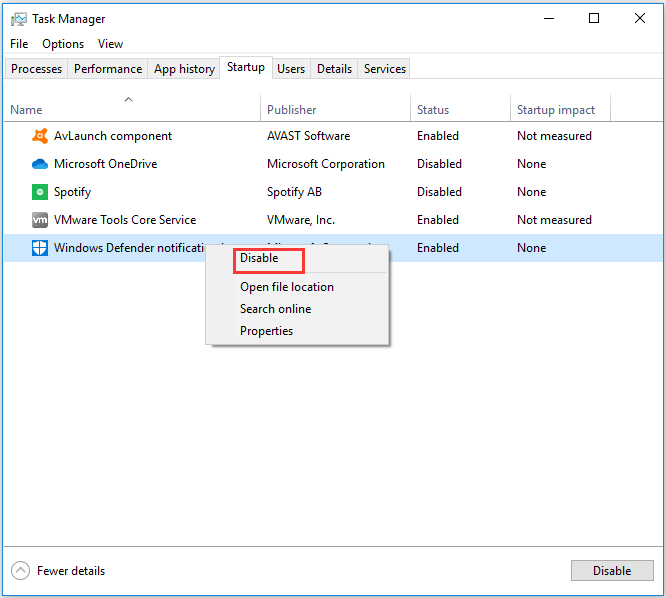
When you have finished all steps, the Windows Defender notification icon will be removed from the system tray at the next startup. So, you can reboot your computer to check whether you have successfully hidden Windows Defender icon.
Way 2. Hide Windows Defender Icon via Settings
Here, we will show you the second way for Windows 10 hide Windows Defender icon. You can remove Windows Defender icon from Settings.
Here is the tutorial.
Step 1: Press Windows key and I key together to open Settings.
Step 2: In the pop-up window, choose Personalization.
Step 3: Then choose Taskbar in the left panel and scroll down to find Notification area to continue. And click Select which icons appear on the taskbar.
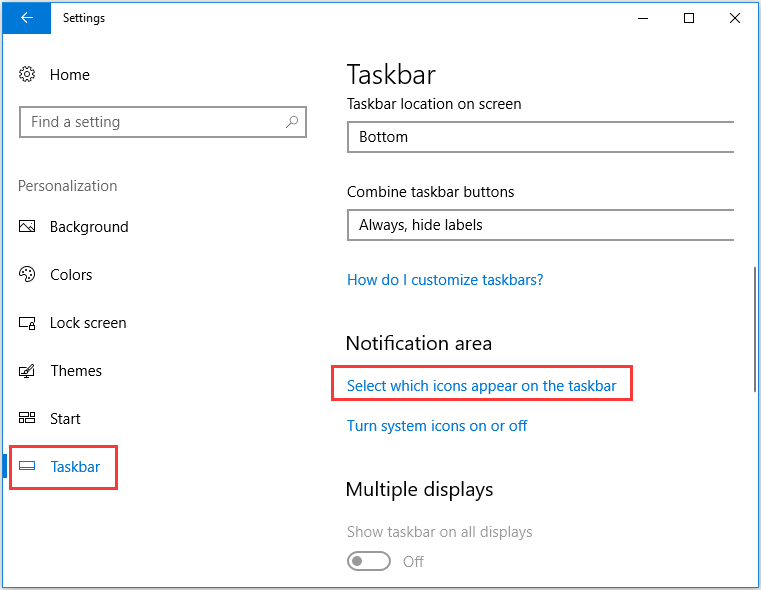
Step 3: In the next window, select the Windows Defender notification icon and switch the toggle to Off.
When all steps are finished, you can check whether the Windows Defender icon has been removed from the Taskbar or the system tray.
Way 3. Hide Windows Defender Icon via Startup
Here, we will show you the third way to disable Windows Defender icon. You can hide Windows Defender icon in the Startup.
Here is the tutorial.
Step 1: Press Windows key and R key together to open Run dialog. They type the ms-settings:startupapps in the box and click OK to continue.
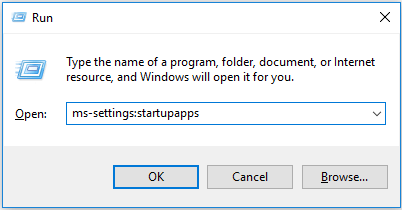
Step 2: In the pop-up window, find out Windows Defender notification icon and switch it toggle to Off.
After that, you can check whether you have successfully removed Windows Defender icon from Taskbar.
Way 4. Hide Windows Defender Icon in Registry Editor
The fourth way to hide Windows Defender icon is to remove it from the Registry Editor. Then we will show you how to hide Windows Defender icon registry with the step by step guide.
Step 1: Press Windows key and R key together to open Run dialog. Then type regedit in the box and click OK to continue.
Step 2: In the Registry Editor window, please navigate to the specific folder according to the following path.
HKEY_LOCAL_MACHINE\SOFTWARE\Policies\Microsoft\Windows Defender Security Center\Systray
Step 3: The right-click the HideSystray on the right panel and change its value data from 0 to 1.
After you have finished all steps, reboot your computer and check whether you have successfully removed Windows Defender icon from Taskbar.
Way 5. Hide Windows Defender Icon via Group Policy
Apart from the ways listed above, there is another available way to hide Windows Defender icon. You can remove Windows Defender icon from Taskbar via Group Policy. But this method can only be used for Windows 10 1803 or advanced editions.
Now, we will show you how to remove Windows Defender icon Group Policy.
Step 1: Press Windows key and R key together to open Run dialog. Then type gpedit.msc in the box and click OK to continue.
Step 2: In the Local Group Policy Editor window, please navigate to the following location.
Computer Configuration \ Administrative Templates \ Windows Components \ Windows Security \ Systray
Step 3: On the right panel of Systray, double-click Hide Windows Security Systray and choose Enable. Then click OK to continue.
After all steps are finished, reboot your computer and check whether you have hidden Windows Defender icon.
Final Words
To sum up, this post has introduced 5 ways to hide Windows Defender icon. If you also want to remove Windows Defender icon from Taskbar or the system tray, try these ways.
User Comments :