
Error code 0x800704ec can prevent you from accessing Microsoft Defender or Microsoft Store. In this post, we explain the possible causes and provide several effective methods to fix this error in Windows 11/10.
Quick Answer
Error code 0x800704ec indicates that an app is blocked by Group Policy, which usually occurs when opening Windows Defender or Microsoft Store.
To quickly fix this issue, uninstall the third-party antivirus software like Avast or McAfee, modify Group Policy settings, and edit the Windows registry.
About Error Code 0x800704ec
Error code 0x800704ec is a Windows error that indicates an application is blocked by group policy.
Some users experience the error when they attempt to open Windows Defender. Other users run into the error when they launch the Microsoft Store app and try to install their favorite programs. Here is the error message:
This program is blocked by group policy. For more information, contact your system administrator. (Error Code: 0x800704ec)
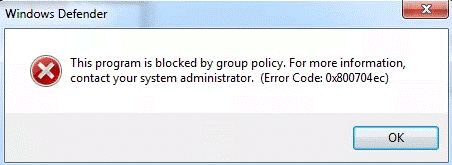
Have you also encountered the same error on your computer? If so, continue reading to get the reasons and solutions to this error.
Causes of Error Code 0x800704ec
The following table outlines some common causes:
| Cause | Description |
| Group Policy restrictions | Windows Defender or Microsoft Store is disabled. |
| Third-party antivirus conflicts | Another security program like Avast or McAfee prevents Windows Security (Defender) from running. |
| Registry misconfiguration | Defender-related keys are changed incorrectly. |
| Work/school account policies | An administrator may block certain applications through group policies. |
| Disabled Windows Defender services | Required Defender services are stopped or disabled. |
| Corrupted system files | Windows components fail to work properly. |
How to Fix Error Code 0x800704ec on Windows 10/11
To fix error code 0x800704ec, temporarily uninstall antivirus software, modify the Windows registry, check for Group Policy conflicts, restart essential services, and perform SFC and DISM commands.
Solution 1. Temporarily Uninstall Other Antivirus Software
Third-party antivirus software such as Avast, Malwarebytes, Norton, or McAfee may conflict with Windows Security and result in the error. In this case, try temporarily uninstalling other antivirus software to fix the error.
Here’s the guide:
Step 1. Press Win + S to open the Search window, type “control panel” and press Enter.
Step 2. In the Control Panel window, set View by to Large icons, and select Programs and Features.
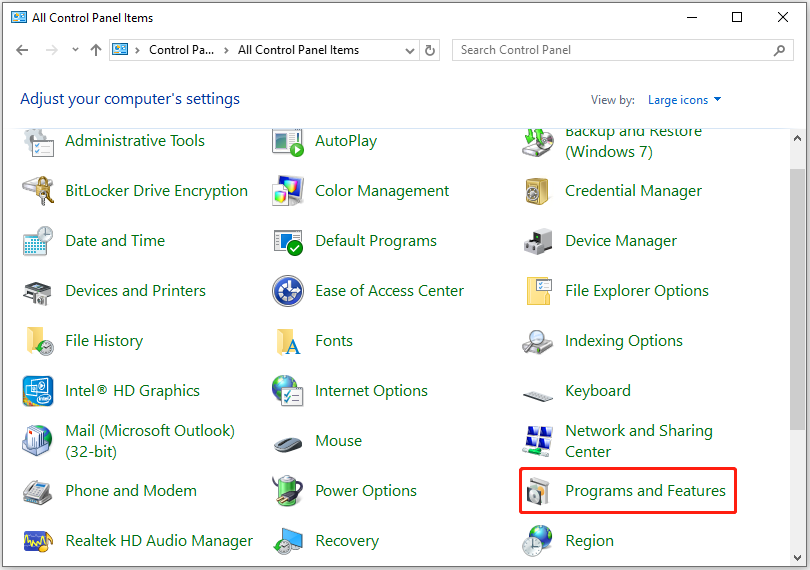
Step 3. Now, choose the antivirus software from the app list, right-click it, and select Uninstall.
Step 4. Follow any prompts or on-screen instructions to complete the removal process.
Solution 2. Enable the Windows Defender Services
If Windows Defender services on your computer are disabled, it’s easy for you to run into Windows Defender error 0x800704ec. In this circumstance, enable the services related to Windows Defender to fix the error. Here are the detailed steps:
Step 1. Open Run, type “services.msc” and press Enter.
Step 2. Check the Windows Defender services in the Services list to see if they are running.
- Windows Defender Advanced Threat Protection Service
- Windows Defender Firewall
- Security Center
- Microsoft Defender Antivirus Network Inspection Service
- Microsoft Defender Antivirus Service
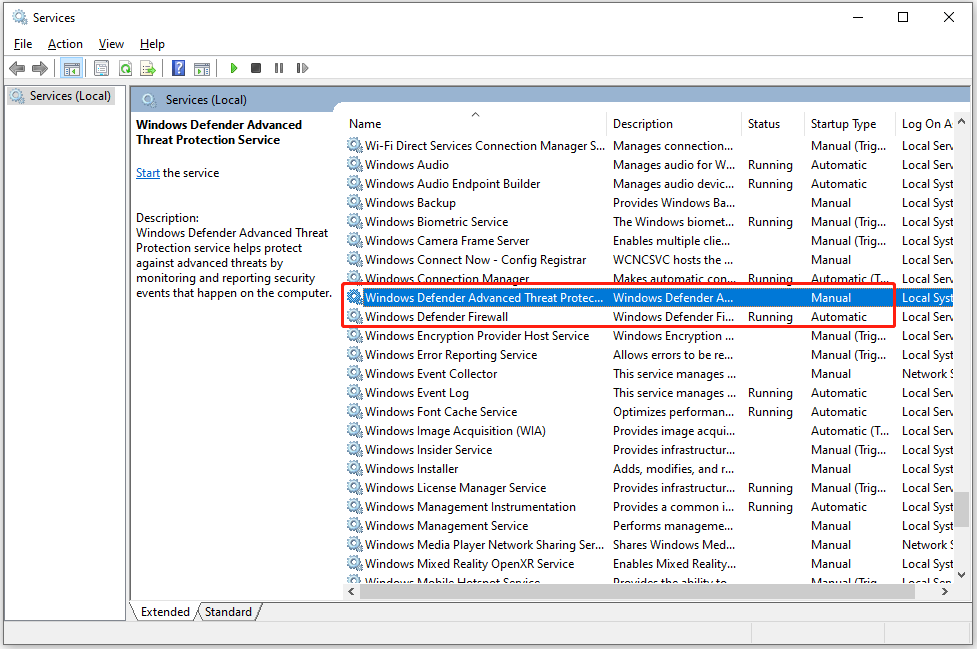
Step 3. If the Status column doesn’t say “Running”, just right-click the service and choose Start to enable it.
Step 4. Once done, restart your PC and check if the error is fixed.
Solution 3. Check for Group Policy Conflicts
If Windows Defender or Microsoft Store’s group policy blocks access, you may encounter error code 0x800704ec. In this circumstance, try checking for Group Policy conflicts to fix the error. Here are the steps:
Step 1. Open Run, type “gpedit.msc” and press Enter.
Step 2. In the prompted Local Group Policy Editor window, go to the following path:
- If Windows Defender is unable to turn on: Computer Configuration > Administrative Templates > Windows Components > Microsoft Defender Antivirus
- If Microsoft Store is blocked: Computer Configuration > Administrative Templates >Windows Components > Store
Step 3. In the right panel, find Turn off Microsoft Defender Antivirus or Turn off the Store application and double-click it.
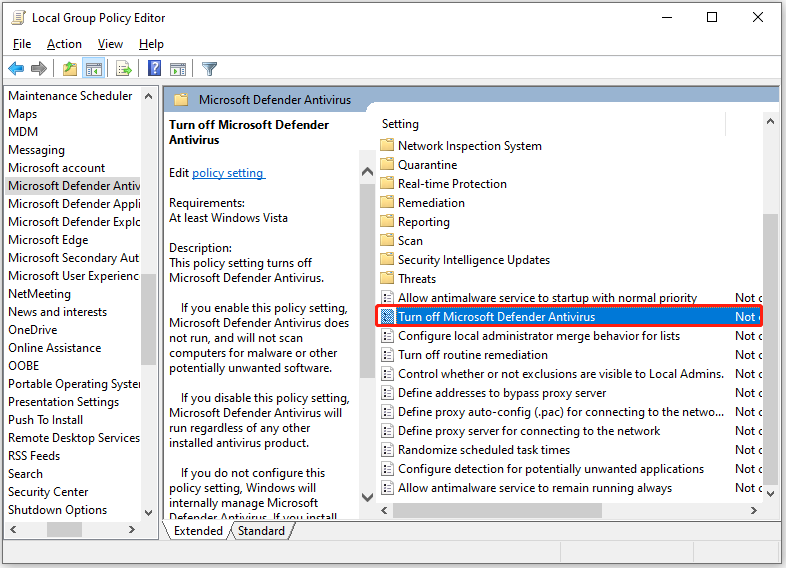
Step 4. Select Not Configured, click Apply, and then OK. Or, do the same change in the Turn off the Store application window.
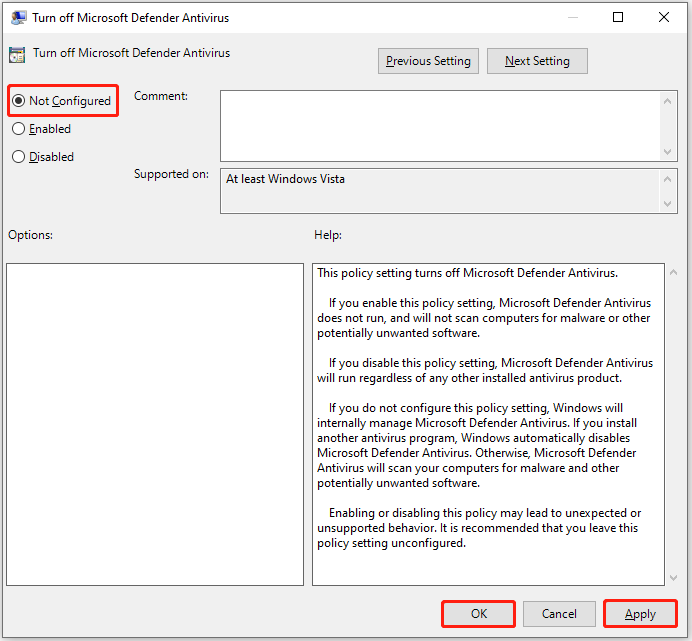
Step 5. Once done, restart your system and open Windows Security to check if the error is solved.
Solution 4. Modify the Windows Registry
Improper registry settings can trigger Intune 0x800704ec as well. In this situation, try to modify the Windows registry to troubleshoot the error. Here’s how to do that:
Step 1. Press Win + R to open Run, type “regedit” and press Enter. If a UAC window pops up, click Yes to continue.
Step 2. Navigate to this path:
- For Microsoft Store: HKEY_LOCAL_MACHINE\SOFTWARE\Policies\Microsoft\WindowsStore
- For Windows Defender: HKEY_LOCAL_MACHINE\SOFTWARE\Policies\Microsoft\Windows Defender
Step 3. Delete the related entry if it exists.
- Delete the key RemoveWindowsStore or set its value to 0 (for Store issues).
- Delete DisableAntiSpyware or DisableRealtimeMonitoring, or similar keys (for Defender issues).
Step 4. Restart the computer and check if the error has been resolved.
Solution 5. Create a New Local Admin Account
Some people report that they fix the Intune 0x800704ec error successfully by creating a new local admin account. If you want to have a try, please do as follows:
Step 1. Press Win + I to open Settings.
Step 2. Go to Accounts > Family & other users.
Step 3. Under the Other users section, click Add someone else to this PC and follow the on-screen guide to create a new local user account.
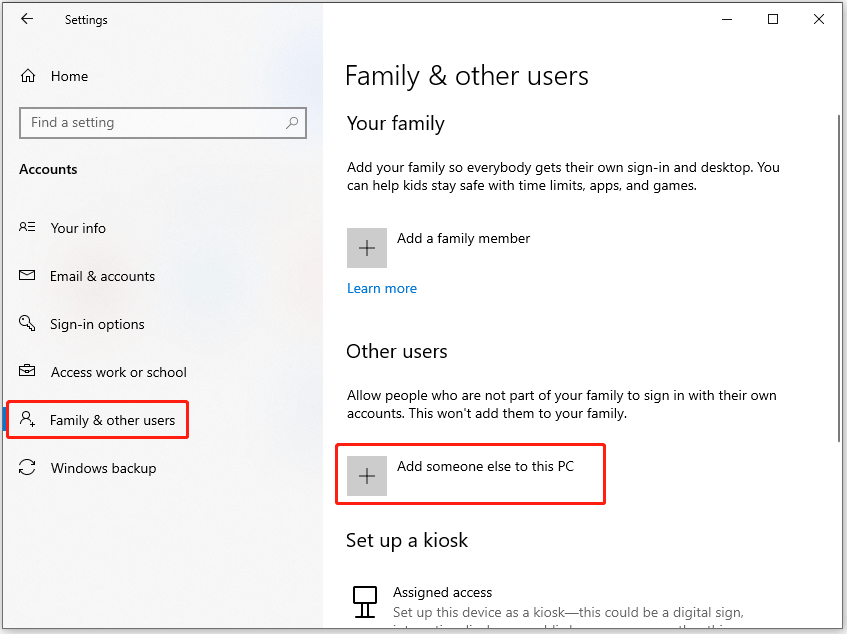
Step 4. Sign in with the new account and check if the issue persists.
Solution 6. Remove Work or School Accounts
If the “this program is blocked by group policy 0x800704ec” error is occurring on a work or school computer, a system administrator may have blocked certain applications through a policy. In this case, you need to contact the administrator for assistance.
Additionally, if you are using a work or school account on a personal device and encounter this error, try removing work or school accounts to fix the error. Here’s the tutorial:
- Open Settings.
- Navigate to Accounts > Access work or school.
- If a work or school email address is listed, select and disconnect it.
- Add it back within the specific app if needed.
Solution 7. Reset the Microsoft Store
If you encounter the Microsoft Store error code 0x800704ec on Windows 10/11, try resetting the Microsoft Store to solve the error. Here are the detailed steps:
- Open Run.
- Type “wsreset.exe” and press Enter.
- Wait for Command Prompt to reset the cache and close automatically.
- Check if the Microsoft Store opens properly.
Solution 8. Run SFC and DISM
Corrupted system files may also cause Windows error code 0x800704ec. If you suspect the error on your PC is caused by this reason, try running the SFC and DISM commands to fix the error. Here’s the guide:
Step 1. Open the Search window, type “cmd” in the search box. Then, right-click Command Prompt under Best match and select Run as administrator.
Step 2. In the elevated Command Prompt window, type “sfc /scannow” and press Enter.
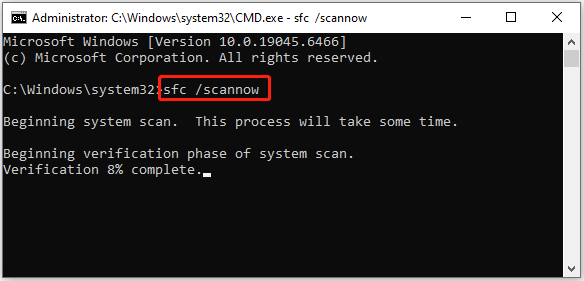
Step 3. Once done, restart your computer and start Windows Defender again. If the Windows Defender error persists, run DISM commands:
- DISM.exe /Online /Cleanup-Image /ScanHealth
- DISM.exe /Online /Cleanup-Image /CheckHealth
- DISM.exe /Online /Cleanup-Image /RestoreHealth
Solution 9. Reinstall Microsoft Store (If Necessary)
If none of the above solutions can help you fix error code 0x800704ec in Microsoft Store, try reinstalling Microsoft Store by performing commands in PowerShell. Here are the detailed steps for reinstalling the Microsoft Store:
Step 1. Press Win + X to open the Quick Link menu and select Windows PowerShell (Admin).
Step 2. Run the command to remove the Microsoft Store:
Get-AppxPackage *Microsoft.Store* | Remove-AppxPackage
Step 3. Run the following command to reinstall the Microsoft Store:
Get-AppxPackage -allusers Microsoft.Store | Foreach {Add-AppxPackage -DisableDevelopmentMode -Register “$($_.InstallLocation)\AppXManifest.xml”}
Step 4. Restart your computer and check if the error has been resolved.
Back Up Data to Avoid Data Loss
If none of the above methods fix the 0x800704ec error and Windows Security remains blocked, your system files or user profile may be severely corrupted. In this case, performing a Windows reset can be a last resort.
To prevent data loss, create a full backup of your important files before proceeding. You can utilize a professional PC backup software like MiniTool ShadowMaker. It allows you to quickly and safely back up your data to an external drive or USB flash drive.
Step 1. Download and install MiniTool ShadowMaker on your computer. Then, launch it to enter the main interface.
MiniTool ShadowMaker TrialClick to Download100%Clean & Safe
Step 2. Select Backup from the left panel. Then, go to SOURCE and select Folders and Files.
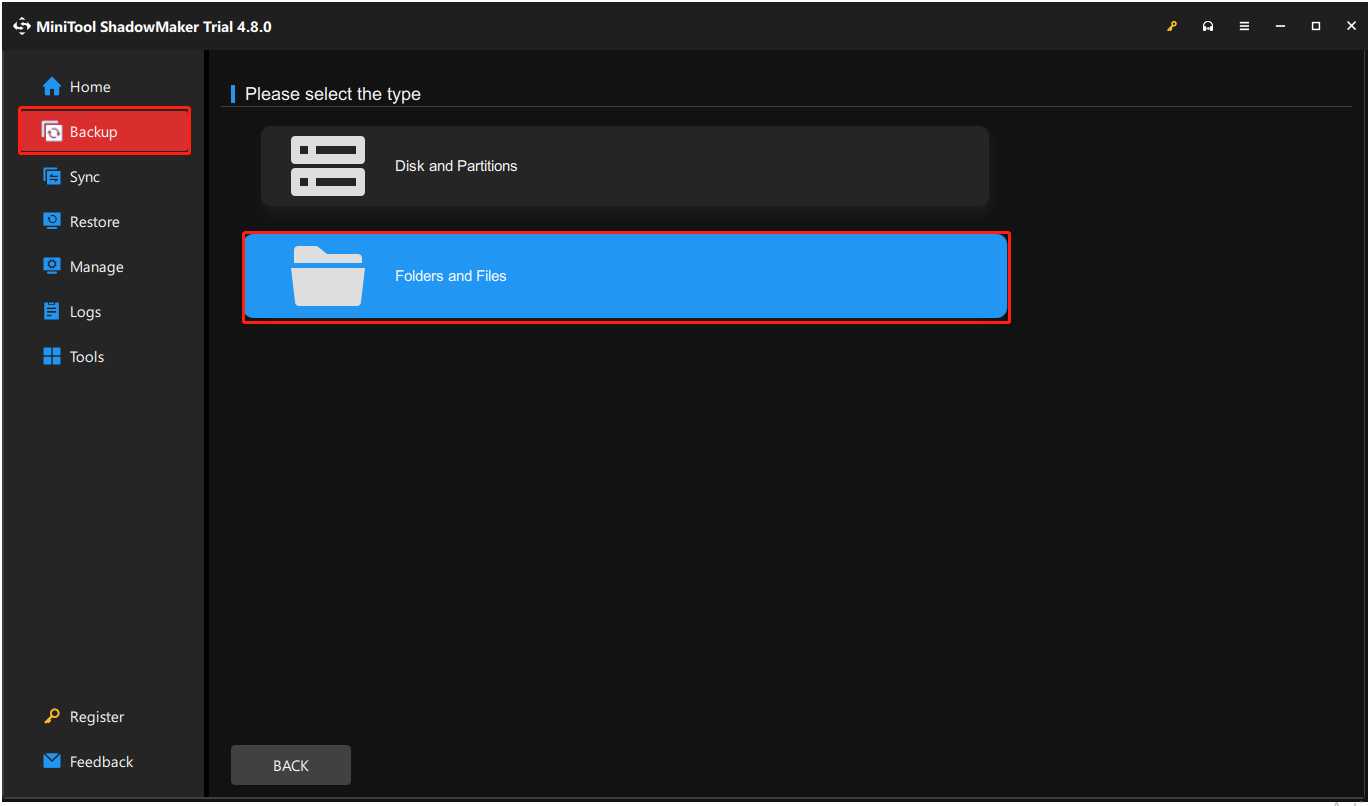
Step 3. Check the files that you want to back up and click OK.
Step 4. Go to DESTINATION and choose a safe location to store the backup files.
Step 5. Click Back Up Now and OK sequentially to execute the operation.
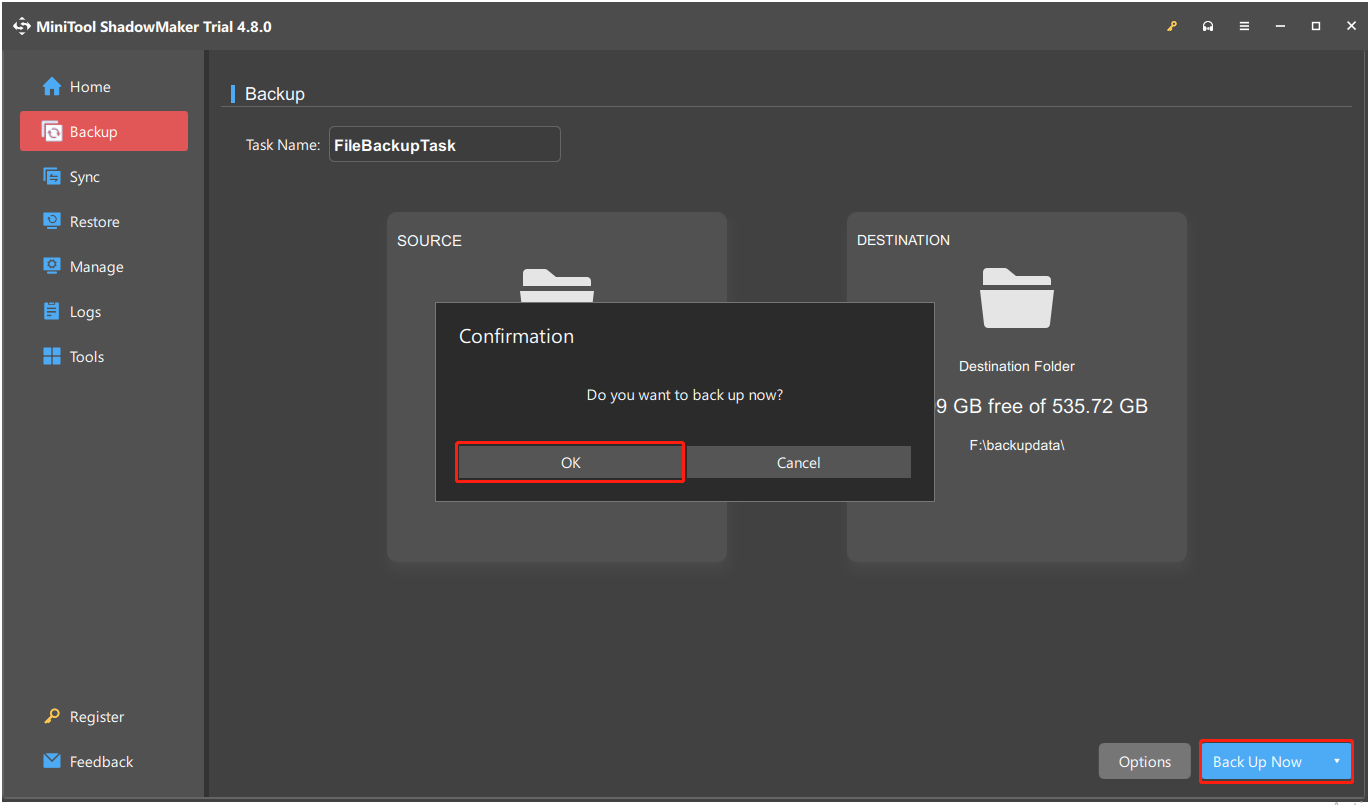
Step 6. Once the process is complete, the data backup is successful.
After data is backed up, reset your PC by navigating to Settings > System > Recovery > Reset this PC (in Windows 11).
Bonus Tip: How to Fix Can’t Sign in with a Microsoft Account with Error Code 0x800704ec
Some people report that they receive the error message “can’t sign in with Microsoft account 0x800704ec.” This occurs when they attempt to sign in with a Microsoft account on UWP apps on Windows 11/10.
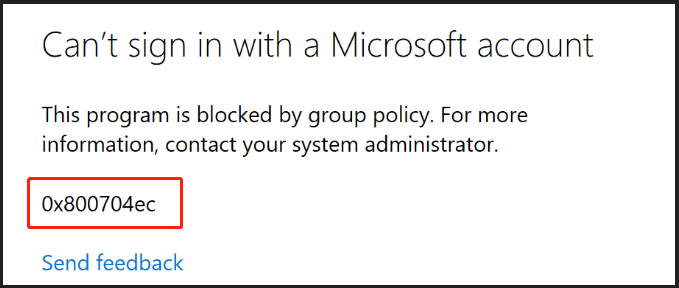
This error has the same error code as above, but is a little different in solutions.
If you encounter the same error, try configuring Local Group Policy and Registry Editor. Here’s how to do that:
# 1. Configure Local Group Policy Editor
Step 1. Open Group Policy Editor.
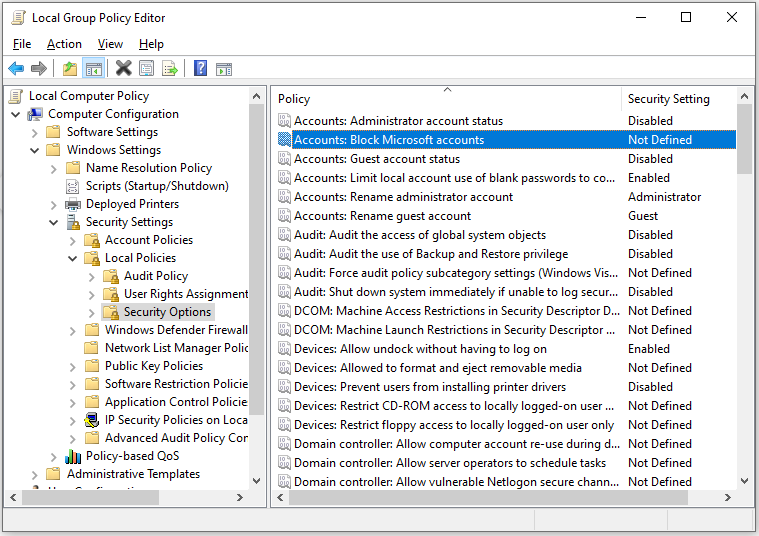
Step 2. Navigate to the path: Computer Configuration > Windows Settings > Security Settings > Local Polices > Security Options.
Step 3. On the right panel, find and double-click Accounts: Block Microsoft accounts.
Step 4. Under the Local Security Setting tab, drop down the menu and select This policy is disabled.
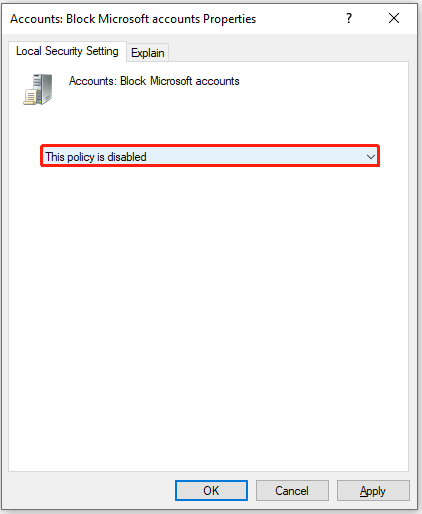
Step 5. Click Apply and Yes to save the changes.
Once done, exit Group Policy Editor and check if the error is fixed.
# 2. Edit Windows Registry Editor
Step 1. Open Registry Editor on your computer.
Step 2. Navigate to this path:
HKEY_LOCAL_MACHINE\SOFTWARE\Microsoft\Windows\CurrentVersion\Policies\System
Step 3. Find the NoConnectedUser key. Then, double-click it and input 0 in the Value data box and click OK to save the change.
If you don’t find the NoConnectedUser key here, you should create one. Here’s the way:
- Right-click the empty space in the right-hand pane.
- Select New > DWORD (32-bit) Value.
- Name the new DWORD as NoConnectedUser and press Enter.
- Double-click the new NoConnectedUser key and set its Value data to 0.
- Click OK and close Registry Editor.
- Restart your computer for the changes to take effect.
Final Words
In this post, we introduce the potential causes and effective solutions for error code 0x800704ec. Try the mentioned solutions above to fix the error on your own.
To back up data and avoid data loss, we highly recommend MiniTool ShadowMaker. If you have suggestions or problems with this software, please contact us by sending an email to [email protected].
Error Code 0x800704ec FAQ
About The Author

Position: Columnist
Vera has been working at the MiniTool Team for over 10 years as a technical editor and content writer. She mainly focuses on disk and partition management, data recovery, Windows backup and restore, and PC troubleshooting. Through in-depth software testing and hands-on experience, she has helped users solve a wide range of computer problems and better protect their data on Windows devices.
User Comments :