
According to your requirements, you may want to prevent Mac from sleeping. However, you may don’t know how to do this if you have never done this before. Don’t worry, in this post, MiniTool Software will show you how to stop Mac from sleeping use the Energy Saver feature. On the other hand, you can also know some other Mac sleeping settings.
In this article, we will show you the following information:
- Use Energy Saver to prevent your Mac from sleeping
- Schedule sleeping time on Mac
- Other settings in Energy Saver on Mac
How to Use Energy Saver to Keep Mac from Sleeping?
Like Windows, a Mac computer can also go to sleep mode as per the settings on the machine. Mac sleep mode is controlled by the Energy Saver feature on your Mac. If you want to prevent Mac from sleeping, you need to access Entergy Saver to modify the setting.
Now, we will show you how to stop Mac from sleeping using Energy Saver?
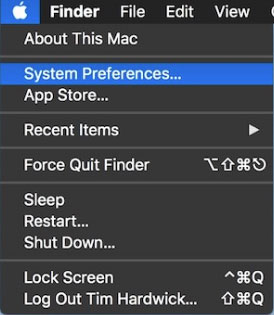
1. Click the Apple icon on the desktop and then select System Preferences. You can also use Spotlight search to search for system preferences and open it.
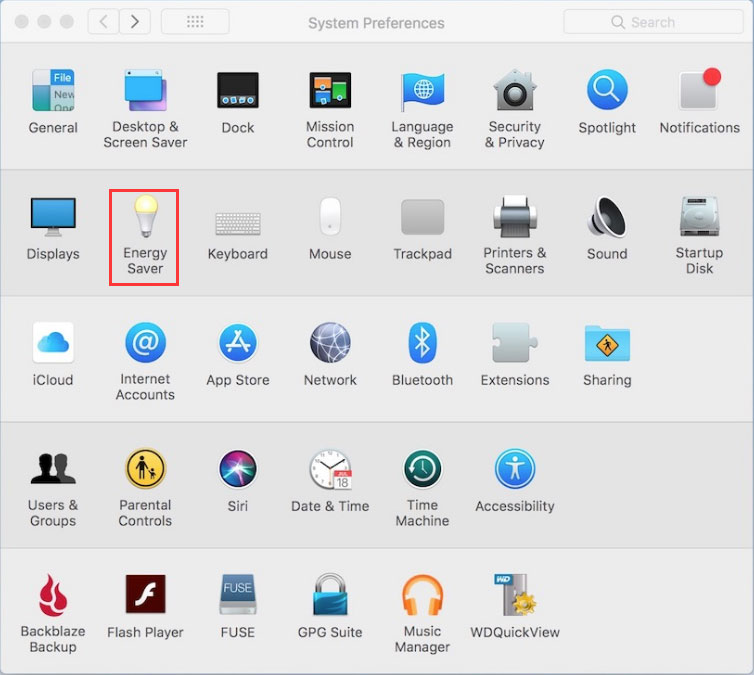
2. Click Energy Saver in System Preferences.
3. Switch to Power Adapter.
4. Move the slider for Turn display off after to Never. If needed, you can also check the Prevent computer from sleeping automatically when the display is off
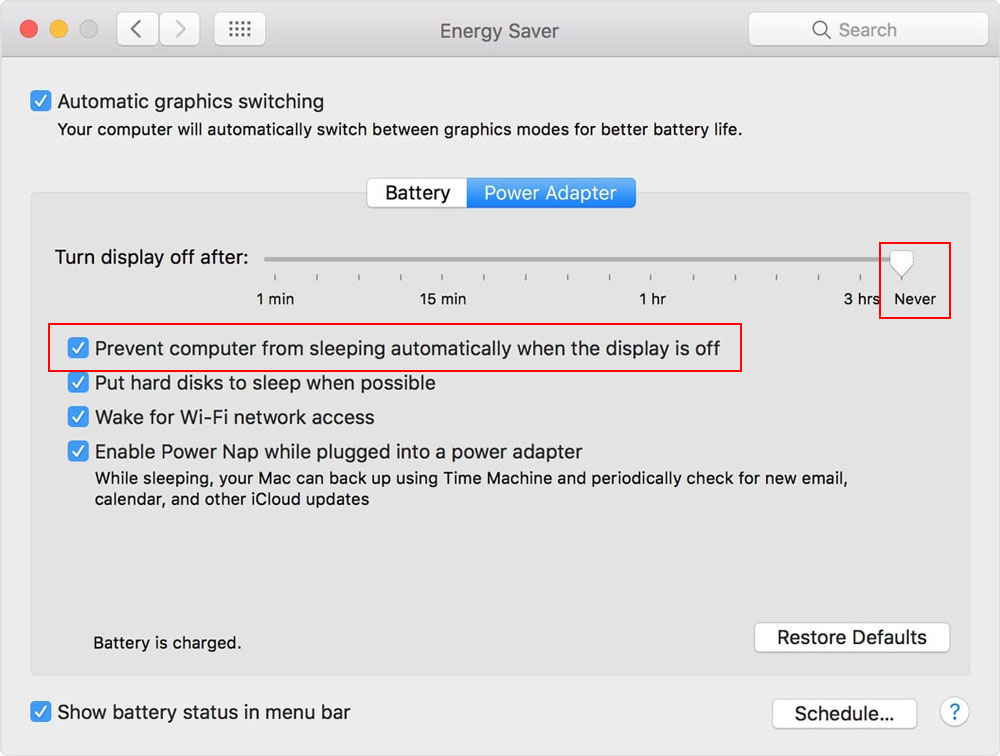
The above settings are for the situation when you are using a power adapter. How to prevent Mac from going to sleep if you are using a laptop? You can switch to the Battery section in Energy Saver and you can see the same slider as in Power Adapter. Next, you can repeat the above steps to modify the sleeping settings as per your requirements.
How to Schedule the Sleeping Time on Your Mac?
If you want to put your Mac into the sleeping mode during a specific time, you can also access Energy Saver to do the job.
Here is a guide:
1. Click the Apple icon and then go to System Preferences > Energy Saver > Power Adapter.
2. Click the Schedule button at the bottom-right corner.
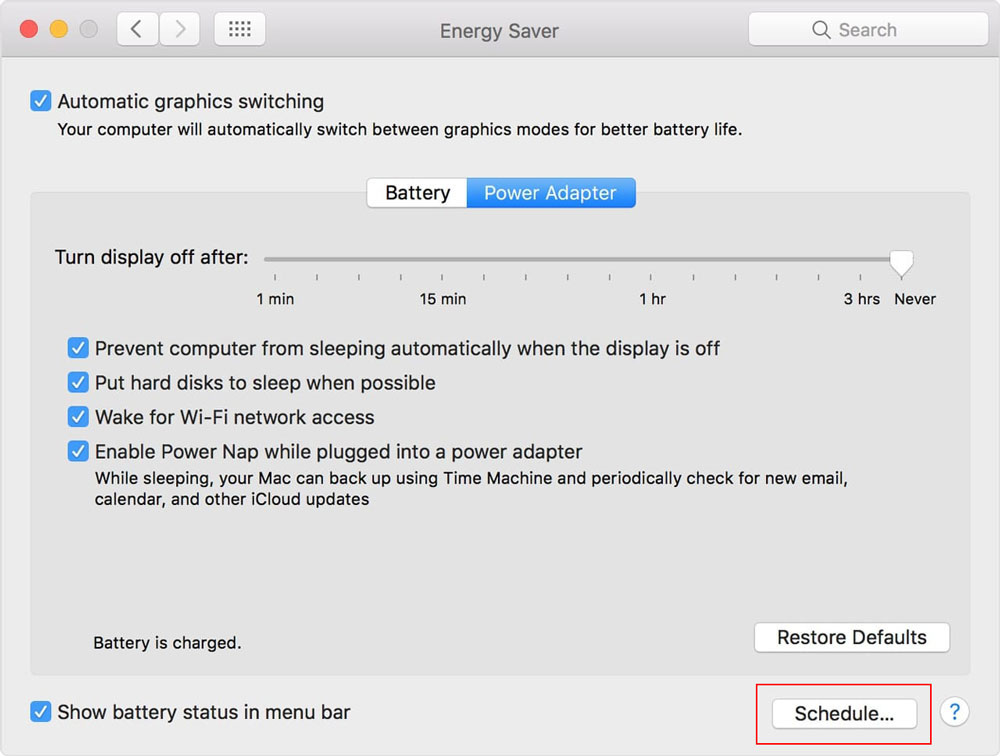
3. Check both Start up or wake and Sleep on the pop-up small window. On the second line, you need to make sure that the Sleep option is selected.
4. Select the wake-up time and sleep time according to your needs.
5. Click OK to save the changes.
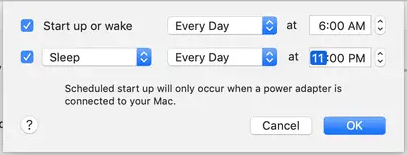
If you are using a laptop and want to set the same settings for the battery, you can switch to the Battery section and then use the above steps to schedule the sleeping time and wake-up time.
Other Settings in Energy Saver on Mac
You can see there are some other settings in Energy Saver like:
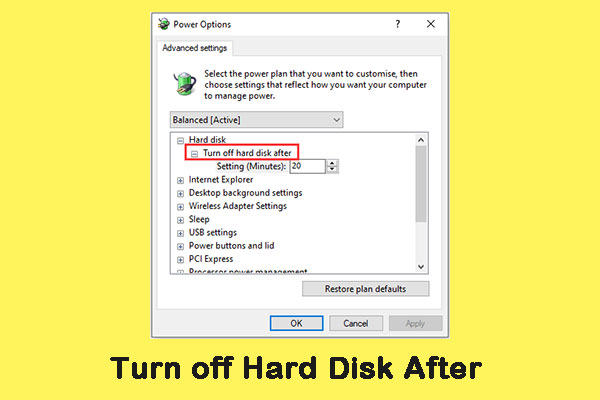
- Put hard disks to sleep when possible
- Wake for Wi-Fi network access
- Enable Power Nap while plugged into a power adapter.
You can enable or disable these options as per your needs. These settings will not influence the data on your Mac. You can feel free to use them.
When you want to prevent Mac from sleeping or modify other Mac sleeping settings, you can just try the things we mention in this post. Should you have any other related issues, you can let us know in the comments.
About The Author

Position: Columnist
Stella has been working in MiniTool Software as an English Editor for more than 8 years. Her articles mainly cover the fields of data recovery including storage media data recovery, phone data recovery, and photo recovery, videos download, partition management, and video & audio format conversions.
User Comments :