
Resizing windows is helpful if you perform more than one program at the same time. Most of you must have tried to resize windows in your daily computer use. This MiniTool post compiles several useful methods to tell you how to resize a window.
Four Practical Ways to Resize a Window
If you want to obtain information from different windows on your computer, it is necessary to change the size of the windows. Apart from resizing with a mouse cursor, do you know how to resize a window with keyboard? You can learn some useful methods from the following content.
Way 1: Use Toolbar
When you open a window, you must notice three icons on the right corner of the window. It is convenient to maximize or minimize a window by clicking the corresponding button.

Way 2: Use Mouse Cursor
How to make a window smaller with your mouse cursor? When you open a window, it is usually filled with the computer screen.
You can double-click on the blank space of the toolbar, then the window will shrink to a small window. Then, you can resize the window with the mouse cursor. Move the mouse cursor to the side of the window, when it changes into a double-headed arrow, then you can drag the left or right side of the window to resize the window horizontally or drag the bottom side to resize vertically.
Way 3: Utilize Keyboard
If you are a Windows 7/8/9/10/11 user, you can use some resize window shortcut keys on the keyboard to change the window size. Select a window and press the Win + Right arrow key, the window will occupy the right half of the screen. Similarly, if you press Win + Left arrow key, the window will occupy the left half of the screen. Besides, pressing Win + Up arrow key/Down arrow key will maximize/minimize the current window.
Way 4: With Windows Menu
If your mouse cursor has a problem that can’t be used normally, how to make a window bigger/smaller? You can try to resize a window with the Windows menu.
Press Alt + Spacebar to open the window’s menu. If the opened window is maximized, you can press the down arrow key to choose Restore and hit Enter.
Then, press Alt + Spacebar and click the down arrow key to choose Size, and click Enter.
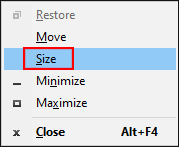
After this, you can adjust the width and length of the window by pressing the four arrow keys.
Best Data Recovery Software
Your files and other data may get lost due to mistaken deletion, virus attack, OS crash, and so on. In these cases, you can use MiniTool Power Data Recovery to find these data back.
MiniTool Power Data Recovery, the best free data recovery software for Windows, has millions of users around the world. This software is compatible with all Windows systems. It is able to recover many types of files such as documents, photos, videos, audio, and so on.
Besides, you can use it to recover lost or deleted files under different situations, like corrupted operating systems, inaccessible partitions, formatted hard drives, etc. It will cause no damage to the data stored on the device. If you are looking for a professional data recovery tool, MiniTool Power Data Recovery is the best choice.
MiniTool Power Data Recovery FreeClick to Download100%Clean & Safe
You can try the free edition to make a deep scan and recover no more than 1GB of files. If you need to recover more files, please go to MiniTool Store to find one edition that suits you best. We highly recommend you choose the Personal Ultimate edition if you are a personal user.
Bottom Line
You should know how to resize a window in four practical ways. You can try these methods after reading, and find which one may bring you convenience.
User Comments :