
If you don’t want Microsoft Teams to launch on startup, do you know what you should do on your Windows 10/11 computer? In this post, MiniTool Software will show you how to stop Teams from opening on startup using three easy and effective methods.
If your Microsoft Teams is opening automatically on startup, you may want to disable this feature since you don’t use it very often. Well then, how to stop Teams from opening on startup? You can disable it via Task Manager or Settings. You can also modify the related Registry Key using Registry Editor to disable Microsoft Teams from startup.
MiniTool Power Data Recovery TrialClick to Download100%Clean & Safe
How to Stop Microsoft Teams from Opening on Startup?
You can find three methods to prevent Microsoft Teams from starting in this part. These 3 methods work on both Windows 10 and Windows 11.
Way 1: Disable Microsoft Teams from Startup via Task Manager
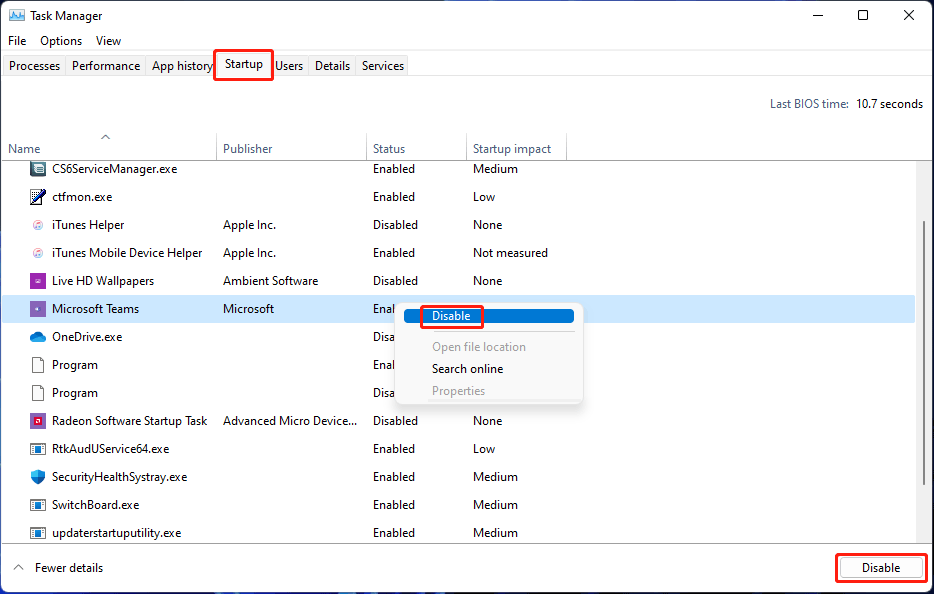
The normal method to disable a program from opening on startup is to use Task Manager. You can also use this method to disable Microsoft Teams from startup:
Step 1: Right-click on Start and select Task Manager.
Step 2: Click More details if you only see a few running programs.
Step 3: Switch to the Startup tab.
Step 4: Find Microsoft Teams and right-click it. Then select Disable. You can also right-click Microsoft Teams and directly click the Disable button to disable Microsoft Teams startup.
Way 2: Stop Microsoft Teams from Opening on Startup via Settings
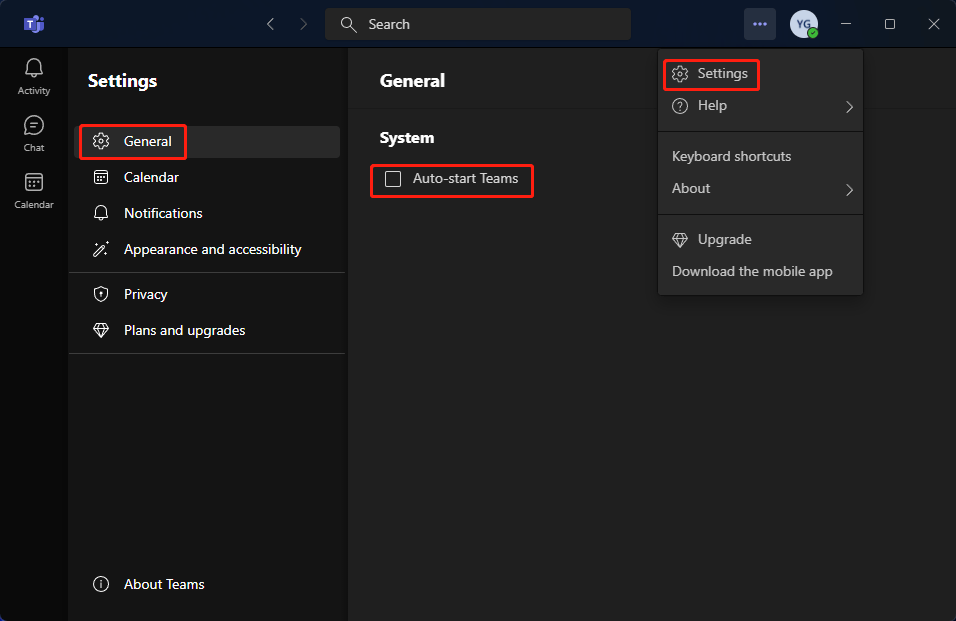
You can also use the Settings feature of Microsoft Teams to disable the auto-start feature. Here is how to disable Microsoft Teams from startup through this way:
Step 1: Open Microsoft Teams.
Step 2: Click the 3-dot menu next to your profile picture, then select Settings.
Step 3: Clear the checkbox next to Auto-start Teams.
Way 3: Prevent Microsoft Teams from Opening on Startup by Modifying Registry Key
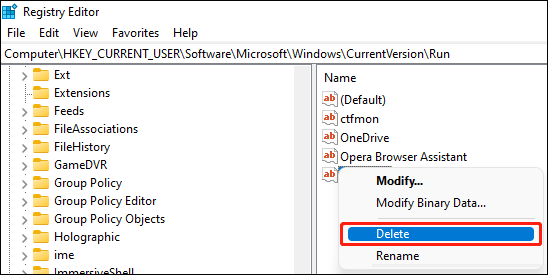
You can also delete the entry for Microsoft Teams from Registry to stop Teams from opening on startup. However, serious problems might happen if you modify the registry key incorrectly. So, to protect your computer, you’d better back up your registry key in advance. After that, you should follow these steps carefully to disable Teams auto-startup:
Step 1: Press Win+R to open Run.
Step 2: Type regedit into the Run box and press Enter to open Registry Editor.
Step 3: Go to this path:
HKEY_CURRENT_USER\Software\Microsoft\Windows\CurrentVersion\Run
Step 4: Find Microsoft Team from the right panel, then right-click it.
Step 5: Select Delete from the context menu to delete the entry for Microsoft Teams.
Step 6: Restart your computer. You should find that Microsoft Teams will not automatically start when you boot your computer.
These are the 3 methods to stop Microsoft Teams from opening on startup on your Windows 10/11 computer. You can select a suitable method according to your situation. Should you have any other related issues, you can let us know in the comments.
About The Author

Position: Columnist
Stella has been working in MiniTool Software as an English Editor for more than 8 years. Her articles mainly cover the fields of data recovery including storage media data recovery, phone data recovery, and photo recovery, videos download, partition management, and video & audio format conversions.
User Comments :