
For some reason, you may need to move your iTunes library to another computer. Is it possible to do this? Of course, yes and you can easily do it. You can do it within 3 steps. In this MiniTool post, we will show you the detailed guide.
When you get a new computer, you can move iTunes library to this new computer. How to transfer iTunes library to another computer Windows 10? If you don’t know how to do this work, you can read this post to get a detailed tutorial.
The following guide focuses on transferring iTunes library from a Windows computer to another Windows computer. If you want to transfer iTunes library from Mac to PC, you can search for the corresponding instruction on the internet.
Recommendations:
- Some Available Solutions to Deal with iTunes Error 9 Issue
- Fixed – iTunes Could Not Connect to This iPhone. Value Is Missing
- If Your iTunes Could Not Back up the iPhone, Try These Methods
How to Transfer iTunes Library to Another Computer Windows 10?
- Consolidate in the iTunes Media Folder
- Back up Your iTunes Library and Media Files
- Restore the Backup Files to Your New Computer
Step 1: Consolidate in the iTunes Media Folder
Before you move iTunes library to your new computer, you need to consolidate all the media files in your iTunes library in the iTunes Media file to make it easier to change iTunes library location Windows 10.
- Open the iTunes app on your computer.
- Click File on the top-left corner of the app and then go to Library > Organise Library.
- Check Consolidate files on the pop-up interface.
- Click OK.
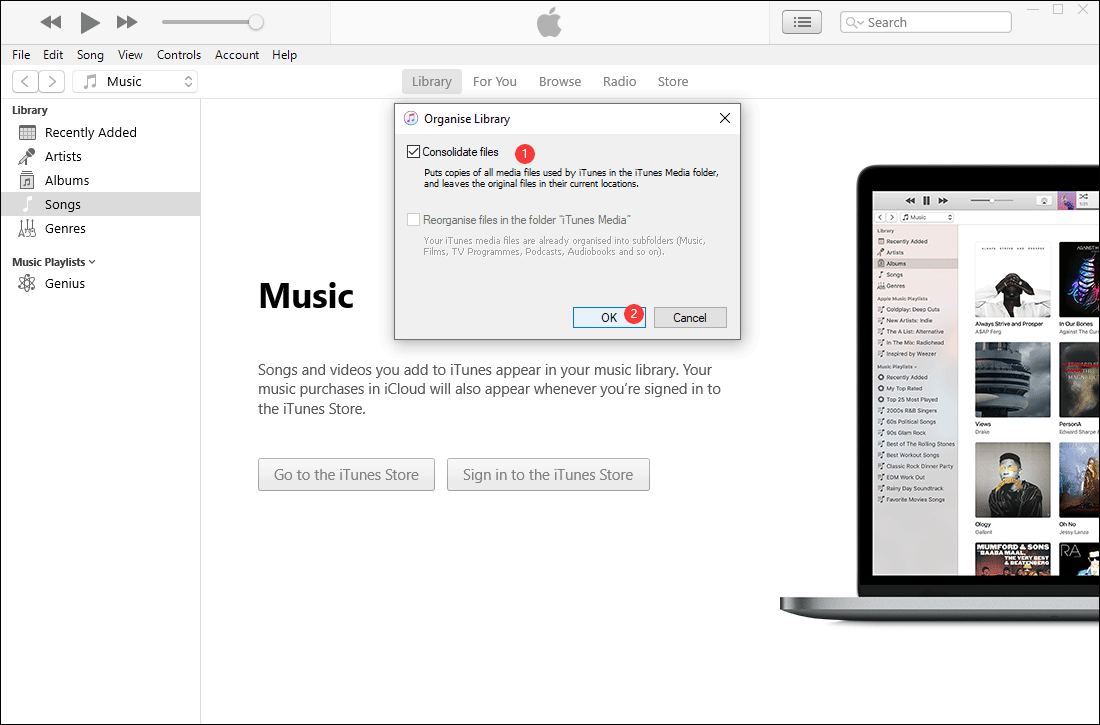
After these operations, the files will remain in their original locations. At the same time, the copies of all media files will be placed in the iTunes folder on your computer.
Step 2: Back up Your iTunes Library and Media Files
In this step, you need to prepare an external storage drive to save the iTunes library and media files you want to back up.
You need to find the iTunes folder and then drag the folder to the external drive. Here are the things you should do.
- Connect the external drive to your computer.
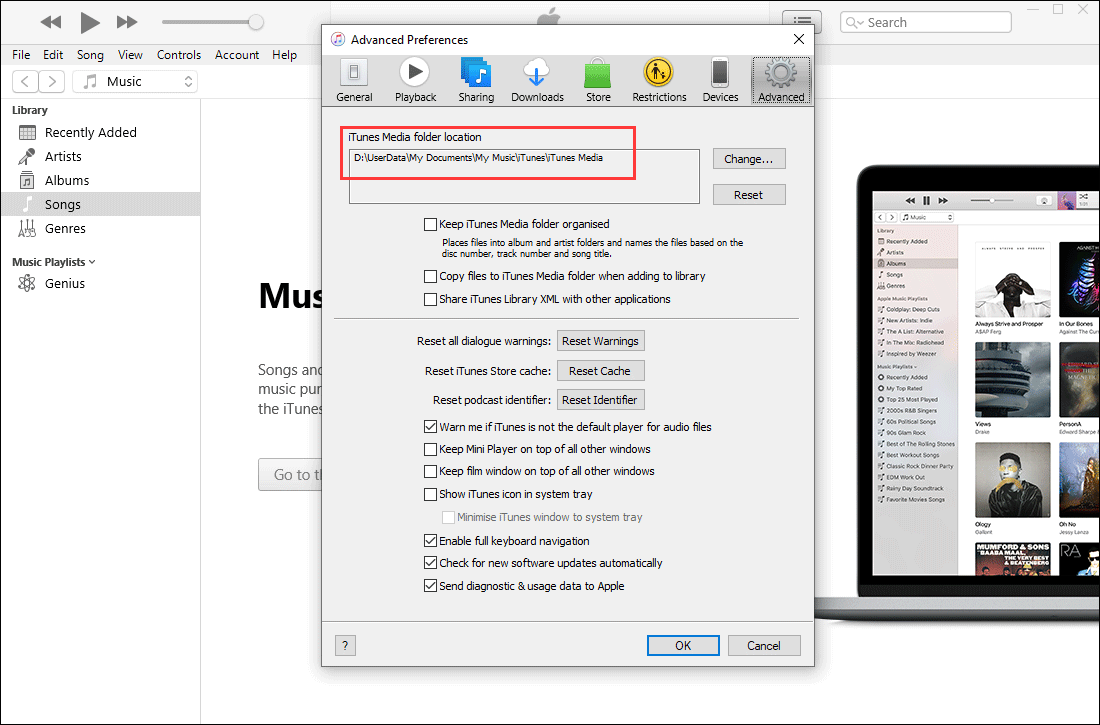
- In the iTunes app, you need to go to Edit > Preferences > Advanced.
- Remember the iTunes Media folder location.
- Close the iTunes app.
- Open File Explorer and then find the iTunes Media folder location.
- Drag or copy the iTunes Media folder to the connected external drive.
Step 3: Restore the Backup Files to Your New Computer
In this step, you can restore the iTunes backup to your new computer. To guarantee the smooth operation, you need to strictly follow this instruction:
- Install the latest iTunes version on your computer. If you have already installed it, you need to check whether it is the latest version. If not, you need to upgrade it.
- Open the iTunes app on your new Windows 10 computer.
- Go to File > Exit.
- Connect the external backup drive to your new computer and then open it.
- Find the iTunes folder you have backed up and then drag or copy it to your new computer. It is highly recommended to put that folder in the same location that has been mentioned in step 2. In this guide, it is D:\UserData\My Documents\My Music\iTunes\iTunes Media.
- Hold the Shift key when you open the iTunes app by going to Start > iTunes.
- Select Choose Library.
- Select the iTunes folder you have dragged to your new computer.
- Click Open.
- Select the file that is named iTunes Library.itl.
After these steps, your iTunes library is successfully transferred to your new PC.
About The Author

Position: Columnist
Stella has been working in MiniTool Software as an English Editor for more than 8 years. Her articles mainly cover the fields of data recovery including storage media data recovery, phone data recovery, and photo recovery, videos download, partition management, and video & audio format conversions.
User Comments :