
Some people say that they are not able to play some selected videos from Youtube on web browsers like Google Chrome and the “if playback doesn't begin shortly” error message appears. If you are one of them, read this post from MiniTool to fix the error.
If you can’t play some videos on your web browser, there may be an issue with hardware acceleration and the error message “if playback doesn’t begin shortly try restarting your device” will appear. Here are 5 methods for you to fix the issue.
How to Fix the “If Playback Doesn’t Begin Shortly” Issue
- Disable Hardware Acceleration
- Uninstall the NVIDIA Graphics Driver
- Install HTML5 Player Add-ons on Your Browser
- Switch Your Audio Device
- Perform a Windows Update
Fix 1: Disable Hardware Acceleration
If playback doesn’t begin shortly, you can try to disable Hardware Acceleration to fix the issue. Here is how to do that:
Step 1: Press the Windows and R keys at the same time to open the Run dialog box. In the Run box, type regedit and click OK.
Step 2: Copy and paste HKEY_CURRENT_USER > Software > Microsoft > Avalon.Graphics to the address bar to open it.
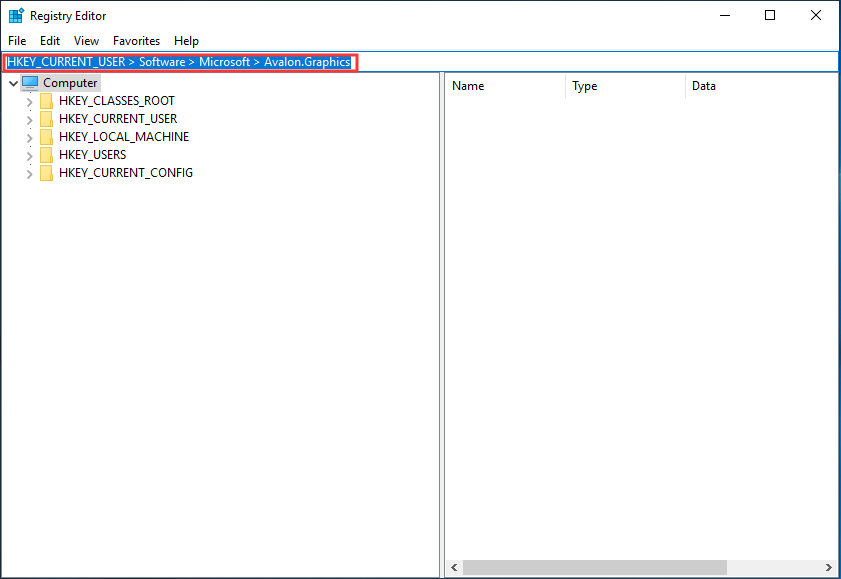
Step 3: Find DisableHWAcceleration on the right pane. If you cannot find DisableHWAcceleration, you can create one: right-click the empty space on the right pane and click New > DWORD (32-bit) Value and name it DisableHWAcceleration.
Step 4: Double-click DisableHWAcceleration and set its value to 1 to disable Hardware Acceleration on your Windows 10.
Step 5: At last, click OK to save the setting. Then, check to see if the “if playback doesn’t begin shortly YouTube” issue has been fixed.
Fix 2: Uninstall NVIDIA Graphics Driver
An outdated NVIDIA graphics card can also cause playback problems in your browser. You can try uninstalling the NVIDIA graphics driver to fix the “if playback doesn’t begin shortly YouTube” issue. Follow the steps below:
Step 1: Open Control Panel and click Programs and Features to continue.
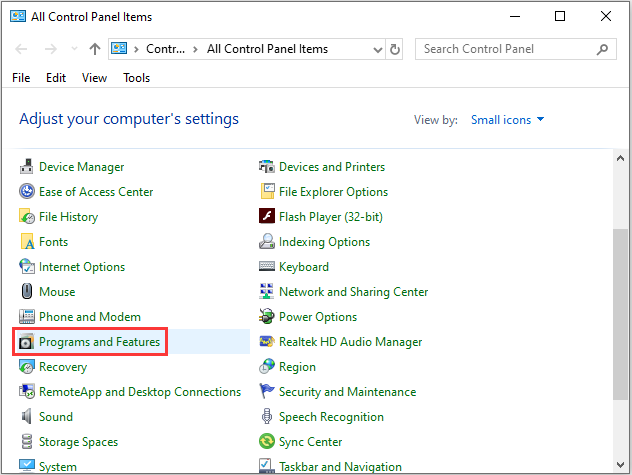
Step 2: You will see the Uninstall or change a program interface where you can find the software you have installed on your computer. Then, you can right-click the NVIDIA driver you want to uninstall and then select Uninstall to uninstall the NVIDIA driver.
Fix 3: Install HTML5 Player Add-ons on Your Browser
The “YouTube if playback doesn’t begin shortly Chrome” issue could be caused by the new HTML5 player. Thus, you can install add-ons for your respective browsers by visiting their respective websites to fix the issue.
If you are Google Chrome users, you can download Flash Player for YouTube from the Chrome Web Store. If you are Firefox users, you can download the YouTube Flash Player from Mozilla. Unfortunately for Microsoft Edge users, there is no add-on for the browser. After the installation, you can check to see if the “if playback doesn’t begin shortly” issue has been fixed.
Fix 4: Switch Your Audio Device
Finally, you can try to switch off audio devices including speakers and headphones because they can also cause the “if playback doesn’t begin shortly” issue. You can also unplug your headphone and plug it back in.
Also see: Fixed: Windows Audio Device Graph Isolation High CPU
Fix 5: Perform a Windows Update
You can perform a Windows update to fix the “if playback doesn’t begin shortly” issue. Here is how to do that:
Step 1: Right-click the Start menu and choose Settings.
Step 2: On the Settings window, select Update & Security.
Step 3: Under the Windows Update section, click the Check for updates button to check if there are any new updates. Then Windows will search for available updates. Just follow the on-screen instructions to finish the process.
After installing the latest Windows updates, restart your computer and check if the “if playback doesn’t begin shortly” error gets fixed.
Final Words
This post has collected 5 efficient methods for you to get rid of the “if playback doesn’t begin shortly”. Thus, when you encounter the same error, don’t panic, just try the methods mentioned in this post and then you can fix it.
User Comments :