
Internet shortcuts bring a convenient way to access certain sites. You may find the Internet shortcut is not deleting or moving. More and more Internet shortcuts will mess up your desktop. MiniTool Solutions shows you practical methods to fix this problem.
Sometimes, convenience brings trouble. To clear the desktop, people may need to delete some unnecessary icons such as Internet shortcuts. However, the Internet shortcut is not deleting normally. If you are stuck in this situation, read the following content to resolve the problem.
Fix 1: End the Task in Task Manager
In some cases, when the task is running, you can’t delete the Internet shortcut file. You can find the task in Task Manager to end it and try to delete the file again.
Step 1: Right-click on the Windows icon button and choose Task Manager from the WinX menu.
Step 2: Look through the program list to find the task that has a similar name to the shortcut, then right-click on it to choose End task. If you can’t find that program, end the browser-related tasks.
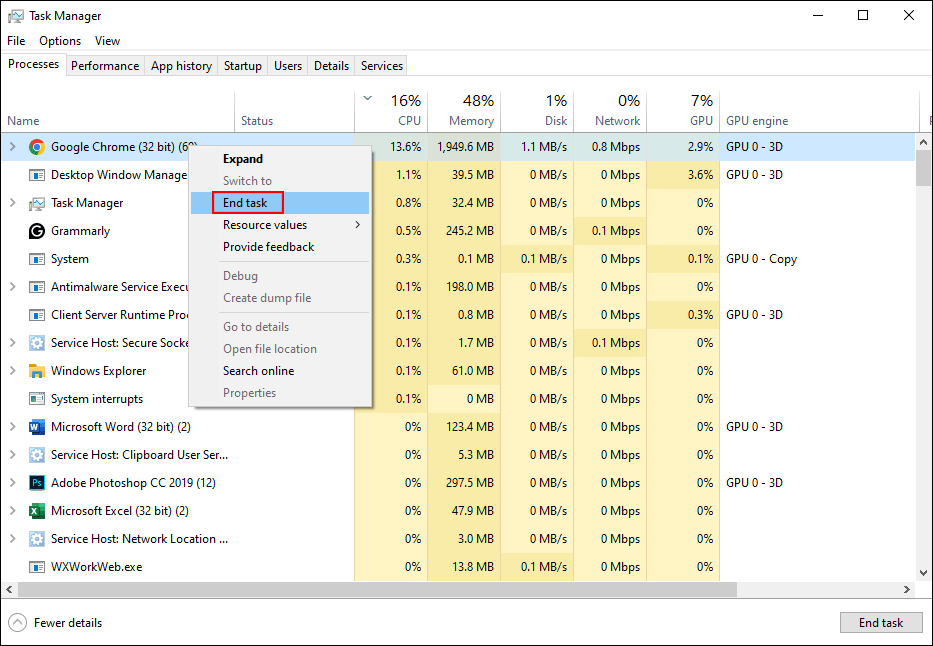
After this, you can try to delete the shortcut. If the Internet shortcut is not deleting, please move on to the next method.
Fix 2: Delete the Internet Shortcut by Moving It to a Folder
Compared with deleting an Internet shortcut, deleting a folder can be an easy task. You can create a folder and move the Internet shortcut to it. Then, try to delete the shortcut by deleting the folder.
Step 1: Right-click on the empty space on the Desktop and select New > Folder.
Step 2: Drag and drop the Internet shortcut file to the folder.
Step 3: Right-click on the folder and choose Delete from the context menu.
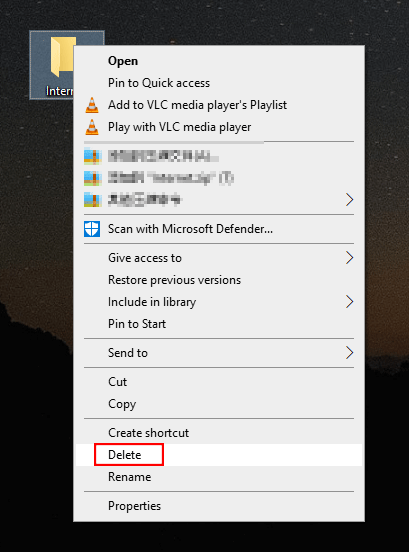
You can press the Shift and Delete keys simultaneously to try to permanently delete this folder.

Fix 3: Force Delete Using Command Prompt
If you are unable to delete the folder in Fix 2, optionally, you can run command lines to forcefully delete the shortcut. You can work with the following steps.
Step 1: Press Win + R to open the Run window.
Step 2: Type cmd into the text box and press Shift + Ctrl + Enter to run Command Prompt as administrator.
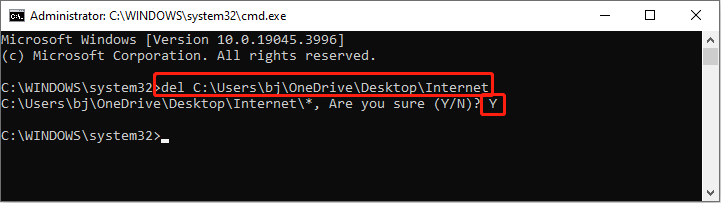
Step 3: Type del <path> and hit Enter. You need to replace <path> with the actual file path of the folder you created in Fix 2.
Step 4: Press Y to confirm. Then you can find files in the folder are removed.
Fix 4: Delete the Internet Shortcut Using Third-Party Software
If all the above methods don’t work in your situation, try the third-party software to get rid of the Internet shortcut, like 7-Zip. According to most Windows users, this archiver works well in deleting the Internet shortcut.
While sometimes, 7-Zip cannot delete the Internet shortcut due to its long name or falsified name, you can rename the shortcut file or move it to a newly created folder to try to delete it.
Bottom Line
This is all about how to delete Internet shortcuts. All the above methods are easy to complete. Hope they can give you some inspiration to successfully delete the Internet shortcut on the Desktop.
One more thing needs to be mentioned that MiniTool Solutions develops a powerful data recovery software, MiniTool Power Data Recovery.
MiniTool Power Data Recovery FreeClick to Download100%Clean & Safe
You can run this software to recover files under various situations. You can get the free edition to perform a deep scan and try to restore 1GB of files for free.
User Comments :