
What Is Iphlpapi.dll?
What is iphlpapi.dll? Iphlpapi.dll is one kind of DLL (Dynamic Link Library) file, especially related to the IP helper application programming interface. This DLL file is responsible for network-related functions and services.
Iphlpapi.dll is designed to retrieve network interface information, execute network diagnostics, manage IP addresses, etc. Once the file gets missing or corrupted, you will run into issues with network connectivity and other related problems, impacting the overall computing experience.
Therefore, to ensure your network performance and good performance of related services, you need to resolve the iphlpapi.dll errors as soon as possible. Don’t worry, for the next part, you can learn the methods.
Fix: Iphlpapi.dll Not Found or Missing
Fix 1: Run SFC and DISM Scans
You can run SFC and DISM scans to repair system file corruption and then check if the iphlpapi.dll errors can be fixed.
Step 1: Type Command Prompt in Search and choose Run as administrator.
Step 2: Input sfc /scannow and press Enter.
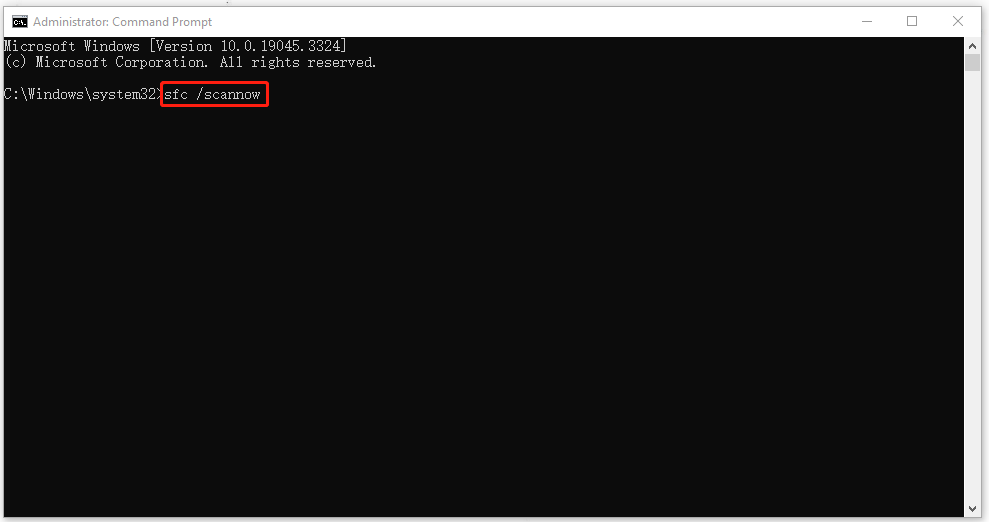
When the verification ends, you can run a DISM scan for further troubleshooting.
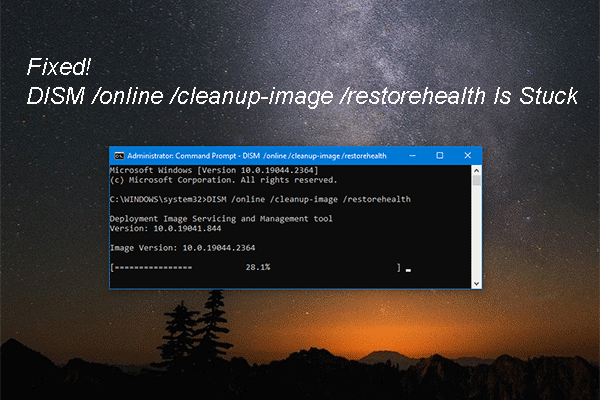
DISM /Online /Cleanup-Image /RestoreHealth
When this command finishes, you can restart your computer to check for the error.
Fix 2: Scan Your Computer for Viruses
Virus or malware infiltration is another possible reason for “iphlpapi.dll not found” and you can try to scan your computer for potential dangers.
Step 1: Go to Start > Settings > Update & Security > Windows Security > Virus & threat protection.
Step 2: Click Scan options > Full scan and then click Scan now to start the scanning process.
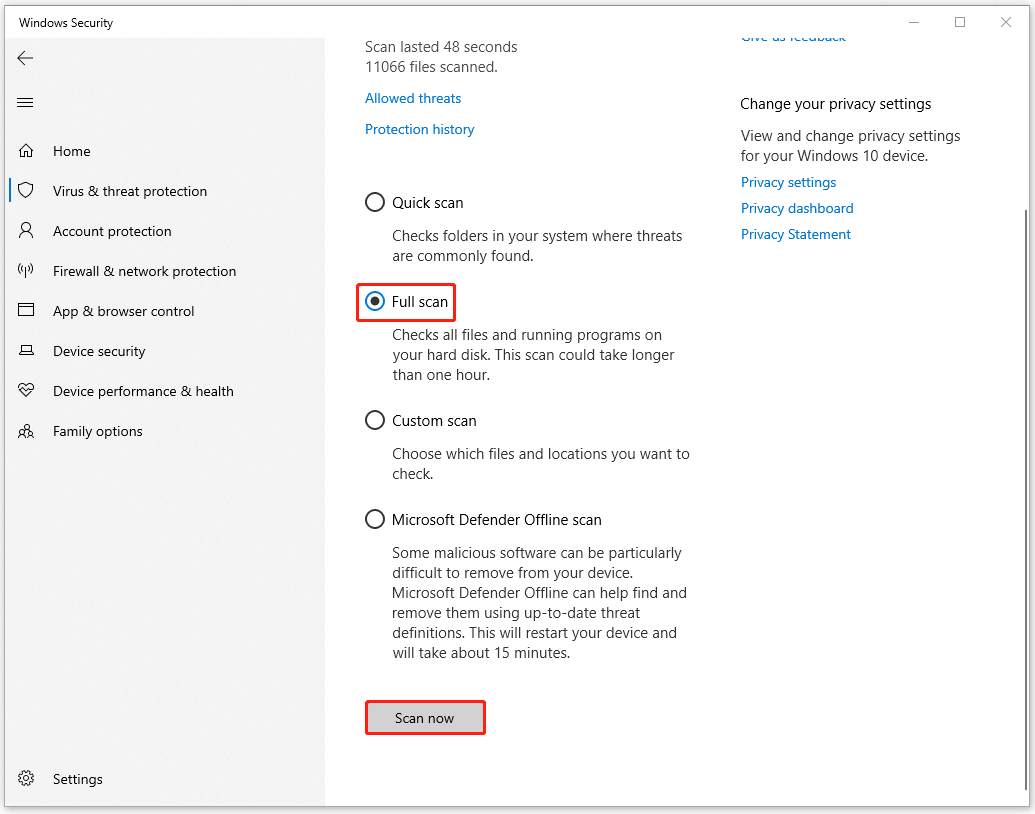
Then you can follow the on-screen instructions to finish that.
Fix 3: Run a Memory Test
You need to check for any RAM-related issues. To do that, you can run a memory test for faulty RAM modules, which can easily cause random crashes.
Step 1: Open Run by pressing Win + R and type mdsched.exe to enter the Windows Memory Diagnostic tool.
Step 2: Choose Restart now and check for problems to immediately run the test.
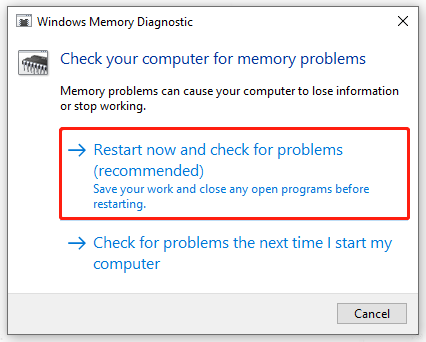
Then your PC will restart and the test will need some time to complete.
Fix 4: Perform a System Restore
Apart from the above methods, you can directly restore your system to the state when everything runs well. But notice this method is only available for those who had created this restore point before the iphlpapi.dll missing error occurred.
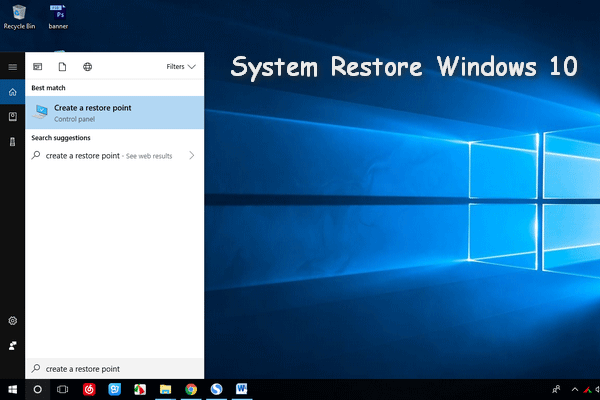
Step 1: Type create a restore point in Search and choose the result under Best match.
Step 2: Click System Restore… > Next and then choose a system restore point you need to follow the next moves.
When you finish that, your system can go back to its normal state.
Fix 5: Reset Windows
The last method is to reset Windows. Resetting Windows can reinstall the Windows operating system and help fix the iphlpapi.dll not found issue. But notice this method may delete some of your important data so you’d better back up your data before you perform it.
You can use MiniTool ShadowMaker free to backup files and you can also use its backup schedules and schemes to improve the backup user experience. MiniTool provides more features for enhancement. Data sharing and disk cloning are also available for you.
MiniTool ShadowMaker TrialClick to Download100%Clean & Safe
After the backup, now, you can start the reset.
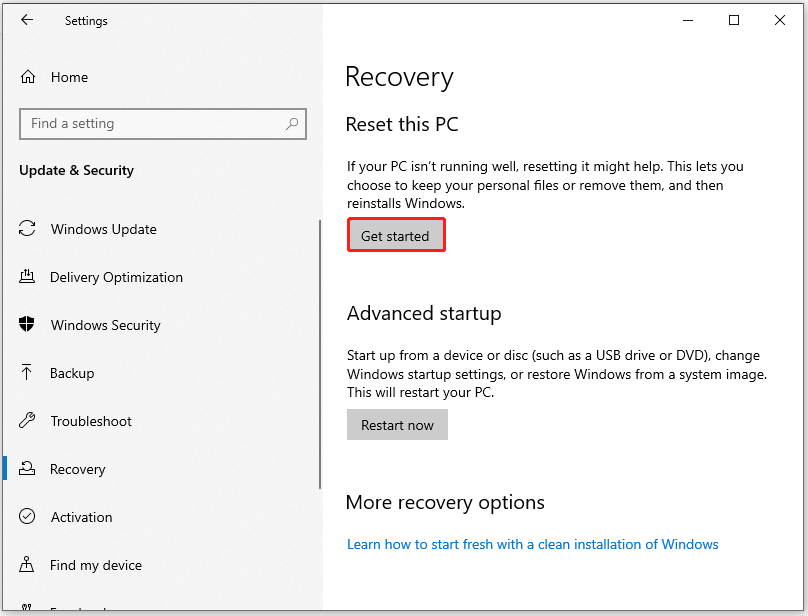
Step 1: Go to Start > Settings > Update & Security > Recovery.
Step 2: Click Get started under Reset This PC and proceed to finish the task.
Bottom Line:
If you run into the iphlpapi.dll errors, you may follow the above methods to fix them. Hope this post is useful for you.
User Comments :