
Have you got an error saying “iTunes could not backup the iPhone because the backup session failed” when backing up your phone using iTunes? How do you get rid of this situation on your computer? MiniTool can help you out and just follow some ways in this post.
iPhone Backup Session Failed
iTunes, a tool from Apple, can be used to organize and play music & videos, find music, TV shows, movies, etc. in iTunes Store, set up your iPad, iPhone or iPod, back up your iPhone to a computer, and so on. It can be used on a Windows computer, as well as a Mac.
However, this tool is not perfect. According to users, it sometimes goes wrong, especially iTunes backup. Perhaps you are also one of them.
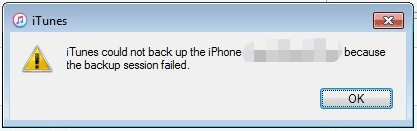
When using iTunes to start a backup, an error pops up on the screen saying “iTunes could not back up the iPhone because the backup session failed”. If you restore your iPhone from a backup file, the error “iTunes could not restore iPhone because the backup session failed” occurs.
This iPhone backup session failed error always appears and it occurs not only on your iPhone but also on iPad or iPod. How can you stop your device from saying backup session failed? Is it easy to fix? Sure! Try these solutions listed in the following part now.
Fixes for iPhone Backup Failed iTunes
Basic Fixes
- Restart your iPhone (iPad or iPod), iTunes, and Windows computer or Mac.
- Use another USB cable or port to connect your iPhone to a computer.
Update iTunes, iOS, or Windows/macOS to the Latest Version
To fix “iTunes could not backup the iPhone because the backup session failed”, you can try to perform some updates, including your iTunes, iOS, Windows operating system, or macOS.
To update iTunes, you should open iTunes, go to Help > Check for Updates.
To update the iOS of your iPhone, you need to disconnect the device from the computer, go to Settings > General > Software Update.
To update Windows, go to Settings > Update & Security and Check for updates.
To update macOS, you can navigate to System Preferences > Software Update > Update Now.
Temporarily Disable Antivirus on Your Computer
Sometimes iTunes backup is blocked by some security applications such as antivirus and firewall, leading to iPhone backup session failed. To fix this issue, you can temporarily disable the antivirus program & firewall and then try the backup once more.
Based on different antivirus software, the operations are different. Just search for ways online and do this work.
Rename or Delete Old Backups
Sometimes the name of your old backup conflicts with a new backup, leading to the error “iTunes could not backup the iPhone because the backup session failed”. To remove the alert, you can choose to rename or delete old backups.
iTunes backup location on computer:
- If you download iTunes from Microsoft Store, go to C:\Users\YourUserName\Apple\MobileSync\Backup
- If you download iTunes from Apple’s site, go to C:\Users\YourUserName\AppData\Roaming\Apple Computer\MobileSync\Backup (for Windows) or ~/Library/ApplicationSupport/MobileSync/Backup/ (for macOS)
Reset iTunes Lockdown Folder
The iTunes backup failed error may happen if iTunes cannot get permission from your computer. Resetting the Lockdown folder can solve your issue. This folder is used to save the certificate from your device to let iTunes read your iPhone.
How to reset the iTunes Lockdown folder to grant permission again? Exit iTunes and disconnect your iPhone from a computer and then follow the prompts.
On Windows:
- Go to C:\ProgramData\Apple\Lockdown.
- Delete each file in this folder.
- Launch iTunes, connect your iPhone to the computer, tap Trust on the phone, and try to back up once more.
On Mac:
- Open Finder, navigate to Go > Go to Folder and type /private/var/db/lockdown/.
- Delete all the files in the lockdown folder.
- Launch iTunes, connect your iPhone to a Mac, and start the backup again.
Final Words
Have you fixed “iTunes could not backup the iPhone because the backup session failed” on your computer after trying these common ways? If all of these ways cannot help, you can try to add the computer as the trusted device or you may need to repair, reset or reinstall iTunes. Hope this post is helpful to you.
About The Author

Position: Columnist
Vera has been working at the MiniTool Team for over 10 years as a technical editor and content writer. She mainly focuses on disk and partition management, data recovery, Windows backup and restore, and PC troubleshooting. Through in-depth software testing and hands-on experience, she has helped users solve a wide range of computer problems and better protect their data on Windows devices.
User Comments :