
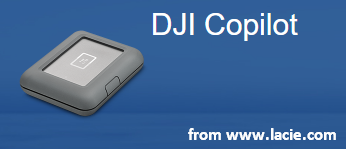
The Lacie DJI Copilot is actually a BOSS drive (backup on set solution); you can find both SD card slot and USB port on this external hard drive. With such a hard disk, you can copy files directly from devices, without a PC or laptop.
Lacie DJI Copilot – More Creative Time, Less Desk Time
Being the bright spot in the product line of Lacie, the Lacie DJI Copilot is ruggedized and has SD card slot and USB port to help copy files from devices without the intervention of computer. Thus, it makes data transfer and backup really easily.
Main Features of the Ruggedized External Hard Drive
If you get a Lacie DJI Copilot, you can enjoy the following services:
- Charge your phone on the go.
- Copy files directly (no laptop is needed).
- Manage files with phone and tablet easily.
- Get a one-month membership to Adobe®Creative Cloud®.
In-depth Introduction to the Lacie Copilot Boss Drive
Copy Files via SD Card Slot
One of the best highlights of the Lacie disk is that it allows you to back up what you’ve shot with your drone easily; you may plug in a memory card or plug directly into your USB devices and then the files will be copied over automatically.
- The microSD card slot gives support to all the commonly used memory card formats.
- You just need to take the card out of your drone and then insert it into the Lacie Boss drive for file backup.
- There is a status screen that will show you the progress and alert you once file transfer is completed.
What if your SD card is not working well and the file transfer fails? You may need to check whether the write-protection is enabled or not. If yes, you must disable the protection so as to copy files exactly. For more details, please read: Recover Data From Dead SD Card With This Easy And Safe Way (in section four, the write-protection function is introduced).
Save & Read Files on Lacie DJI Copilot
With a Lacie DJI Copilot, you are able to copy the contents on your SD Card directly to make a backup automatically. The 2TB Lacie Boss drive is promised to help you store up to 60 hours of 4K video footage.
Besides, if you would like to back up 1.5GB of photos from a XQD card (which has a faster speed than SD Card) to the Lacie external drive, only 37 seconds are enough. You just need to plug in a memory card reader or a device to the USB port on external drive.
In addition, when you plan to read the files saved on the Lacie external hard disk, you just need to plug it into a PC through the USB-C cable. There’s also another way to achieve if you don’t want to use PC: install the Copilot Boss app on your smartphone and then it will let you connect the mobile gadget to the drive so as to read & manage files.
Dust & Water Proof
When it comes to the drive’s build, the well-made enclosure is worth mentioning. This external Boss drive is coated with a rubber bumper to be ready for hard knocks in the field. Though the weight of the drive isn’t light (it weighs 534g), it is still appealing to outdoor enthusiasts, especially drone users. After all, the added padding works well in preventing dust and water from getting in.
Defects in Charging
The only bad news may be that the USB port cannot be used to charge the Lacie drive directly; you’ll need to plug the drive into a wall socket for charge. However, this can be overcome by plugging in a phone to juice that up. It is necessary to bring an additional charger if you plan to enjoy a long trip.
User Comments :