
LiveKernelEvent Code 1a8 Windows 10
Typically, users will notice LiveKernelEvent code 1a8 entries in the event log when there is a problem with Windows. PC crashes with a blue or black screen and the need to restart are common symptoms associated with this error. You may also encounter this error during some gaming sessions, especially in games like Valorant. This can lead to lost progress, wasted time, and a poor gaming experience.
LiveKernelEvent code 1a8 is usually caused by hardware or driver issues. Here are some common reasons:
- Graphics card issues: A corrupted or incompatible graphics card driver may cause this error.
- Overclocking settings: Enabling overclocking features in the BIOS may cause system instability, triggering this error.
- Monitor features: Certain monitor features such as FreeSync or AdaptiveSync may trigger this issue.
- System crash: This error usually appears after a system crash, indicating possible hardware instability.
Fix 1: Disable Auto Overclocking in BIOS
Overclocking may cause system instability, crashes, blue screens, or other problems. Disabling overclocking can restore the system to default settings and improve stability.
Step 1: Press the Win + I keys to open the Settings app.
Step 2: Click on Update & Security > Recovery > Restart now.
Step 3: In the new page, select Troubleshoot > Advanced options > UEFI Firmware Settings.
Step 4: Click on the Restart button to enter the BIOS.
Step 5: Switch to the Ai Overclock Tuner feature and disable it or set it to Manual.
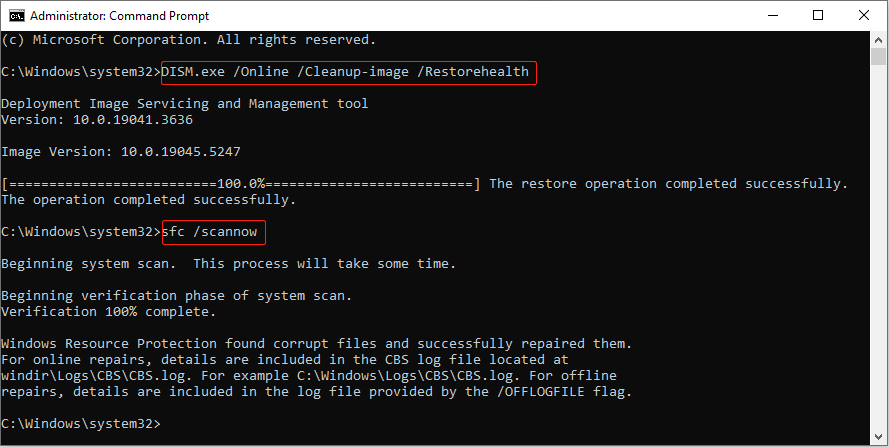
Fix 2: Repair Corrupted System Files
Some drivers rely on specific system files, and if those files become corrupted, it can cause the hardware to not work properly, thus triggering this hardware error 1a8.
Step 1: Type Command Prompt in the Windows search box, right-click on the best match, and choose Run as administrator.
Step 2: When prompted by the UAC window, click on Yes to continue.
Step 3: Type DISM.exe /Online /Cleanup-image /Restorehealth and press Enter.
Step 4: When the previous operation ends, type sfc /scannow and press Enter.
Fix 3: Run Windows Memory Diagnostic
Physical damage or instability in the RAM can cause hardware errors such as LiveKernelEvent code 1a8. Running the Windows Memory Diagnostic tool can help detect if this issue is related to a memory problem.
Step 1: Press the Win + R keys to open the Run dialog.
Step 2: Type mdsched in the box and press Enter to open the Windows Memory Diagnostic tool.
Step 3: Click on the Restart now and check for problems (recommended) option.
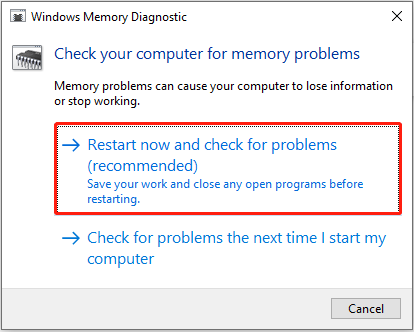
The memory test will run during startup and display detected errors. If errors are found, replace or repair the RAM module.
Fix 4: Update Your Graphics Drivers
An outdated or corrupted graphics driver may be incompatible with the system and cause LiveKernelEvent error. Updating the driver can fix known issues and improve graphics performance, which can improve system stability and avoid crashes or errors.
Step 1: Right-click on the Start button and choose Device Manager to open it.
Step 2: Click on the small arrow in front of Display adapters to expand it.
Step 3: Right-click on your card and choose Update driver.
Step 4: In the new window, select Search automatically for drivers.
When the new updates are detected, follow the wizard to complete the whole process.
Fix 5: Perform a Clean Boot
A clean boot disables all non-essential startup programs and services, helping you determine if a third-party software or service is causing the problem. This can temporarily improve system performance, especially during troubleshooting, by reducing the number of programs running in the background.
Step 1: Right-click on the Windows icon and choose Run to open the Run dialog.
Step 2: Type msconfig in the box and press Enter.
Step 3: Switch to the Services tab, tick the Hide all Microsoft services box, and click on Disable all.
Step 4: Go to the Startup tab and click on Open Task Manager.
Step 5: Right-click on every entry to select Disable and then close the window.
Step 6: Go to the Boot tab, tick Safe Boot, and click on Apply > OK.
Re-enable services and startup programs one by one to identify the problem.
MiniTool Power Data Recovery FreeClick to Download100%Clean & Safe
Final Words
Several ways such as repairing system files, running Windows Memory Diagnostic, updating graphics driver, etc., are listed in this article. Try them one by one to fix LiveKernelEvent code 1a8.
User Comments :