
If your computer keeps crashing due to overheating, driver issues, malware infection, failing hard drive, faulty RAM, etc., you can try to check your computer for viruses, update drivers, and check the hard drive with MiniTool.
Computer crashing is one of the most frustrating things for users. It can happen while you’re working on important projects, playing games, or browsing the web. This not only affects work efficiency but can also lead to data loss.
Here is a real situation from a forum user:
My computer keeps crashing. Every day, multiple times while playing games, my computer screen freezes and crashes. I thought it would have something to do with using too much memory or something in games, but this has happened just in the middle of listening to Spotify or literally just on my screen with zero apps running.https://learn.microsoft.com/en-us/answers/questions/3747673/my-computer-keeps-crashing
Computer crashing manifests in various ways:
- Blue Screen of Death (BSOD): A blue error screen with a “stop code”.
- Random restart or shutdown: The computer suddenly loses power and restarts without any warnings or error messages.
- Black screen: The monitor suddenly loses signal. Sometimes, you can hear the internal fan spinning.
The root causes of Windows crashes are varied, including overheating, memory failure, outdated drivers, hard drive failure, software conflicts, or malware.
This guide will analyze in detail the various possible causes of persistent computer crashes and provide corresponding repair solutions.
Cause 1. Overheating
Overheating is the most common cause of unexpected computer keeping crashing, especially for laptops and small desktops with limited cooling systems.
Modern CPUs, GPUs, and power supplies are equipped with overheat protection and emergency shutdown mechanisms to prevent permanent hardware damage.
When internal temperatures exceed safe thresholds, the system freezes, crashes, restarts, or suddenly shuts down to protect components.
This is a defensive mechanism, not a random failure.
Causes of overheating include:
- Dust and debris buildup: Dust and debris can clog cooling fans, heatsinks, and vents. This isolates components, traps hot air inside the chassis, and hinders heat dissipation.
- Failed cooling components: Fans may slow down, seize up, or stop spinning completely due to worn bearings, affecting heat dissipation.
- Excessive computing load: Running resource-intensive tasks for extended periods can push components beyond their cooling limits.
To diagnose if it is overheating, use tools like HWMonitor to check if your CPU or GPU temperatures exceed 80-90°C.
If so, try the following tips to solve:
- Clean the fan’s dust and ensure proper airflow.
- Replace dried thermal paste with high-quality thermal compound for CPUs and GPUs.
- Replace faulty fans. For laptops, use a cooling pad to improve airflow.
- Avoid using the device on soft surfaces.
Cause 2. Outdated or Corrupt Drivers
Drivers are the critical software bridge between the operating system and physical hardware components (GPU, sound card, network adapter, chipset, printer, etc.).
When drivers are outdated, corrupted, or incompatible with the current OS version, they can cause the computer to crash and display a blue screen error with a stop code.
Here are the steps to update device drivers:
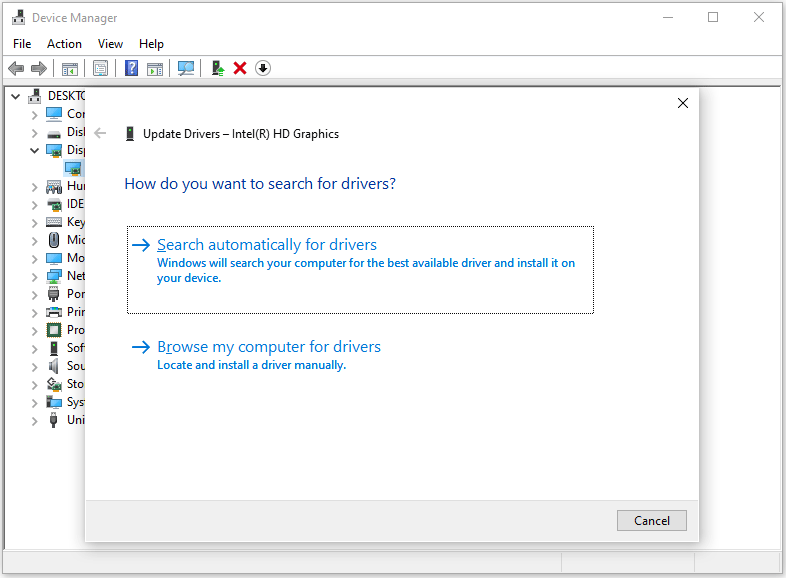
- Right-click Start and select Device Manager.
- Expand categories (like Display adapters, Disk drives) to find the hardware with yellow exclamation marks.
- Right-click the device and choose Update driver, then select Search automatically for drivers.
Cause 3. Malware and Viruses
Malicious software is a pervasive cause of system crashes, as malware is designed to disrupt system operations, corrupt critical files, hijack system resources, and damage core OS components.
So, try to use a trusted antivirus program like Windows Defender to perform a full system scan.
Here are the steps:
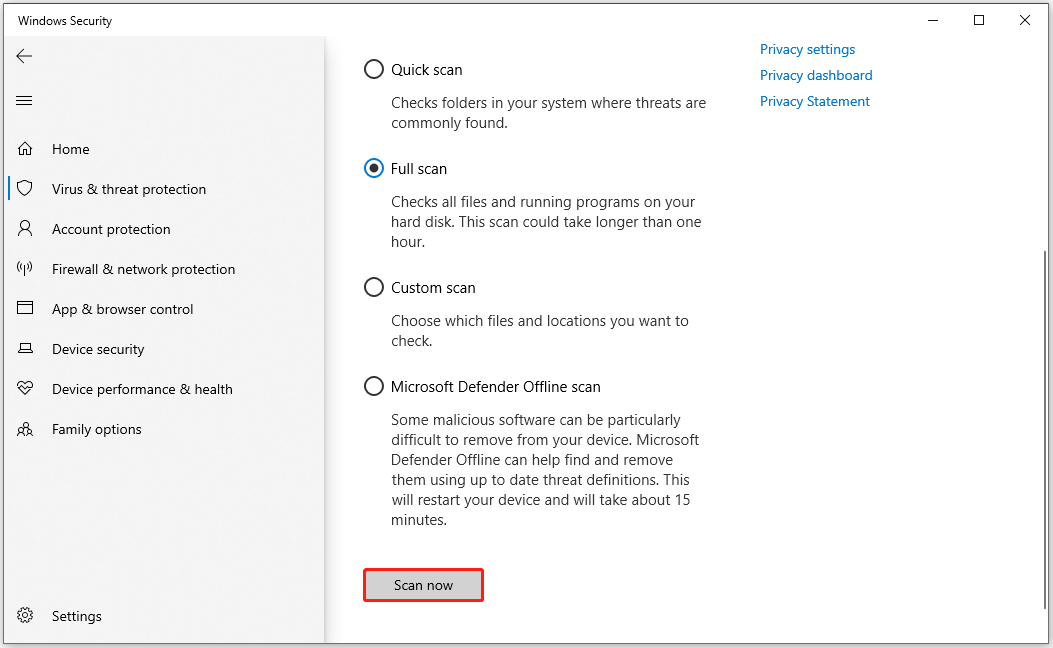
- Open Settings > Update & Security > Windows Security > Virus & threat protection.
- Click Scan options and select Full scan. It scans all files and programs.
- Click Scan now and follow prompts to remove detected threats.
Cause 4. Corrupted System Files
Windows relies on thousands of critical system files to run smoothly. These files can become corrupted/missing due to sudden power loss, malware infections, or faulty Windows updates.
Corrupted system files break core operating system functions, leading to the computer keeping crashing.
To resolve this, run DISM and SFC, which are designed to repair corrupted or missing system files.
The steps are as follows:
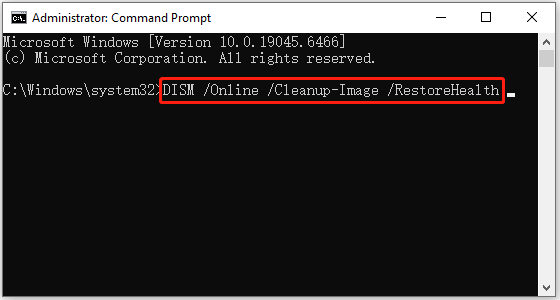
- Type cmd in the search bar, right-click Command Prompt, and then select Run as administrator.
- Type DISM /Online /Cleanup-Image /RestoreHealth and press Enter. This command will scan and repair corrupted Windows system components by replacing them with healthy ones.
- After the DISM process finishes, type sfc /scannow and press Enter. This command will scan all protected system files and automatically repair any corrupted ones.
Cause 5. Failing Hard Drive
Hard disk drives (HDDs and SSDs) on computers store the OS and all data. If there are problems with the storage drives, it can cause crashes, slow performance, and data corruption.
So, try MiniTool Partition Wizard to check if the hard drive has problems. It is a free partition manager that can help you check the file system and bad sectors on the drive.
Before that, click the download button below to download and install this software on your computer. Then use it.
MiniTool Partition Wizard FreeClick to Download100%Clean & Safe
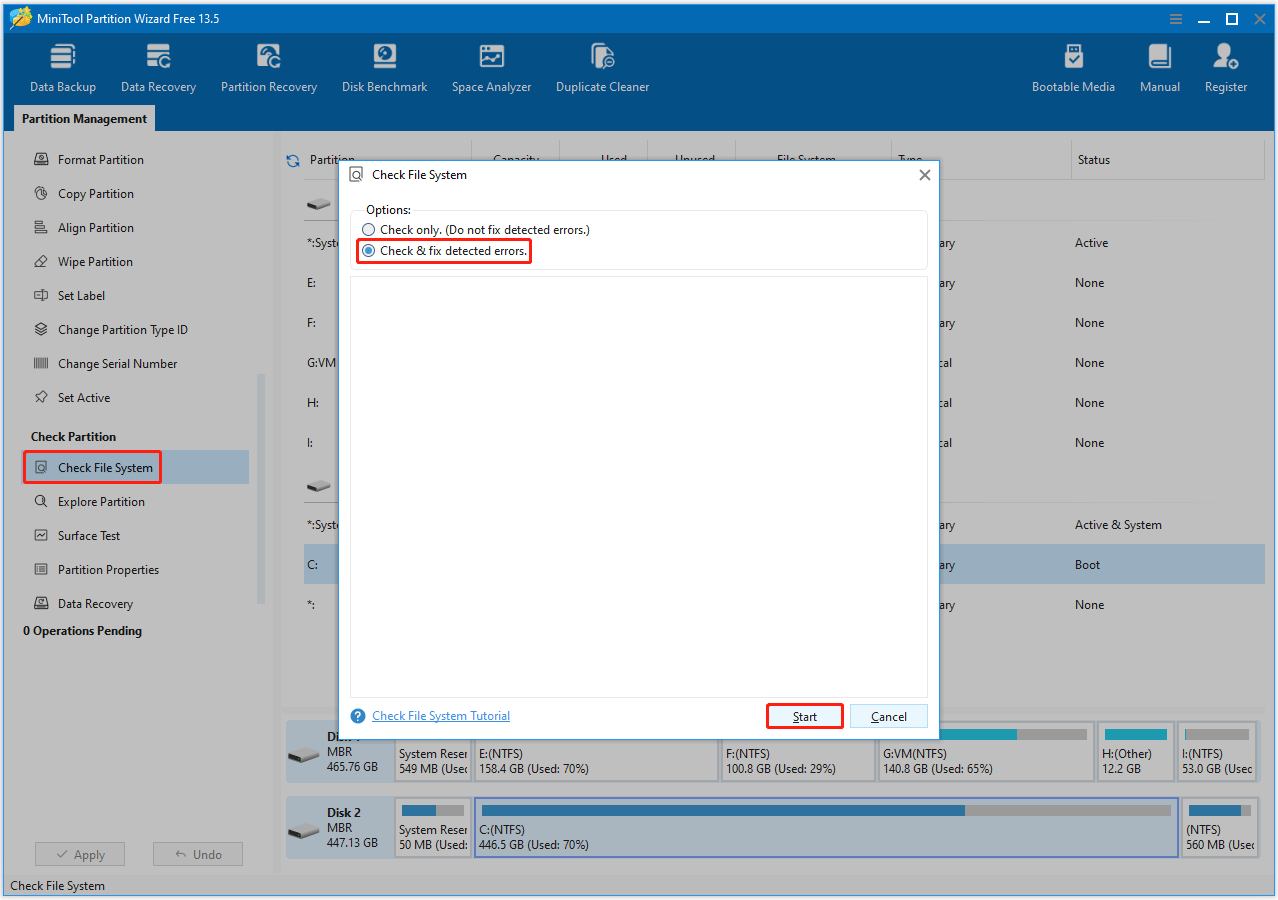
Step 1. Check the hard drive for file system errors using the Check File System feature of MiniTool Partition Wizard.
- On the main interface of MiniTool Partition Wizard, highlight the system partition on the disk and select Check File System from the left action panel.
- In the pop-up window, select Check & fix detected errors and click Start.
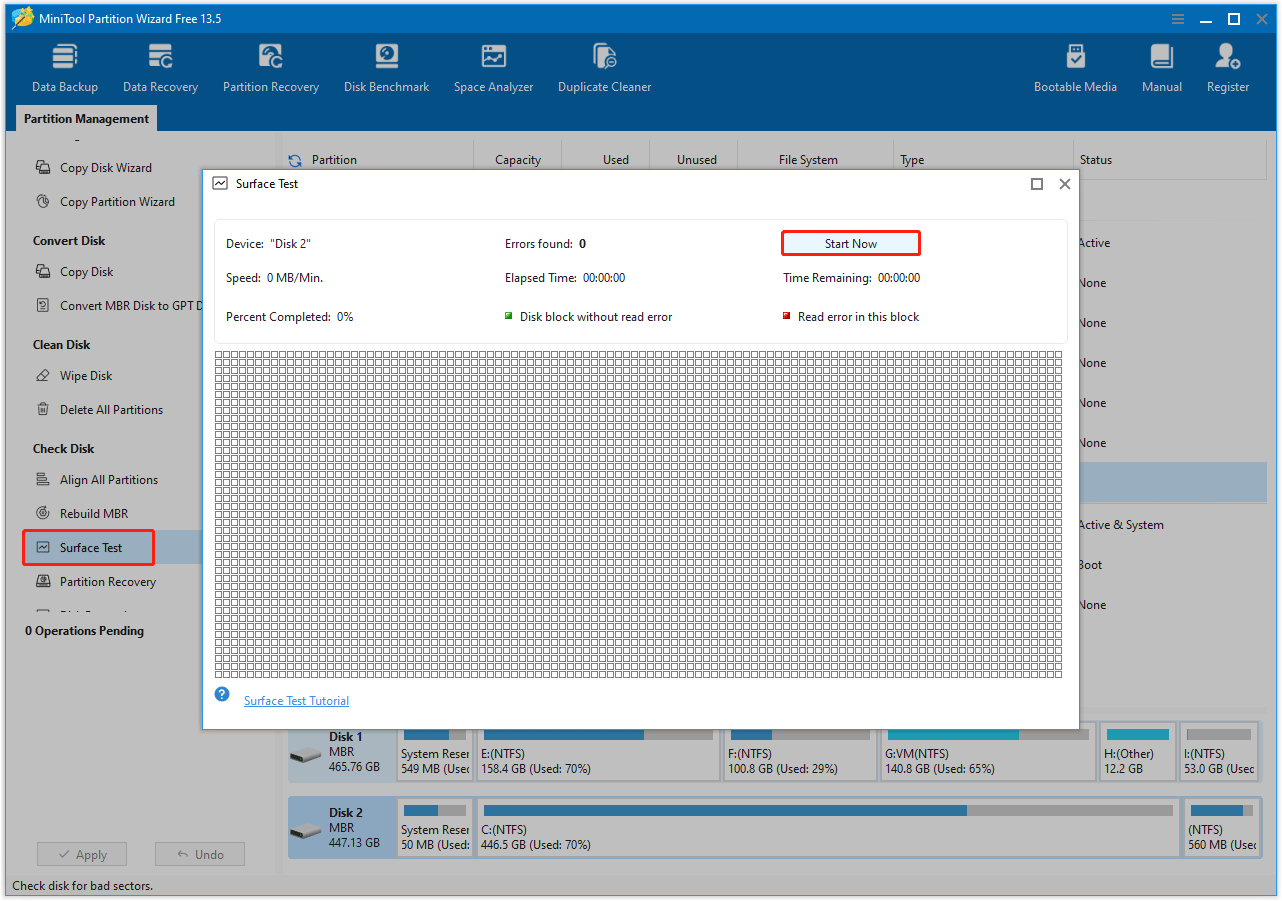
Step 2. Check bad sectors on the hard drive using the Surface Test feature.
- On its main interface, right-click the hard drive and select Surface Test.
- In the pop-up window, click the Start Now button.
- The bad sectors will be marked as red blocks. If there are too many bad sectors, you need to replace the hard drive.
Cause 6. Faulty RAM
Bad memory modules cause the computer to crash. In this case, use the Windows built-in tool, Windows Memory Diagnostic, to find and fix memory issues.
- Search for Windows Memory Diagnostic and launch the tool.
- Choose Restart now and check for problems (recommended).
- To view the test results, right-click the Windows icon and then select Event Viewer.
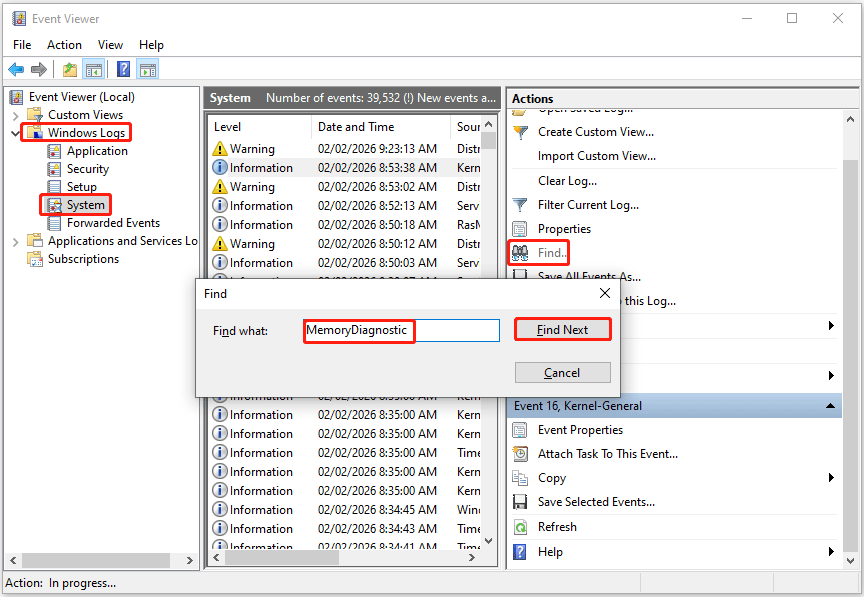
- Go to Windows Logs > System, click Find in the right pane, search for MemoryDiagnostic in the box, and then click Find Next to see the results at the bottom of the window.
If the diagnostic tool detects an error, it usually indicates a physical problem with the memory. Try these steps:
- Reinstall the memory module: Turn off the computer, open the case, remove the RAM sticks, and then firmly snap them back into their slots.
- Replace the memory: If the error persists after reinstalling, replace the faulty memory module.
Cause 7. Power Supply Unit (PSU) Issues
A failing PSU delivers inconsistent, unstable power to components, causing sudden restarts, crashes, and boot failures. This is common in older desktops or systems with upgraded high-power GPUs that exceed the PSU’s capacity.
You can use HWMonitor to check the voltages of the 12V, 5V, and 3.3V power rails. If these voltage values are significantly lower than their rated values under load, your power supply may be faulty.
If so, replace the PSU with a high-quality, wattage-appropriate unit from a reputable brand.
Cause 8. Software Conflicts
Modern computers run dozens of third-party applications, background services, and startup programs, many of which conflict with one another or with the operating system.
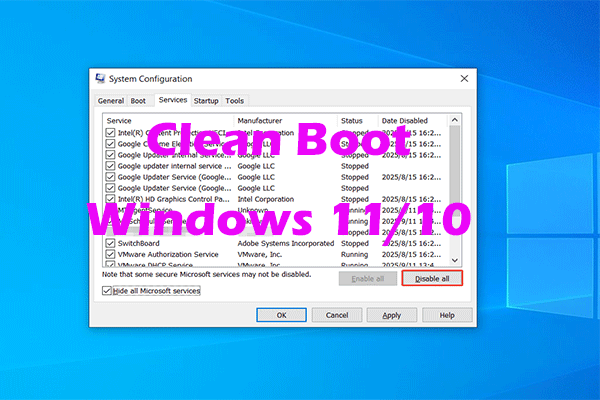
Therefore, you should try to perform a clean boot. This helps identify if a third-party application or service is causing the conflict by starting Windows with only essential drivers and programs.
Once your computer has stabilized, taking preventative measures can reduce the likelihood of future crashes.
- Keep your system updated: Regularly install Windows updates and driver updates to fix security vulnerabilities and program errors.
- Maintain good hardware cleanliness: Clean your computer regularly to prevent dust buildup and overheating. Ensure your fans and cooling system are functioning properly.
- Use reliable security software: Keep your antivirus software active and updated to protect against malware threats.
- Monitor system health: Regularly use diagnostic tools to check temperature, disk health, and memory status.
- Install software carefully: Only install trusted applications and avoid running multiple large programs simultaneously to reduce system load.
How to Recover Data After a Computer Crash?
If your data is lost after the computer keeps crashing, you should try a professional data recovery tool to recover the lost data. MiniTool Partition Wizard is such a tool.
MiniTool Partition Wizard DemoClick to Download100%Clean & Safe
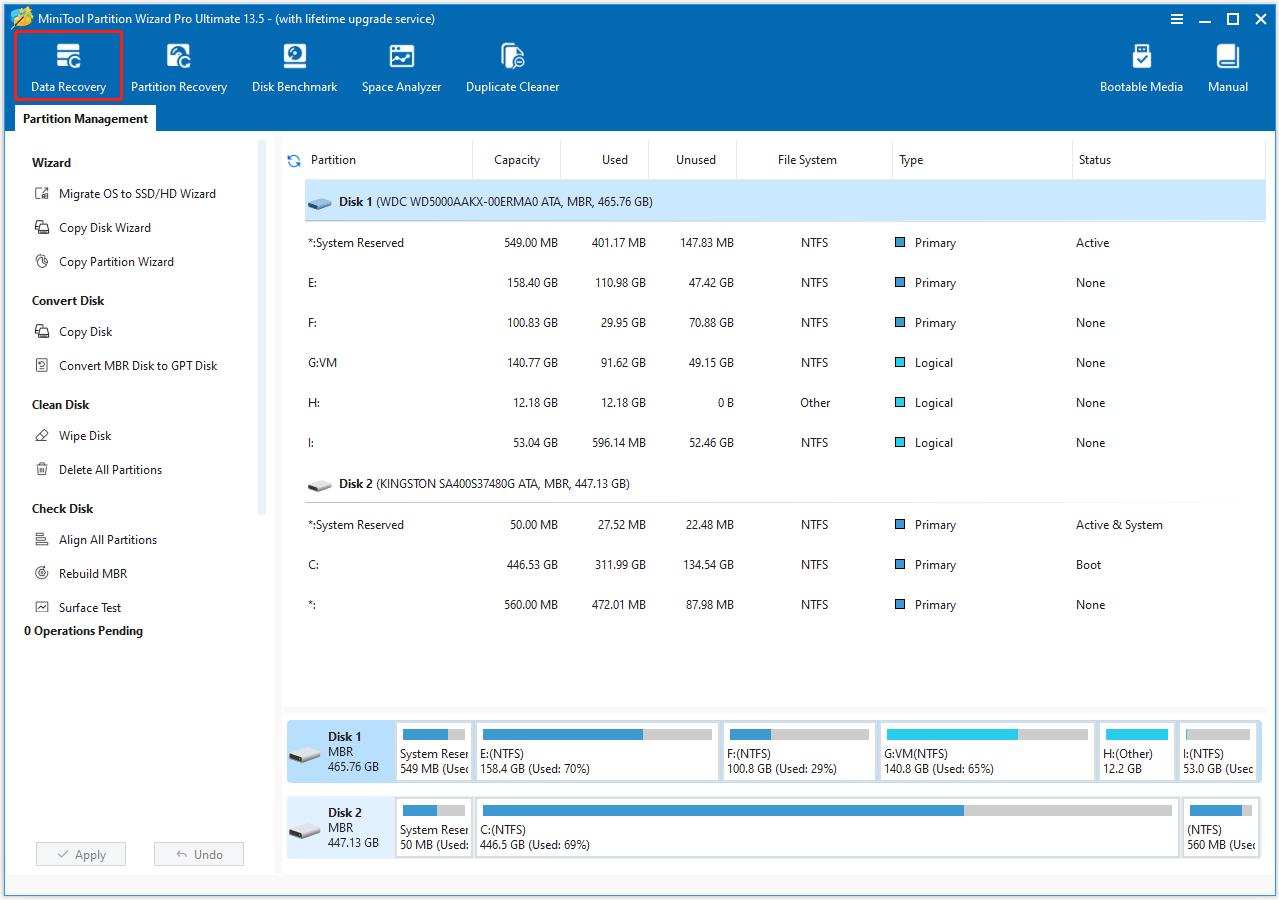
Step 1. Launch MiniTool Partition Wizard to enter its main interface and click Data Recovery in the top toolbar.
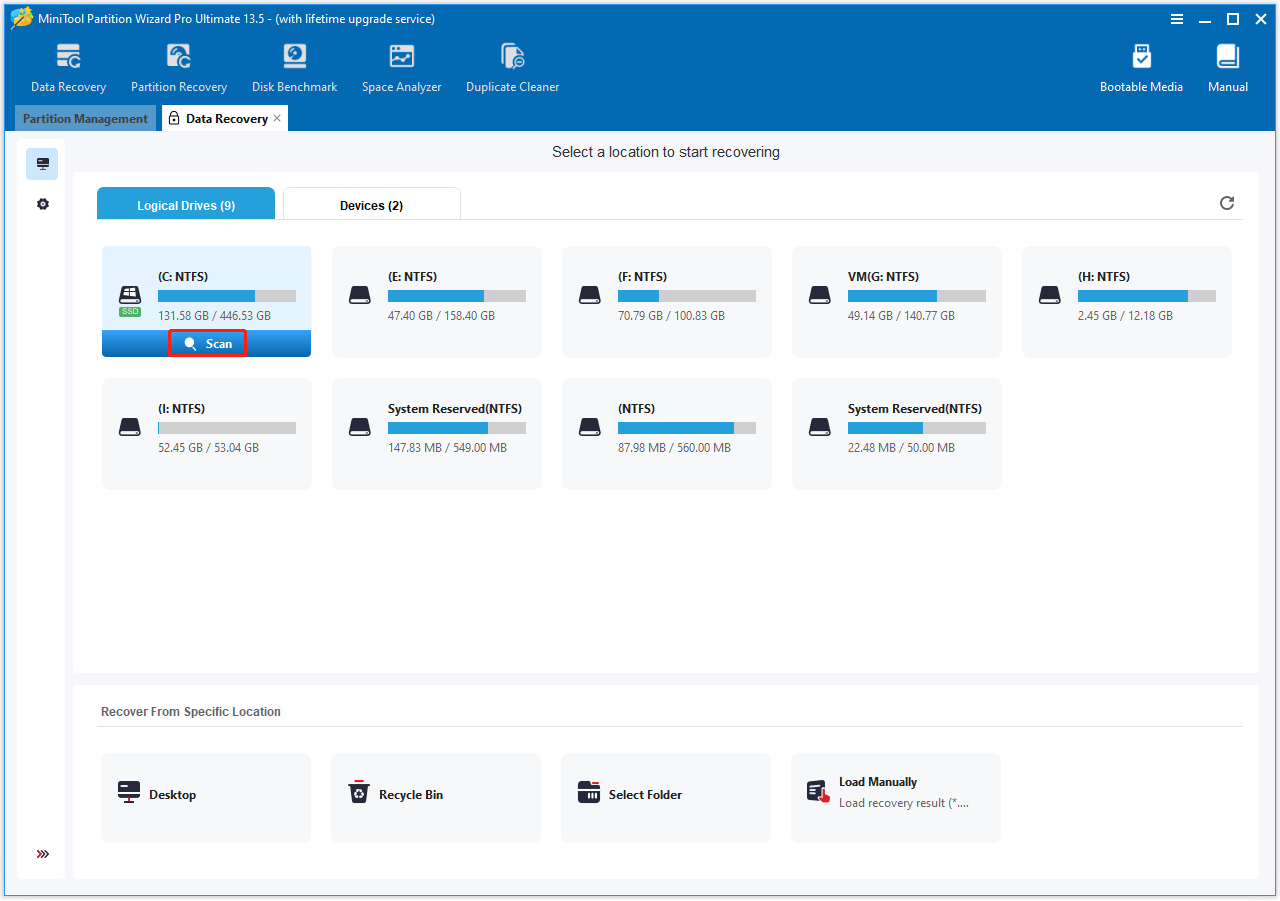
Step 2. In the pop-up window, under the Logical Drives tab, select the drive including lost data and click Scan.
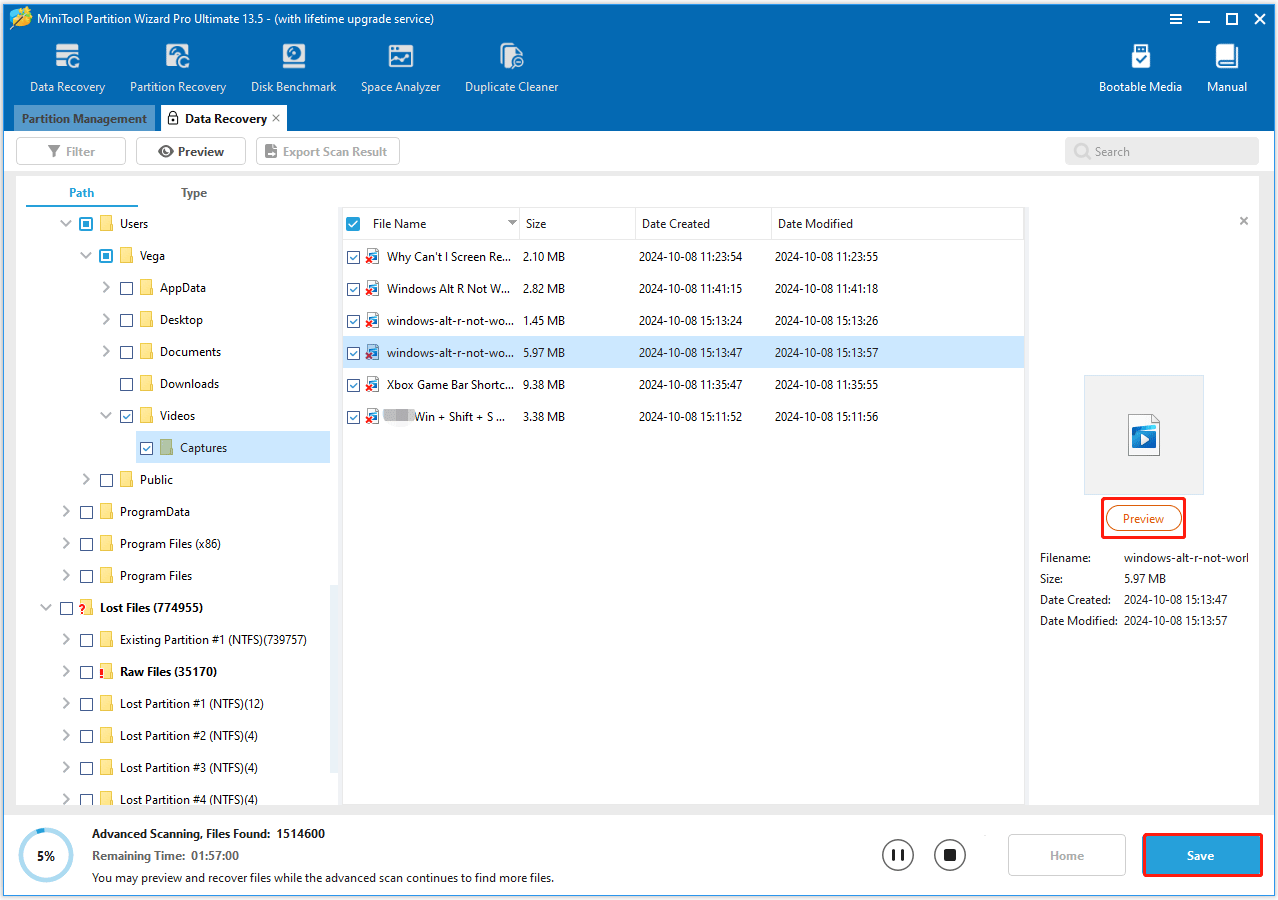
Step 3. Once the scanning completes, find the lost data and click the Preview button to preview the files/folders. Then check the files/folders boxes and click Save.
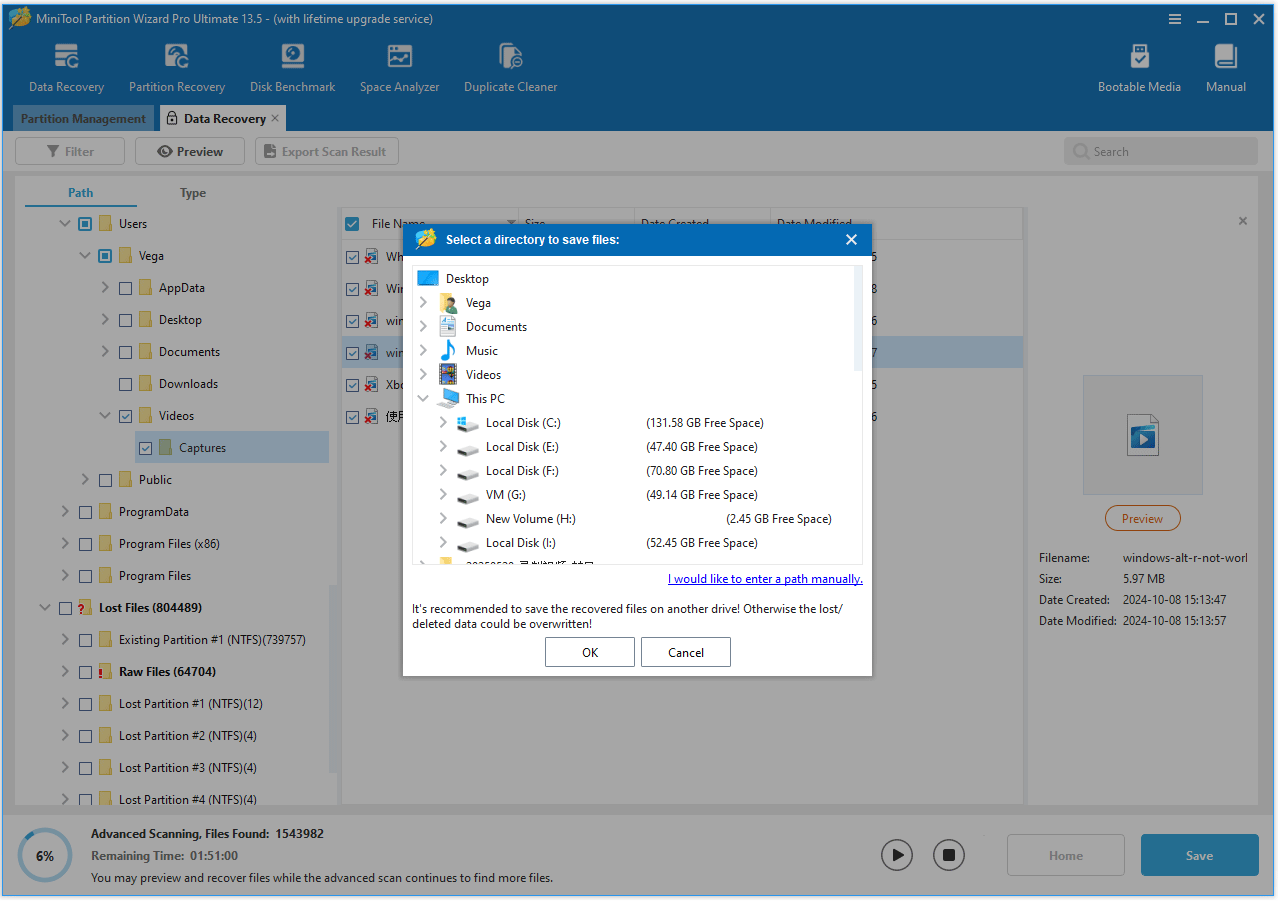
Step 4. Select a different location to save the recovered files/folders and click OK. If you save them to the original location, the lost data may be overwritten.
Why Does My Computer Keep Crashing FAQ
Crashing: The system or a specific program shuts down suddenly.
Lagging: The system is slow and has delayed responses, but is still functional.
Bottom Line
Why is my computer crashing? By understanding the causes, you can diagnose and resolve this issue.
If you have any questions related to MiniTool Partition Wizard, just contact us by sending an email via [email protected].
User Comments :