
If you don’t lock desktop background, it can be changed by anyone who can access your computer. Thus, it is a vexing thing. This post will show you how to lock desktop background Windows 10 with ease. In addition, you can also try MiniTool software to keep your data safe.
2 Ways to Lock Desktop Background Windows 10
Desktop background is a digital image used as a decorative background of a graphical user interface on the screen of a computer, smartphone or other digital devices. And the desktop background also can be changed by other people who can access your computer or devices. So some people may feel that it would be very inconvenient, especially those businesses who want to display their brands on the desktop background.
Thus, they want to know whether they can lock desktop background or stop Windows 10 changing background. Of course, the answer is positive and you can prevent changing desktop background Windows 10.
In the following section, we will show you how to lock desktop background Windows 10 with two different ways. If you want to lock desktop background Windows 10, try these two ways.
Way 1. Lock Desktop Background in Registry Editor
In the beginning, we will show you the first way to lock desktop background. You can stop Windows 10 changing background in Registry Editor.
Step 1: Press Windows key and R key together to open Run dialog. Then type regedit in the box and click OK to continue.
Step 2: Navigate to the following folder.
HKEY_CURRENT_USER\Software\Microsoft\Windows\CurrentVersion\Policies
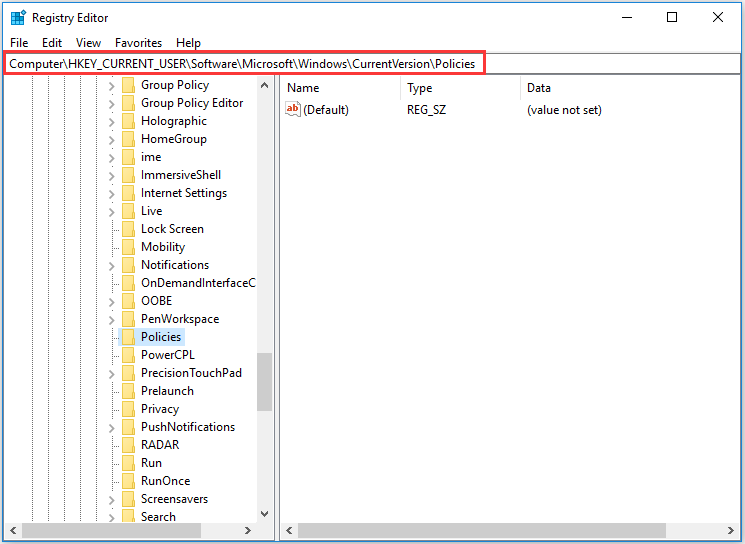
Step 3: Right-click the Policies and choose New and Key to continue.
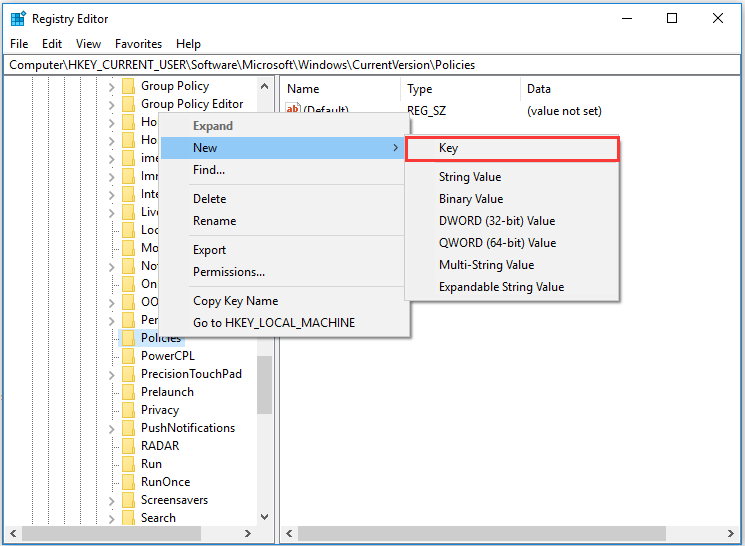
Step 4: Name the new key as ActiveDesktop and hit Enter to continue.
Step 5: Then right-click on the right panel and choose New and DWORD(32-bit) Value to continue.
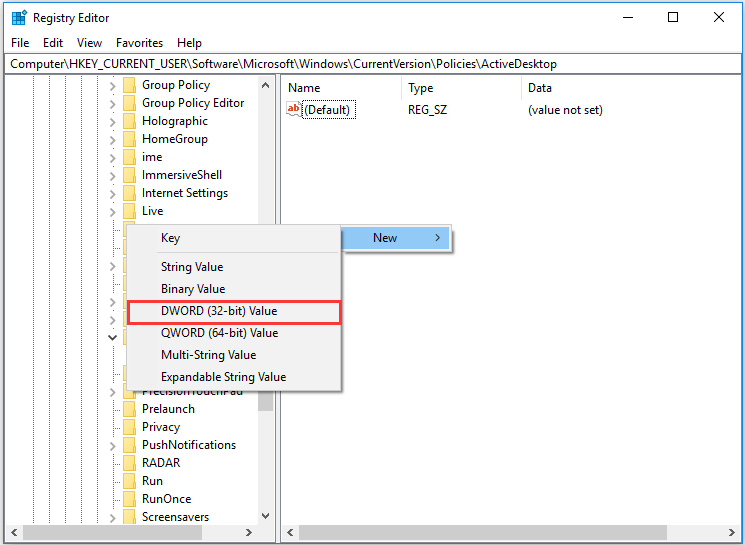
Step 4: Name the new DWORD as the NoChangingWallPaper and hit Enter to continue.
Step 5: Double-click it and change its value data to 1. Then click OK to continue.
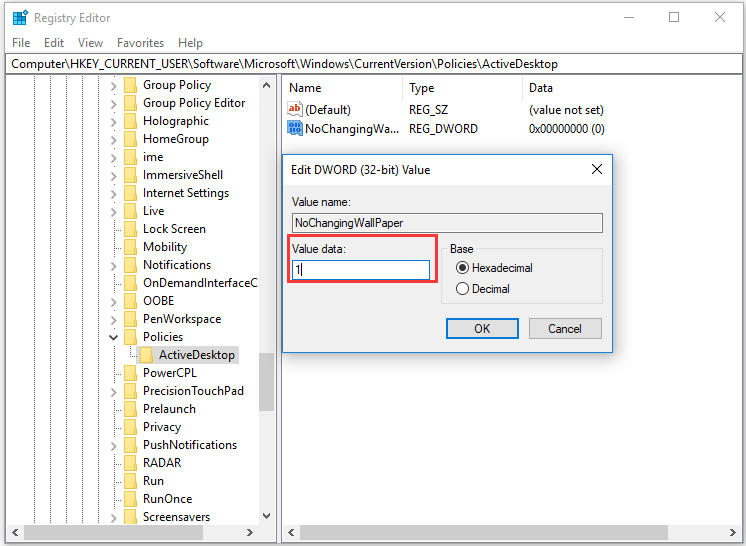
After that, you can reboot your computer to take effect. You have locked desktop background Windows 10 and nobody can change the desktop anymore.
Way 2. Lock Desktop Background in Group Policy
In the above section, we have shown how to lock desktop background Windows 10 in Registry Editor. Here, we will walk you through the second way to lock desktop background.
In this way, you can prevent changing desktop background Windows 10 in Group Policy.
Here is the tutorial.
Step 1: Press Windows key and R key together to open Run dialog. Then type gpedit.msc in the box and click OK to continue.
Step 2: In the Local Group Policy Editor window, navigate to the following folder.
User Configuration > Administrative Templates > Control Panel > Personalization
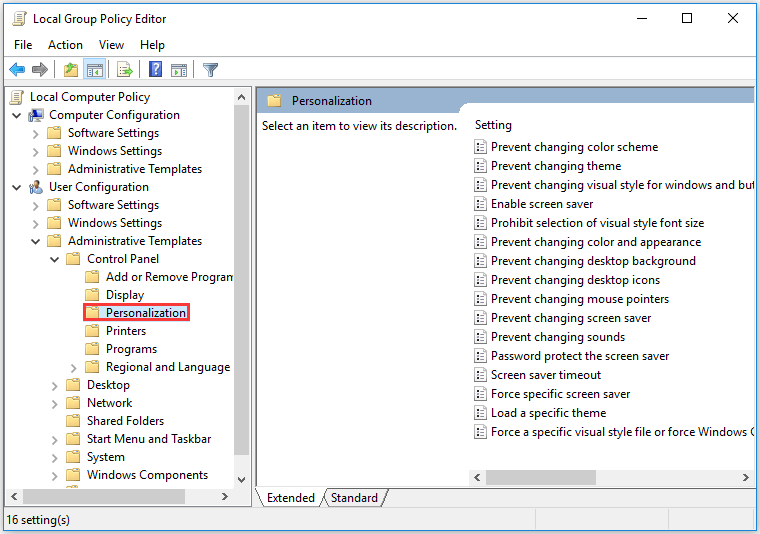
Step 3: Double-click the Prevent changing desktop background to continue.
Step 4: In the pop-up window, check the option Enabled, click Apply and click OK to take effect.
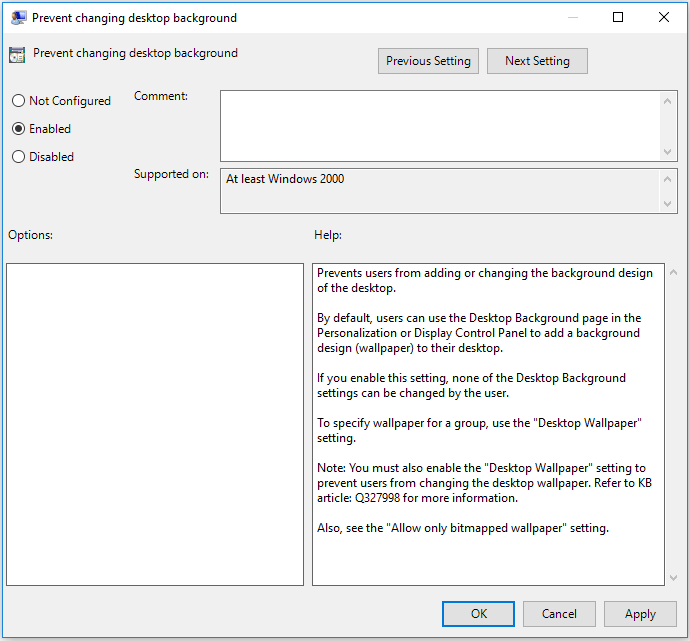
When you have finished all the steps, you can find that you cannot change desktop background any more since you have locked desktop background.
Final Words
To sum up, this post demonstrates you how to lock desktop background Windows 10 with two different ways. If you want to prevent changing desktop background Windows 10, try these ways.
User Comments :