
Sometimes, the makecab.exe process runs at startup and causes high CPU usage in a system that slows your system down. However, you don’t know how to fix it, then you can read this post written by MiniTool to get some useful methods.
Makecab.exe Running at Startup & Consuming High CPU
What is the makecab.exe process? The makecab.exe program compresses the Component-Based Servicing log files (CBS log files) that can be large files. Ideally, the makecab.exe consuming high CPU” issue won’t happen.
However, at times thousands of instances created by it that will cause over-utilization of system resources. This slows down the system. What cause makecab.exe running at startup? The failed Windows Update is the main cause. Another cause could be a virus or malware modifying the files.
Maybe you want to disable the makecab.exe process, but you should not disable it directly because it’s important for the system. If you end the task in the Task Manager, the CBS log files will keep growing to their original size until you restart the system.
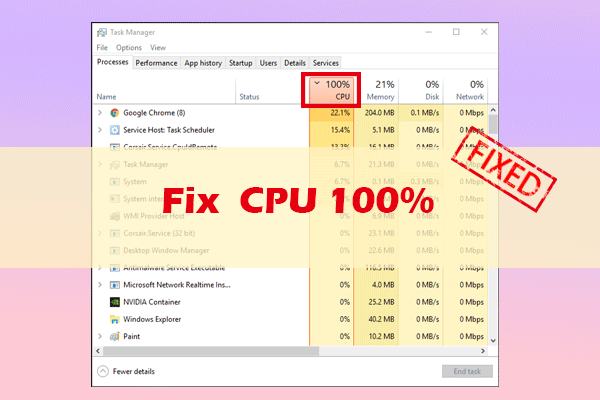
How to Fix the “Makecab.exe Running at Startup” Issue
Then, I will introduce how to fix the “makecab.exe consuming high CPU” issue.
Method 1: Use File Explorer to Delete CBS Log Files
The first method for you is to delete CBS log files using File Explorer. Here are the steps:
Step 1: Open File Explorer and navigate to the path: C:\Windows\Logs\CBS.makecab.exe.
Step 2: Delete the CBS log files from this folder.
Restart your system and check if the issue has been fixed.
Method 2: Delete Log File Using Elevated Command Prompt
The second method is to use elevated command prompt to delete CBS log files. Here is the tutorial:
Step 1: Search for Command Prompt in the Search box and right-click it to select Run as administrator.
Step 2: Type the following command and press Enter to execute it:
del /f %windir%\logs\cbs\*.log
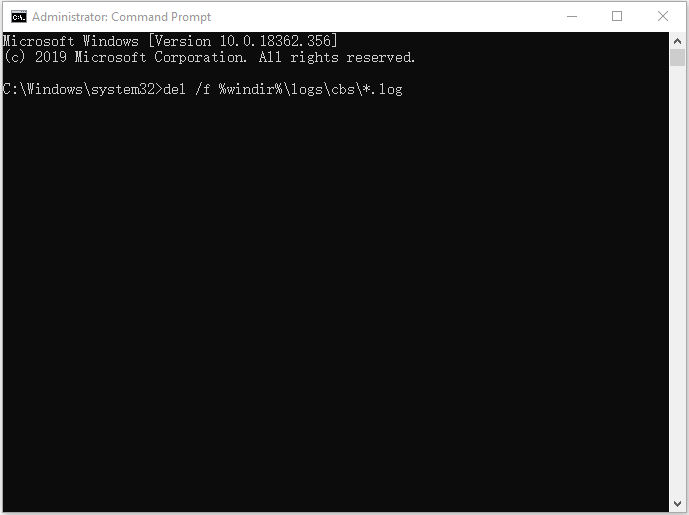
Then restart your system and check if the issue has gone or not.
Method 3: Run SFC Scan
To make sure the cause is also rectified, you could proceed to the following methods. You can try to run SFC scan to fix it. Here is how to do that:
Step 1: Input Command Prompt in the search bar and click Run as administrator.
Step 2: Type the following command and press Enter.
sfc /scannow
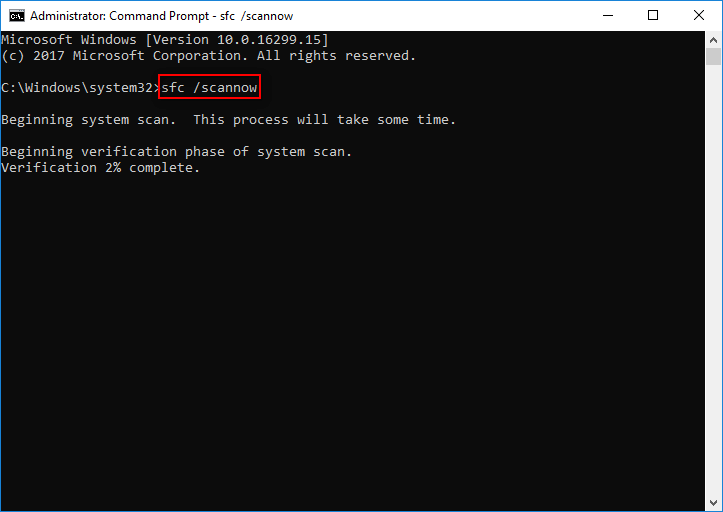
After the verification is 100% completed, you can check the scan results to see if there are some errors found. If some errors are found, you may run the SFC command several times to fix them.
Method 4: Uninstall Suspicious Programs
Try uninstalling any recently installed freeware or suspicious software if this is the case with your system. You can follow the steps below:
Step 1: Press the Windows + R keys to open the Run box. Type appwiz.cpl and click OK to open the Programs and Features window.
Step 2: Navigate to any recently installed freeware or suspicious program and right-click it to choose Uninstall/Change.
Final Words
Is your makecab.exe running at startup or consuming high CPU on Windows 10? Now, it’s time to try these methods to fix your issue. I hope that you can use the program normally.
User Comments :