
What is Microsoft memory integrity scan tool? How to get this tool to check for any compatibility with memory integrity? Continue reading and MiniTool will show you many details about it, as well as how to keep data safe to avoid data loss due to malware.
What Is Memory Integrity
Memory integrity is a built-in feature in Windows 10 and 11 to block malicious code from accessing high-security processes when an attack appears.
It is a feature under core isolation. Memory integrity, also known as hypervisor-protected code integrity (HVCI), is part of virtualization-based security (VBS) that offers an extra layer to help protect against sophisticated cyberattacks like kernel data modification, code injection, and driver exploitation.
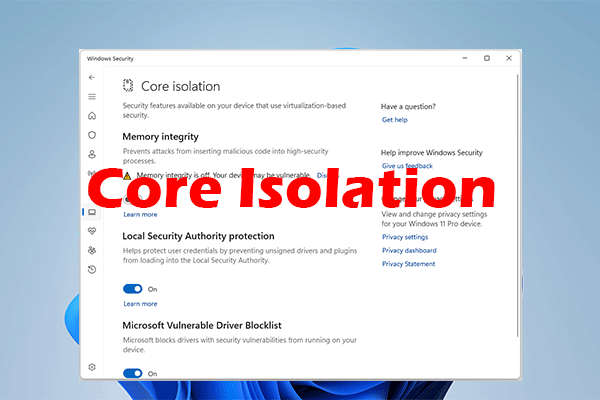
By default, memory integrity is enabled in Windows. However, sometimes memory integrity is not turning on due to incompatible drivers. Sometimes there are compatibility issues with memory integrity, leading to some issues & errors. So, a memory integrity check/test is necessary to help you know what is not compatible.
Memory Integrity Scan Tool for Windows 11/10
To check for compatibility issues with memory integrity, you can run a professional tool. Recently, Microsoft has released a program called memory integrity scan tool that can be your good assistant. This tool can detect any compatibility issue present on your computer that can influence on memory integrity ((HVCI).
Microsoft memory integrity scan tool can run well on many operating systems, including Windows Server 2016/2019/2022 and Windows 10 & Windows 11. It is available to download and install on your PC for a memory integrity test. See how to get this utility.

Memory Integrity Scan Tool Download & Run for Windows 11/10
Follow the steps below to download and run this scan tool on your PC:
Step 1: Visit the official website of Microsoft via a web browser – https://www.microsoft.com/en-us/download/105217.
Step 2: Click the Download button to continue.

Step 3: Microsoft offers two hvciscan.exe files to download – hvciscan_amd64.exe and hvciscan_arm64.exe. You need to choose one based on your system architecture and click the Next button. Then, the downloading process starts.
Step 4: After getting the hvciscan.exe file, you need to run this tool from an elevated command window or PowerShell.
Just type cmd or powershell into the search box in Windows 11/10, right-click on Command Prompt or Windows PowerShell, and choose Run as administrator. Then, type C:\Users\cy\Desktop\hvciscan_amd64.exe (replace C:\Users\cy\Desktop with your file location) and press Enter to run this memory integrity scan tool. Next, you can see the resulting output to identify any incompatibilities.

Recommend: Back up Your PC
It is a good option to enable memory integrity and run a memory integrity check/test to protect your PC from complicated malware attacks well. However, not all cyber attacks can be blocked. Once your computer is invaded, some data may be encrypted or get lost. To make sure your data is safe and avoid loss in the event of an attack, you had better back up the crucial files. If you have a large amount of files to generate every once in a while, you can configure the scheduled backup plan.
To back up data in a reliable way, we recommend using the professional and free backup software – MiniTool ShadowMaker. It enables you to create a backup for data and the system, as well as create automatic, incremental, and differential backups. Now, don’t hesitate to get this program to have a free trial in 30 days.
MiniTool ShadowMaker TrialClick to Download100%Clean & Safe
Step 1: Open MiniTool ShadowMaker and click Keep Trial to go on.
Step 2: Tap on Backup > SOURCE > Folders and Files, choose items you want to back up, and click OK.
Step 3: Tap on DESTINATION under Backup and choose a path to save the backup image file.
Step 4: To automatically back up files, click Options > Schedule Settings, enable this feature, and configure a time point under Daily, Weekly, or Monthly or choose an option under On Event.
Step 5: Click Back Up Now finally.

About The Author

Position: Columnist
Vera has been working at the MiniTool Team for over 10 years as a technical editor and content writer. She mainly focuses on disk and partition management, data recovery, Windows backup and restore, and PC troubleshooting. Through in-depth software testing and hands-on experience, she has helped users solve a wide range of computer problems and better protect their data on Windows devices.
User Comments :