
Microsoft 365 Authentication or Initialization Failed
Any attempts to re-add the email account then gets the error “Authentication Error - Check your username and password. (IMAP)”, the password is most definitely correct as this is being copied from a password manager. I have tried to disable 2FA on the email account, use app passwords (whilst 2FA is enabled), change the password, but this issue keeps popping up and leaves my email account unable to be added. community.getmailspring.com
Many users report that they experience Microsoft 365 authentication or initialization failed while adding an account to Outlook in Windows 11/10. Usually, the authentication issue occurs because of missing package information about either the Active Directory Authentication Library (ADAL) or Live ID. To solve this authentication issue, you can try a list of solutions in the following paragraphs.

How to Solve Microsoft Authentication Problem?
1. Sign out and Sign Back in Your Account
You can try to sign out of your Outlook accounts and then sign back in. After that, add a newly created account to see if Outlook still throw the authentication error.
2. Verify Account Settings
It’s necessary to check the account settings to make sure they are correct, especially for the ones experiencing issues. Here’s how to check it:
Step 1. Open Outlook and go to the File tab.
Step 2. Click on Info in the left pane > select the Account Settings option in the right side > choose Server Settings in the drop-down menu.
Step 3. In the IMAP Account Settings window, check thar each of these is correct and make changes if necessary:
For Incoming mail:
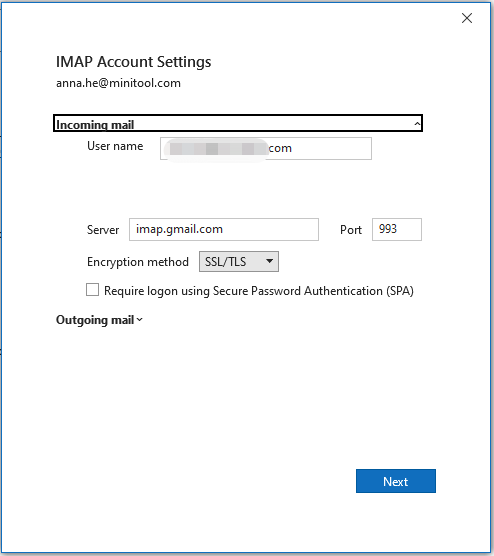
- User Name: your email address (all lowercase)
- Server: mail.tigertech.net
- Port: 143
- Encryption method: STARTTLS
- Require logon using Secure Password Authentication (SPA) should not be checked.
For Outgoing mail:
- Server: mail.tigertech.net
- Port: 587
- Encryption method: STARTTLS
- My outgoing server (SMTP) requires authentication should be checked
- Use same settings as my incoming server should be selected
After verifying these settings, click on Next and Done to apply your changes and close the box. Restart your Outlook > add an account > check if it can’t authentication Microsoft account.

3. Update Outlook
An outdated Outlook could encounter Microsoft 365 authentication or initialization failed, so ensure your Outlook app is up to date. If not, follow the steps to update it:
Step 1. Go to Outlook > File.
Step 2. In the navigation pane, select Office Account > Update Options.
Step 3. If automatic updates are paused or disabled, select Enable Updates. Then it will make sure updates are now started automatically.
4. Remove Problematic Accounts
When you get the Microsoft authentication problem, the culprit may the problematic account. Therefore, you should try to remove some problematic accounts and then add them again. After readding, check if the authentication issue persists.
5. Sign into Outlook Online
Some users say that they successfully solved Microsoft 365 authentication or initialization failed by sign in to Outlook on the web. You can have a try:
Step 1. Open a web browser and go to outlook.office365.com.
Step 2. Sign in you account and follow any two-factor authentication prompts you may have previously set up got this account.
6. Set the Account as Primary
To fix Microsoft 365 authentication or initialization failed, you can try to set the account as primary. Here’s how to do it:
Step 1. Go to the Outlook app > tap on the Settings icon on the top right corner.
Step 2. Click on Account > Email accounts > hit the Manage button for the added account you want to set as primary account.
Step 3. Hit Set as primary account > Continue. Then Outlook will now restart to set up for the new primary account and follow its wizard to complete the setup.
MiniTool ShadowMaker TrialClick to Download100%Clean & Safe
Wrapping It Up
After reading this informative post, you should have a thorough understanding of how to solve Microsoft 365 authentication or initialization failed. Appreciate your support!
User Comments :