
All the time Microsoft Office enjoys widespread popularity. It can be used in a variety of situations, from individuals to large companies. In this case, though, certain errors can still arise. Error code 50058 is one of the most common issues you may experience. This guide from MiniTool will walk you through what error code 50058 is, what triggers it, and how to fix Microsoft login error code 50058.
What Is Error Code 50058?
The error code 50058 is a login issue in connection with user authentication for Microsoft apps. It means the user’s authentication is valid but not yet signed in. This issue can impede users from getting access to their services such as Word, Excel, or OneNote, thereby interrupting the whole workflow.
When the error code 50058 occurs, you will usually be told by an error message. Before troubleshooting this issue, you should also figure out what causes the error code 50058 on Microsoft 365.
Why Are You Having Error Code 50058?
Several causes may lead you to face Microsoft login error 50058. A few factors are listed below.
- Expired Password: If your account has a time limit to access, then your account might be terminated after some time.
- Incorrect ID: If you own more than one account, you may use other different account credentials to sign it.
- Invalid or Corrupted Single Sign-On (SSO): If you use SSO, especially invalid or corrupted, to log in to your account, you might encounter error code 50058.
- Damaged Windows Profile: If you used to access your account with your organization’s credentials, it may corrupt the Windows profile. Thus, you cannot log in to Microsoft Office.
After knowing these common reasons, you can be easier to understand the following fixes and take related steps.
How to Fix Microsoft Login Error Code 50058?
To fix error code 50058 on Microsoft 365, you can use the detailed solutions below.
Fix 1: Try Credentials Manager
The Credentials Manager will store your account and password so that you needn’t sign in every time access Microsoft Office. Sometimes when changing your password or account being audited, then these changes may result in errors such as error code 50058.
Step 1: Type Credential Manager in the search bar and open it.
Step 2: Select the Windows Credentials module.
Step 3: Find your Microsoft Account, click the drop-down icon next to it, and click Edit.
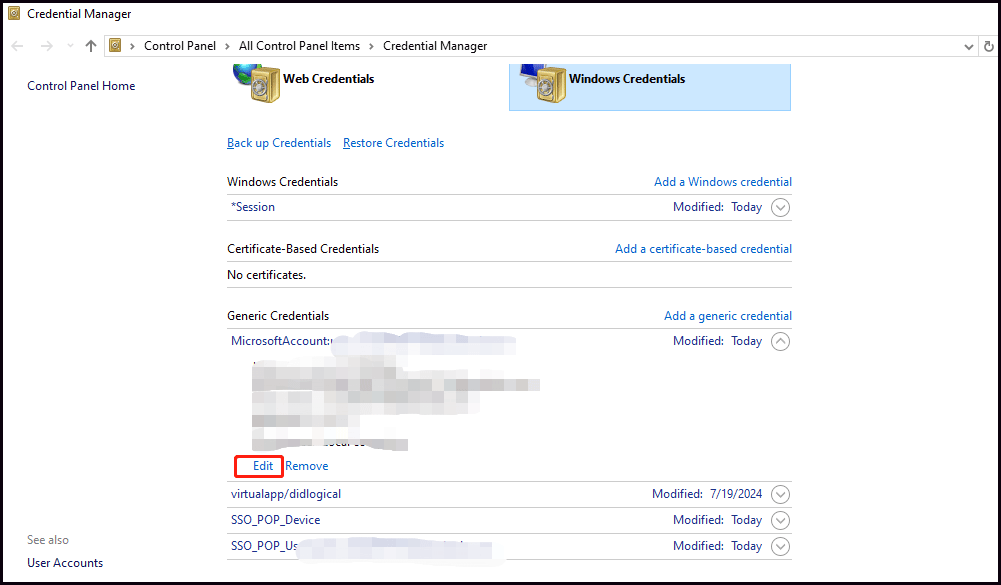
Step 4: Re-input your credentials, restart your computer, and go to Outlook to check if the error is solved.
Fix 2: Clean Credentials on Your PC
Removing your account stored on the computer may fix Microsoft login error 50058. Take the brief guide below.
Step 1: Go to Windows Credentials. It’s the same as steps 1, and 2 of Fix 1.
Step 2: Select Microsoft Account and click the Remove button.
Step 3: When finished, restart your PC and sign in again.
Fix 3: Reset Your Password
If lucky, resetting your password may make a difference since this error is related to the password.
Step 1: Go to Office Portal on your web browser.
Step 2: Log in with your Microsoft account and go to Security.
Step 3: Choose Change Password and reset your password with its prompts. After that, try to sign in with the new password.
Fix 4: Use a New User Profile
Step 1: Press Win + I together to open Settings.
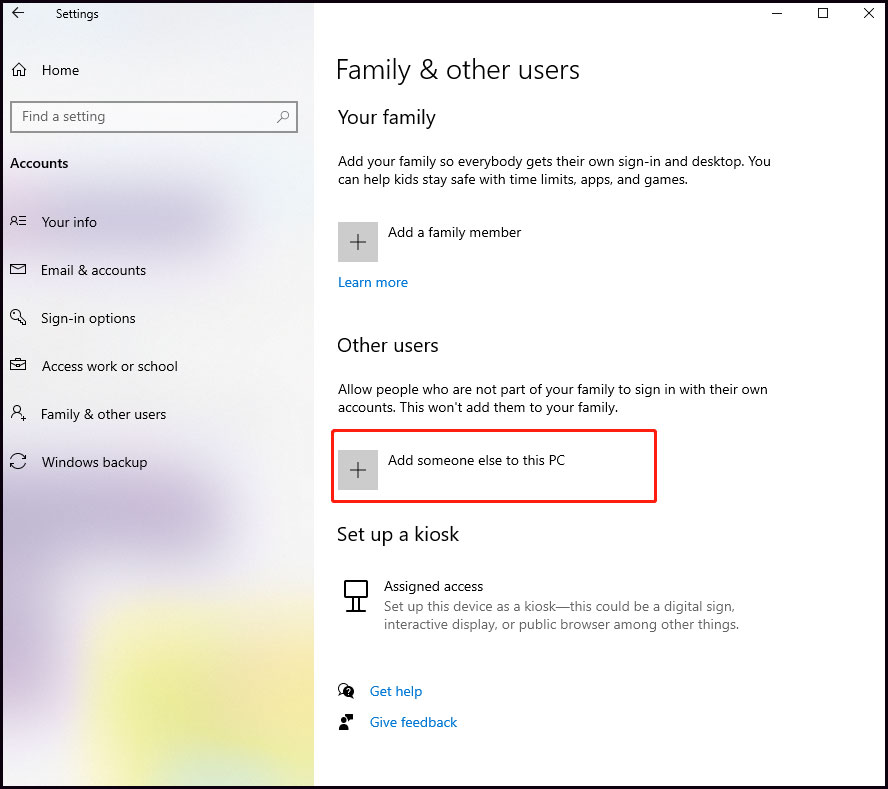
Step 2: Click Accounts and then select the Family & other users tab.
Step 3: Click Add someone else to this PC and enter your email or phone. Click Next to continue.
Step 4: Click Finish. Then you can sign out of the current account, use that new one, and see if the error persists.
MiniTool ShadowMaker TrialClick to Download100%Clean & Safe
Bottom Line
As you can see, this article introduces you to what error code 50058 is and how to fix Microsoft login error code 50058. Plus, please remember to regularly back up your data. Thanks for reading and sharing.
User Comments :