
When you are using a business or school account on your personal laptops, you might suffer from some issues such as Microsoft 365 error code CAA50024. In this post from MiniTool, we will show you why this error occurs and how to eliminate it to access organizational resources without errors.
Microsoft 365 Error Code CAA50024
As one of the most widely used productivity app providers, Microsoft includes powerful tools like Word, Excel, PowerPoint, Outlook, Teams, and so on. These applications can increase productivity and improve communication between team members. During the daily use of these apps, it’s not a new thing to encounter some issues, one of which is Microsoft 365 error code CAA50024.
This error might block you from signing into Microsoft Apps, which might impede your work efficiency. The factors below might contribute to it:
- Tick the Allow my organization to manage my device option accidentally.
- Corrupted cache in Microsoft Office and Teams.
- Incorrect configuration of MDM and Azure AD Admin Center.
MiniTool ShadowMaker TrialClick to Download100%Clean & Safe
Solution 1: Stop Allowing Your Organization to Manage Your Device
Some of you might tick the Allow my organization to manage my device option by accident when adding a work or school account to your Windows PC for the first time. After that, your company or school will gain lots of access to your device with Microsoft Intune Directory. Follow these steps:
Step 1. Open Windows Settings and go to Accounts.
Step 2. In the Access work or school section, select the account you want to unlink and hit Disconnect.
Step 3. After completion, restart your computer and log into an alternative account and don’t forget to uncheck the Let my organization manage my device option.
Solution 2: Clear Temporary Cache
Chances are that some temporary cache might get corrupted without your knowledge, triggering the occurrence of Microsoft Office error code CAA50024. Clearing these faulty cached files might help to solve this error. To do so:
Step 1. Right-click on the Start menu and select Run.
Step 2. Type %AppData%\Microsoft\teams\cache and hit Enter to locate the cache in Microsoft Teams. Right-click on all the contents and select Delete from the context menu.
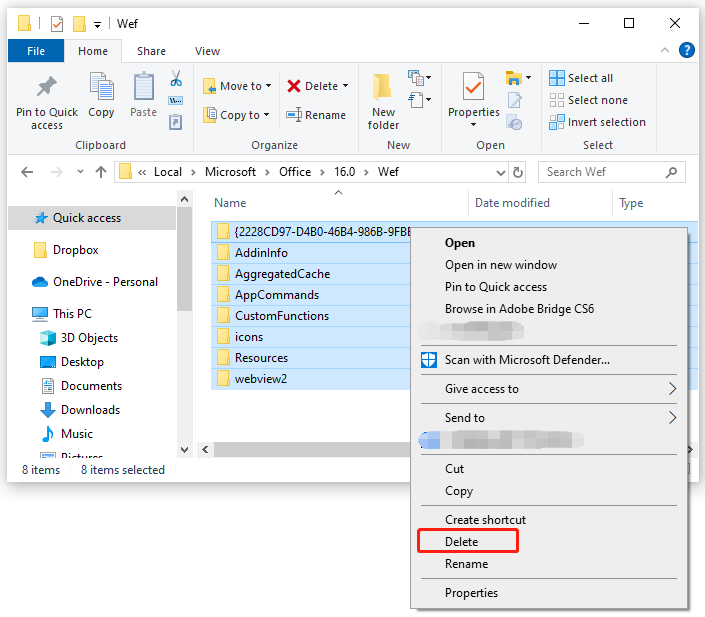
Step 3. In the Run box, input %LOCALAPPDATA%\Microsoft\Office\16.0\Wef\ and hit Enter to locate the cached files in Microsoft Office 365. Select all the content and hit Delete.
Solution 3: Perform an Online Repair
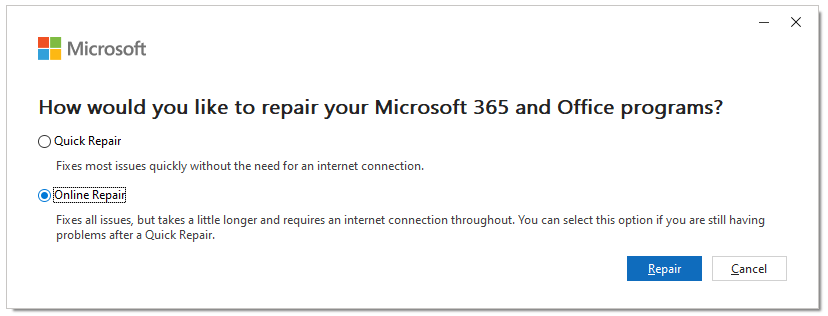
Microsoft comes with Quick Repair and Online Repair option that helps to check and repair any conflicts and corruptions like Microsoft Teams error CAA50024 in Microsoft 365 and other Office programs. To do so:
Step 1. Press Win + R simultaneously to open the Run box.
Step 2. Input appwiz.cpl and hit Enter to launch Programs and Features.
Step 3. Scroll down to find the problematic Microsoft app and hit Change.
Step 4. Check Quick Repair or Online Repair and then hit Repair to start the process.
Solution 4: Remove Cached Credentials
Outdated or corrupted credentials can be another crux of Microsoft 365 error code CAA50024. If this is the case, consider deleting them to get fresh and error-free authentication details. Follow these steps:
Step 1. Press Win + S to evoke the search bar.
Step 2. Type Credential Manager and hit Enter.
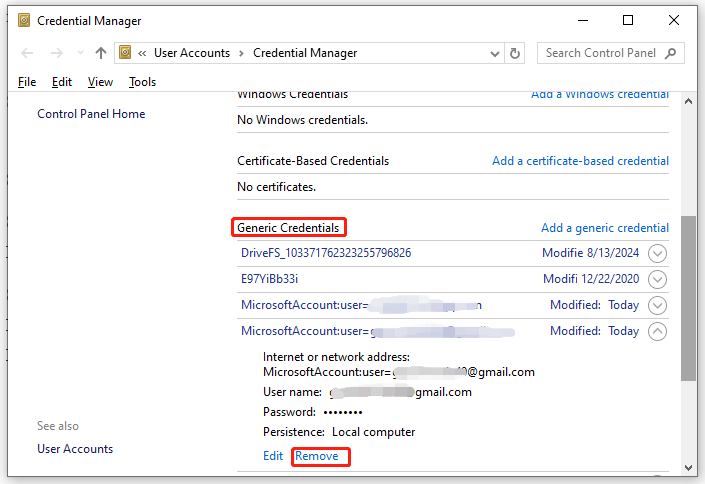
Step 3. Tap on Windows Credentials and scroll down to locate Generic Credentials.
Step 4. Remove any generic credentials related to Microsoft Office or Teams.
Step 5. Restart your computer and relog into your Microsoft account to see if Microsoft 365 error code CAA50024 is still present.

Solution 5: Ask Your IT Administrator for Help
- For those who attempt to auto-enroll in Microsoft Intune without a valid Intune license, please contact your IT administrator to assign you a valid Intune license,
- For those unable to obtain a license assignment, request your IT administrator to remove you from the MDM-related security group.
- For those who receive a server message pointing to a problem on the MDM terms of service page, ask your IT administrator to verify that MDM terms of use URL are set correctly.
Other Potential Fixes for Error Code CAA50024
- Update all your Microsoft apps.
- Verify date and time settings.
- Reconnect your Microsoft account.
Final Words
That’s all you can do when failing to sign into Microsoft account with error code CAA50024. After trying these solutions, your workflow can be resumed and all the organizational resources will be available to you. Appreciate your time!
User Comments :