
Mouse or Keyboard Not Working After Power Outage
A sudden power outage of the computer may cause a series of problems, such as the hard drive not working after power failure, data loss, system damage, and so on. In addition, many users have reported that the keyboard or mouse cannot work properly after the computer power off. Here you can see a true example:
“I got a power outage while my PC is resetting and now it won’t give any power to my monitor and keyboard. I tried to do everything that is on the other posts and it is still under warranty.”answers.microsoft.com
If you are suffering from the “mouse/keyboard not working after power failure” issue, keep reading to find detailed guidance.

How to Fix if the Mouse or Keyboard Is Not Working After a Power Outage
Solution 1. Rule out the Device Issues
First of all, you should confirm whether the problem is related to the computer USB port, mouse, and keyboard devices themselves.
Remove the mouse and keyboard and insert them into other USB ports to see if they can be used normally. If yes, it means that there is a problem with the USB port. To fix the “USB port not working after power outage” issue, it is recommended that you clean up the USB port or seek help from maintenance outlets. In addition, you can also insert the mouse and keyboard into other devices. If they are available on other devices, it indicates that the problem may be related to the driver of the mouse or keyboard.
If both the mouse and the keyboard are unavailable, then you are unable to perform the operation steps below. In this case, please seek help from a professional maintenance agency.
Solution 2. Run the Hardware and Devices Troubleshooter
The Hardware and Devices troubleshooter is a Windows built-in tool that is mainly used to solve computer hardware and device problems. You can use it to repair the keyboard or mouse.
Step 1. In the Windows search box, type cmd and click Command Prompt to open it.
Step 2. Next, type msdt.exe -id DeviceDiagnostic and press Enter.
Step 3. The Hardware and Devices troubleshooter will pop up. Now you need to click Next to start diagnosing related issues.
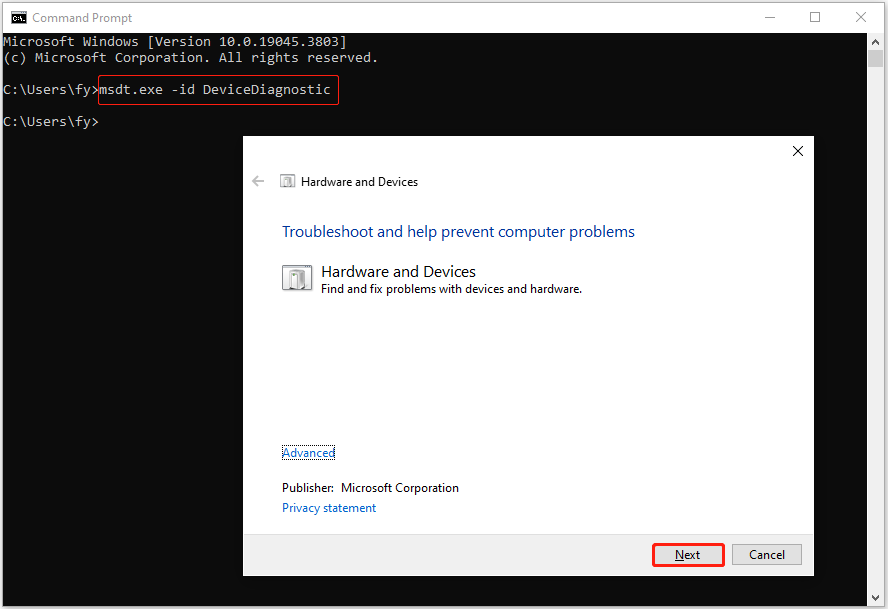
Step 4. Follow the on-screen instructions to take corresponding actions if necessary.

Solution 3. Update Keyboard/Mouse Drivers
Outdated or corrupted keyboard/mouse drivers may be the culprit of the “mouse or keyboard not working after power outage” issue. To fix it, you need to update the device drivers.
Step 1. On the taskbar, right-click the Start button to select Device Manager.
Step 2. In the new window, expand the Keyboards option, then right-click the target keyboard and click Update driver.
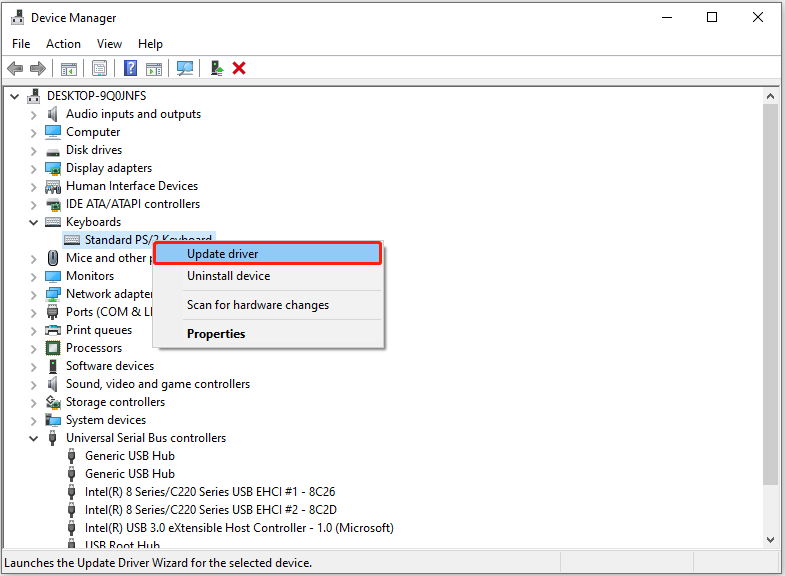
Step 3. Select Search automatically for drivers or Browse my computer for drivers based on your situation. After that, complete the necessary actions according to the instructions on your screen.
If the issue still exists, you can duplicate the steps to update the mouse driver.
Solution 4. Change Power Management Settings
If the mouse or keyboard consumes a large amount of power due to failure, and you allow Windows to turn off the device that consumes a lot of power, then this may be the reason why the mouse or keyboard is unavailable. In this case, you can try to fix the issue by changing the power management settings.
Step 1. Open Device Manager.
Step 2. Expand Universal Serial Bus controller. Right-click the corresponding device and select Properties.
Under Power Management, uncheck the Allow the computer to turn off this device to save power option.
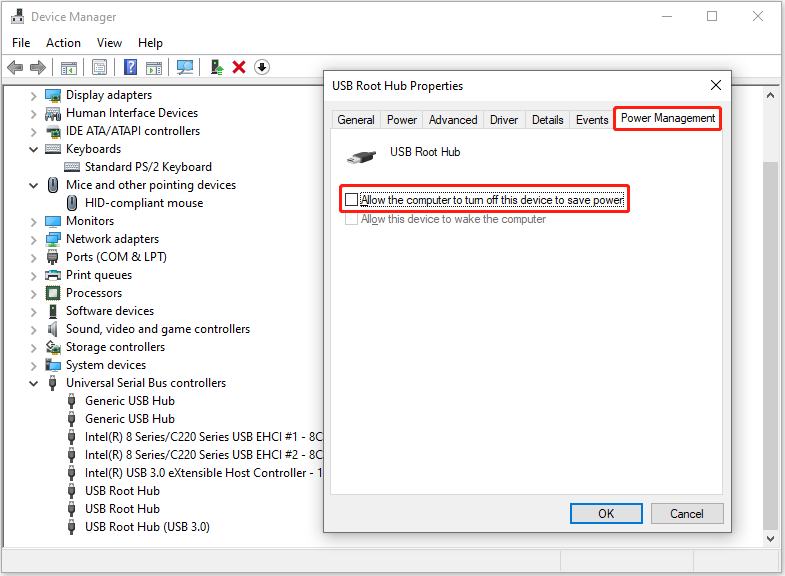
Step 3. Click OK. Now, you can check if the keyboard/mouse is functioning.
MiniTool Power Data Recovery FreeClick to Download100%Clean & Safe

Bottom Line
Mouse or keyboard not working after power outage? Now you should know how to get this issue resolved.
If you need further assistance from the MiniTool support team, you can contact us via [email protected].
About The Author

Position: Columnist
Shirley holds a bachelor’s degree in English and has been an editor at the MiniTool Team for many years. She specializes in IT-related content, with a focus on data recovery, file backup, disk management, and other technical topics. She is committed to delivering clear, accurate, and practical solutions to help users resolve common computer issues.
User Comments :