
Mouse sensitivity keeps changing Windows 10/11? All mouse settings keep resetting after restart? Do not panic. This MiniTool guide offers you feasible fixes for resolving this issue effectively and easily.
Issue: Mouse Settings Keep Resetting
A computer mouse is a handheld pointing device that detects two-dimensional motion relative to a surface, allowing you to control your computer’s graphical user interface. Microsoft allows you to customize your mouse in many ways, such as changing the mouse wheel scrolling speed, the speed at which the mouse double-clicks to open files, the mouse pointer shadow, mouse sensitivity, and more.
However, there is a situation where mouse settings keep resetting after restart, like the user described below:
“Windows 11 mouse settings revert to default after restart. So, new computer, fresh install of Win 11. In the Control Panel, change the mouse pointer to a different size, apply, save, etc. Works fine. Shut down or restart and the cursor is reverted to default.answers.microsoft.com
If mouse sensitivity keeps changing Windows 10 after restart, you can try to get this issue resolved by implementing the following approaches.

Fix 1. Run the Hardware and Devices Troubleshooter
Hardware and Devices Troubleshooter is a useful Windows program that can be used to check and fix problems with keyboards, Bluetooth, printers, batteries, USB devices, and more. To use it, you need to execute the corresponding command lines by referring to the steps below:
Step 1. Type cmd in the Windows search box and click Command Prompt from the best match result to open it.
Step 2. In the command line window, type msdt.exe -id DeviceDiagnostic and press Enter.
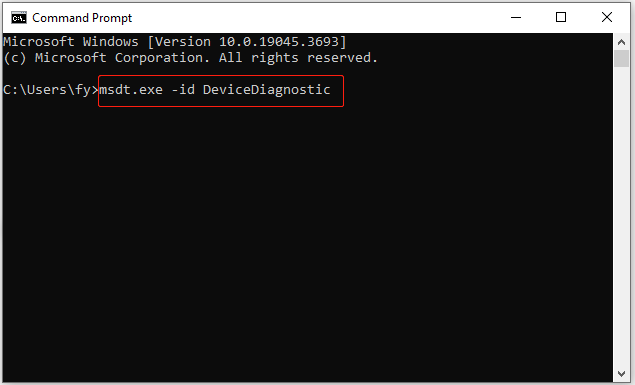
Step 3. This command line will bring up the Hardware and Devices troubleshooter. When you see the following window, click the Next button to start detecting and fixing related issues.

Step 4. Wait patiently until the whole process is completed. After that, configure mouse settings and check if they revert to default.
Fix 2. Update the Mouse Driver
An outdated or corrupted mouse driver can be the culprit of the “Logitech mouse settings keep resetting” issue. To eliminate this cause, you need to make sure the mouse driver is up-to-date. Now, follow the steps below to update the mouse driver.
Step 1. On your taskbar, right-click the Windows logo button and select Device Manager from the context menu.
Step 2. In the new window, expand the Mice and other pointing devices option. Next, right-click the mouse device and choose Update driver.
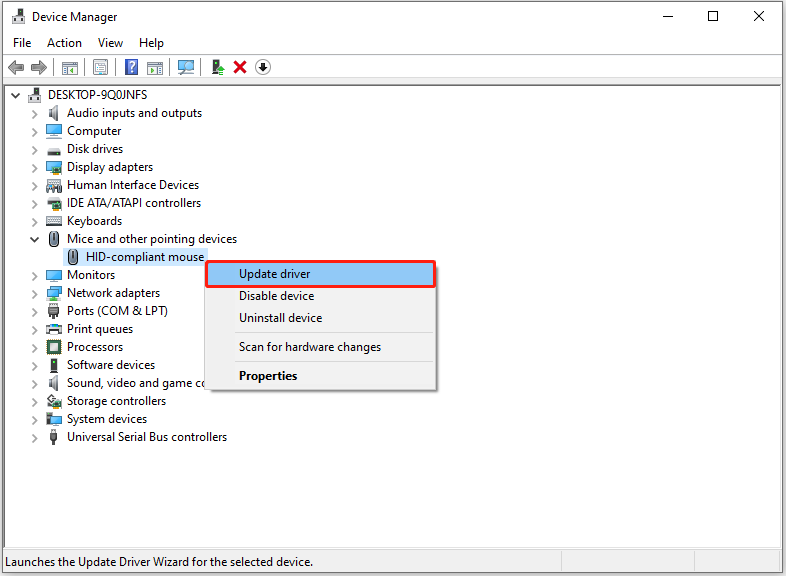
Step 3. Select Search automatically for drivers or Browse my computer for drivers according to your requirements. Then, follow the on-screen instructions to complete the necessary actions.

Fix 3. Clean Boot Windows
If applications are interfering with the mouse settings, these settings may revert to default after restart. In such a situation, performing a clean boot is worth a try. A clean boot starts Windows with a minimal set of drivers and startup programs so that you can determine whether a background program is interfering with your mouse settings. If yes, you can uninstall the software and check if the issue has been resolved.
This post shows how to boot Windows in the clean boot state in detail: How to Clean Boot Windows 10 and Why You Need to Do So?
Fix 4. Run DISM and SFC Scan
Corrupted system files are the culprit behind many Windows problems, and the issue of mouse settings constantly returning to default is no exception. To diagnose and repair missing or corrupted system files, you can run a Deployment Image Servicing and Management (DISM) and System File Checker (SFC) scan.
Step 1. Open Command Prompt as administrator.
Step 2. Next, type these two command lines. Remember to press Enter after each command:
- DISM.exe /Online /Cleanup-image /Restorehealth
- sfc /scannow
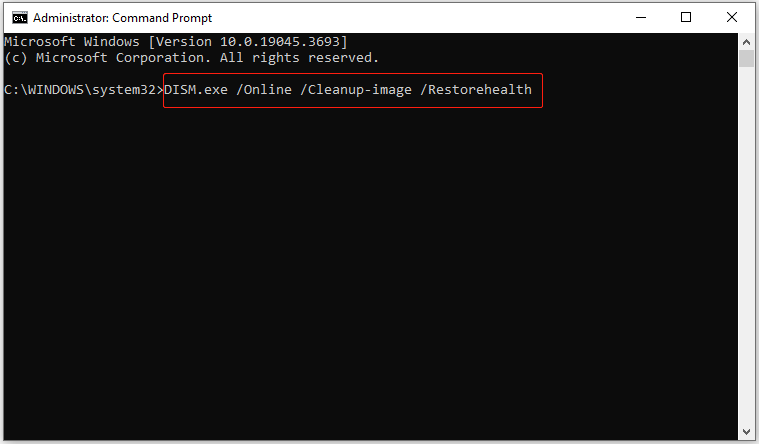
Step 3. Finally, verify whether the problem has been resolved.
Related article: Quickly Fix – SFC Scannow Not Working (Focus on 2 Cases)
MiniTool Power Data Recovery FreeClick to Download100%Clean & Safe

Wrapping Things Up
All in all, this article tells you what should you do if mouse settings keep resetting after restart. Also, it introduces the best data recovery software, MiniTool Power Data Recovery, to restore lost data.
If you need any support about MiniTool software, feel free to contact [email protected].
About The Author

Position: Columnist
Shirley holds a bachelor’s degree in English and has been an editor at the MiniTool Team for many years. She specializes in IT-related content, with a focus on data recovery, file backup, disk management, and other technical topics. She is committed to delivering clear, accurate, and practical solutions to help users resolve common computer issues.
User Comments :