
Feel fretted when encountering NBA 2K22 error code 4b538e50 on PS5, PS4 and Xbox One? Calm down for a minute and follow the thorough and easy instructions on this guide of MiniTool Website, I bet you will leave with relief.
NBA 2K22 Error Code 4b538e50
When playing the game, there might be a warning showing that “There is a problem with your connection to our online services. Please visit http://www.NBA2K.com/status for up to date information. Error code: 4b538e50”. What’s wrong with that?
According to the latest official report of NBA 2K22, the main reason for NBA 2K22 error code 4b538e50 is related to NBA 2K22 network connection and server status. If you are one of these unfortunate players dealing with the same problem, you may try some of the following suggested methods that have worked for others in this article.
You may also encounter NBA 2K21 error code 4b538e50. Since NBA 2K22 and NBA 2K21 are similar games, the solutions are almost the same.
How to Fix NBA 2K22 Error Code 4b538e50?
Fix 1: Check Server Status
The top priority of troubleshooting any error like NBA 2K22 error code 4b538e50 is to check the NBA 2K22 server status. You can know the server status via NNA 2K website.
Fix 2: Check Possible Interference
Some software might prevent you from connecting to the game server. You can check potential interference by PathPing and TraceRoute.
Step 1. Type cmd in the search bar and hit Enter to launch Command Prompt.
Step 2. Copy & paste the following command into Command Prompt and tap on Enter.
pathping -n 104.255.107.131
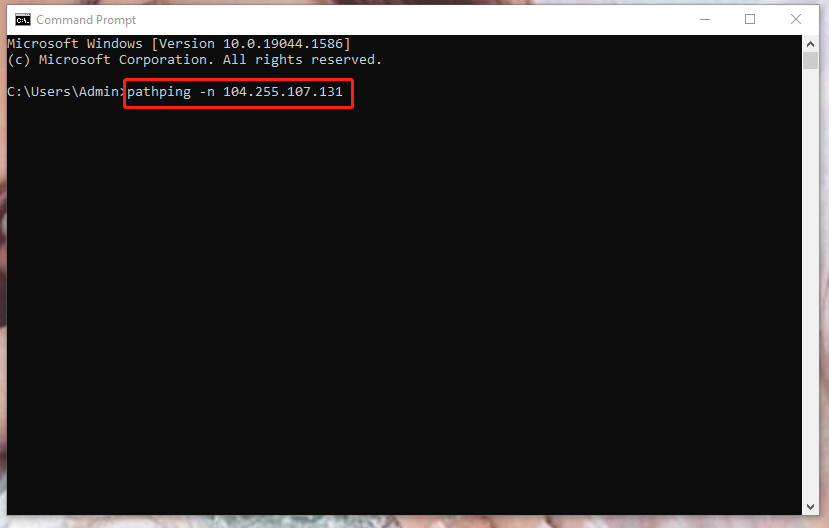
Step 3. After several seconds, there will be some statistics in the command prompt. Press Ctrl + A, Ctrl + C, and Ctrl + V to select all, copy the content and paste it into Notepad.
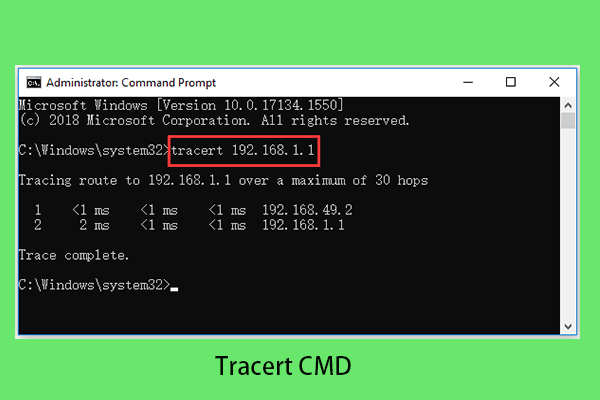
Step 4. Go back to the prompt, paste tracert 104.255.107.131 in the window and hit Enter.
Step 5. Once the trace is completed, copy & paste the information into another notepad and send the two texts to the support team of NBA 2K22.
Fix 3: Check Windows Updates
Make sure that the game NBA 2K22 is running its latest version and whether you are running the game with the latest Windows version. To do so:
Step 1. Press Win + I to open Windows Settings.
Step 2. Scroll down to find Update & Security and click on it.
Step 3. In Windows Update, click Check for updates.
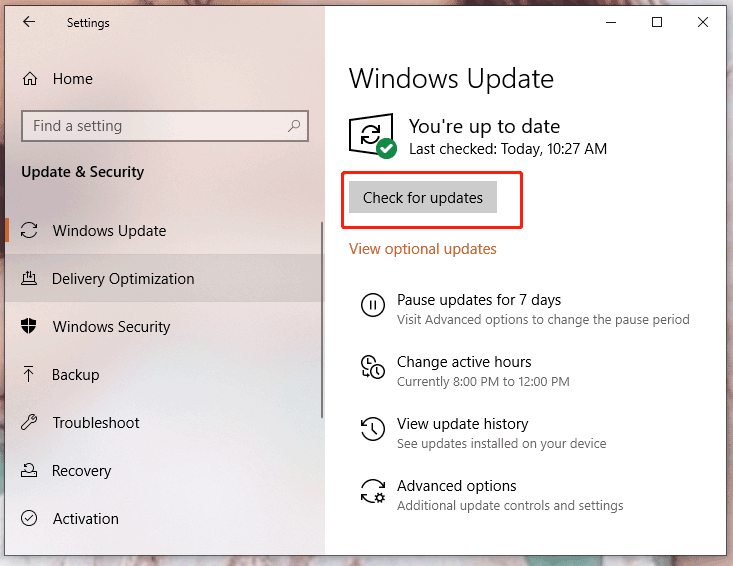
Step 4. If there is an update available, the system will download and install it for you.
Fix 4: Check Account Email Confirmation
If you are a new user of this game, you must receive your NBA 2K account email confirmation. In this email, you must verify your account so be sure to do that when launching the game.
Fix 5: Restart Your Computer/Modem/Router
After you reboot your computer, if you still receive NBA 2K22 error code 4b538e50, you can try to refresh your modem or router. Turn them off for several minutes and boot them again.
Fix 6: Do Other Network Troubleshooting
Check the speed of download and upload which needs to maintain at least 5 Mbps. If your device is unable to maintain this speed, this might be the cause of NBA 2K22 error code 4b538e50.
Try disconnecting other devices from your router to see any improvement in downloading and uploading speed. If you used to rely on Wi-Fi, you can try to connect your PC to the router by a LAN cable.
User Comments :