
When you want to delete an unwanted folder or file, you may receive an error message saying “You’ll need to provide administrator permission to delete this folder/file” as below:
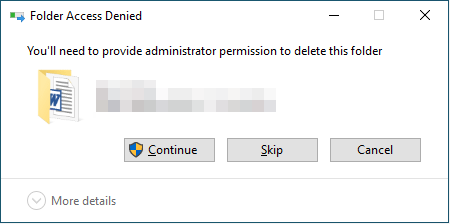
Windows has stringent permissions for files and folders to safeguard critical system data from unintentional deletion or alteration.
Sometimes, if a folder or file is currently in use by a running app or background service, Windows will secure it to avoid data corruption.
In this situation, you can’t delete this folder/file until the related process is terminated. To end the task, press Ctrl + Shift + Esc to open Task Management.
Next, navigate to the Details tab and find any processes that are related to the folder/file. If you’re unsure, right-click a process and select Properties to check its file location.
Once you’ve identified the process, right-click it and select End task, then click End process.
This common Windows error can make a simple file deletion become a hard situation, leaving you confused about why you can’t remove a folder/file.
Keep reading to get more detailed information about the causes.
Why Does the “Need Administrator Permission to Delete This Folder” Error Happen
Here are the common reasons this error occurs:
- System Protection: The folder is an essential Windows system file or directory, safeguarded to ensure system stability.
- Lack of Ownership: The active user account lacks ownership, necessitating you to assume ownership of this folder/file.
- Locked File/Process: A background app or service is currently using the file or folder.
- Permissions Restrictions: The security settings explicitly deny the current user the right to delete files or folders.
- Malware/Third-Party App Interference: Malware might lock files to hinder deletion, or antivirus programs may limit access.
After learning the main factors of this issue, proceed to the following solutions on how to delete a folder as administrator.
Below is a short video about how to force delete files:
Fix 1. Take Ownership of the Folder/File
The quickest solution for resolving ownership-related permission issues is to change the ownership of the folder/file to your administrator account.
Here’s how to do it:
Step 1. Right-click on the target folder or file and choose Properties.
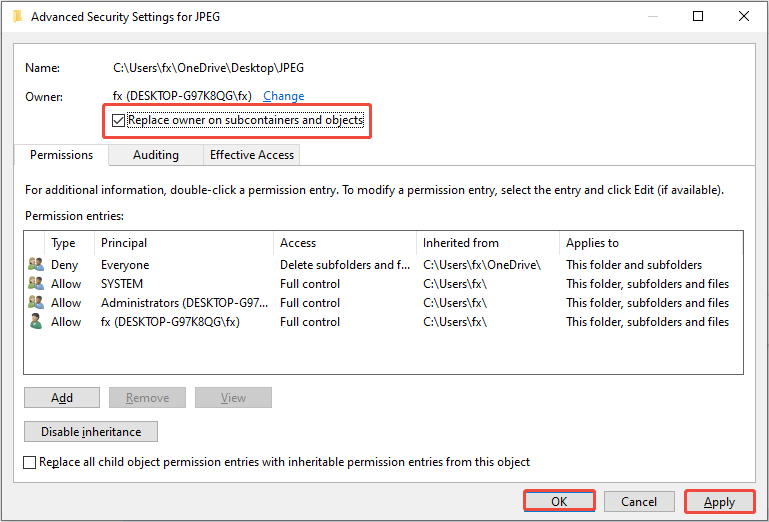
Step 2. Navigate to the Security tab and click the Advanced button.
Step 3. Locate the Owner section at the top and click Change.
Step 4. In the Select User or Group window, type your administrator account name, click Check Names, then OK.
Step 5. In the Advanced Security Settings window, check Replace owner on subcontainers and objects.
Step 6. Click Apply > OK to gain full ownership and delete the folder without permission errors.
Fix 2. Run File Explorer as Administrator
Sometimes, launching File Explorer with administrator rights can help bypass permission restrictions.
Here’s how to get permission to delete a file in File Explorer:
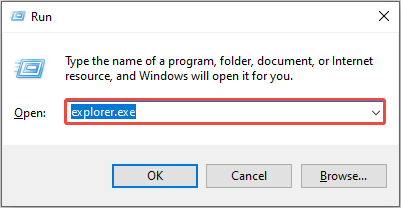
Step 1. Press Win + R to open the Run box.
Step 2. Type explorer.exe and press Ctrl + Shift + Enter to run it with elevated privileges.
Step 3. Delete the folder/file to check whether the error disappears.
If it doesn’t work, try the next method.
Fix 3. Delete the File/Folder Using Command Prompt
If you have advanced skills, consider using the Command Prompt with administrator privileges, which is an effective method to delete persistent folders.
Option 1. Forcefully remove a file using the “DEL” command:
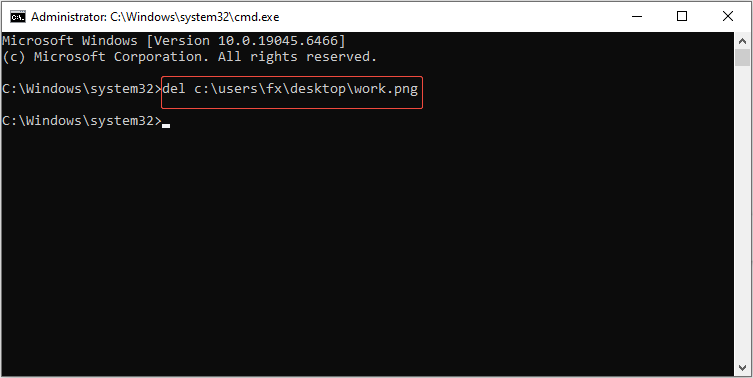
Step 1. Press Win + R, type cmd in the box, and then press Ctrl + Shift + Enter. Click Yes to the UAC prompt.
Step 2. In the Command Prompt window, type the command line “del c:\users\fx\desktop\work.png” and press Enter to forcefully remove the “work.png” file.
Make sure to substitute “c:\users\fx\desktop\work.png” with the actual path of the target file, and remember to include the file extension in the command.
Option 2. Forcibly delete a folder using the “RMDIR /S /Q” command:
Step 1. Run Command Prompt as administrator.
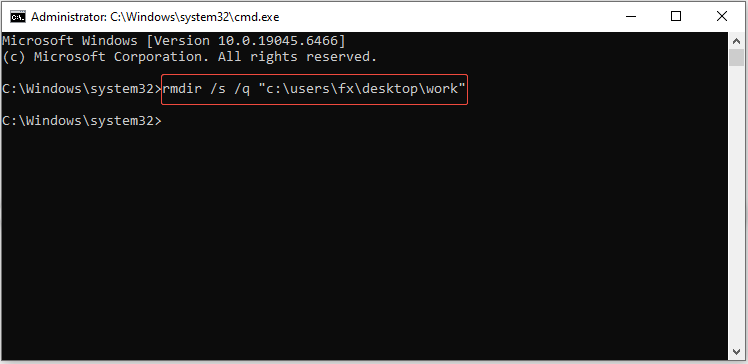
Step 2. Type the command: rmdir /s /q “c:\users\username\desktop\folder name” and press Enter. Replace “c:\users\username\desktop\folder name” with the path of your folder.
- The /s flag deletes the folder and all its subfolders and files.
- The /q flag enables quiet mode, so you won’t be prompted to confirm deletion.
Fix 4. Activate the Built-In Administrator Account
To resolve the “need administrator permission to delete this folder” error, opt for activating the built-in administrator account.
To do so, this account has elevated privileges that might allow you to bypass any limitations imposed by user permissions.
Follow these steps:
Step 1. Run Command Prompt as administrator.
Step 2. Type the following command one by one and press Enter after each:
- net user administrator /active: yes
- net user administrator <Password> (Replace <Password> with a new password for the administrator account.)
Restart your computer, and check if the folder or file can be deleted.
Fix 5. Use Safe Mode
To remove a folder file that can’t be deleted, try to start Windows 10 in safe mode to unlock and delete it.
Here are the instructions on how to do it:
Step 1. Press Win + I to open Settings, then go to Update & Security > Recovery.
Step 2. Click the Restart Now button under the Advanced startup section to enter Windows RE.
Step 3. Go to Troubleshoot > Advanced options > Startup Settings > Restart.
Step 4. Press the F4 key to enter Windows 10 Safe Mode.
Step 5. In Safe Mode, try to delete the target folder or file.
How to Recover Mistakenly Deleted Files on Windows
Even with careful steps, it’s possible that you accidentally delete the wrong files when troubleshooting, especially when using CMD to force deletion.
If this happens, MiniTool Power Data Recovery can help you recover your lost or permanently deleted folders/files with several simple steps.
MiniTool Power Data Recovery FreeClick to Download100%Clean & Safe
Here’s a step-by-step recovery guide:
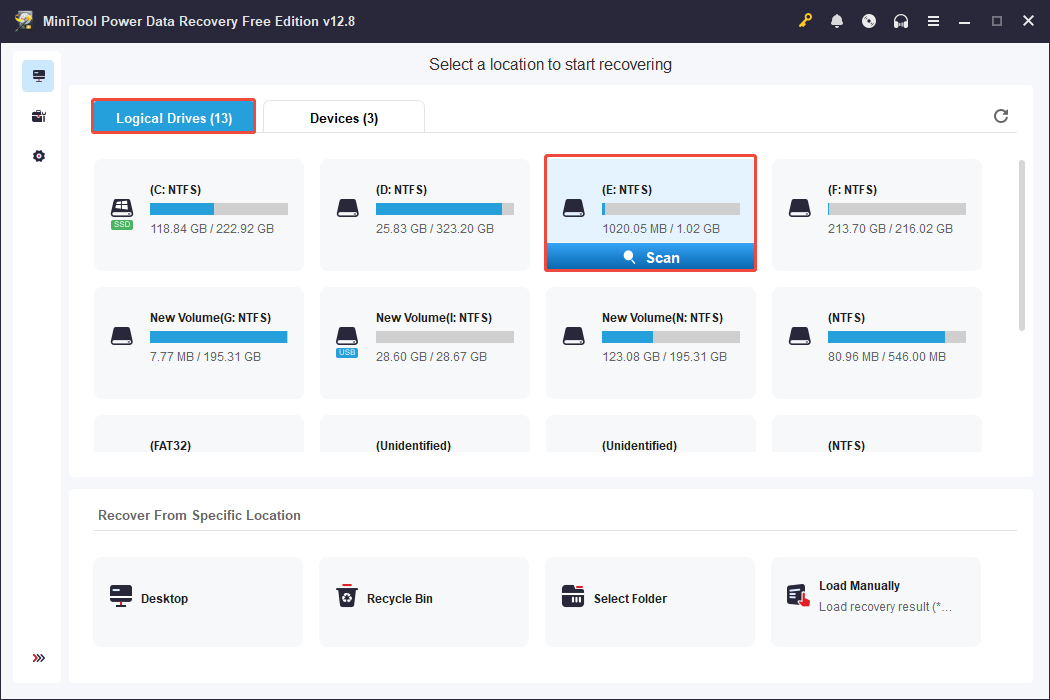
Step 1. Launch MiniTool Power Data Recovery and select the target partition where you deleted the files under Logical Drives, and click Scan.
Step 2. Once the scan is complete, use the Path, Type, Filter, and Search features to locate the desired folder or file effectively.
When you locate the target folder or files, preview the wanted files by double-clicking them to ensure they’re intact.
Step 3. Select the target files and click Save. Next, choose a safe location to store the recovered files and click OK.
Bottom Line
This post explores how to fix the “You’ll need administrator permission to delete this folder” error on Windows 10/11.
Try these solutions one by one until the issue is resolved. Meanwhile, if you mistakenly delete a folder/file, try using the free data recovery software to rescue your data.
Should you have other problems about how to recover data with MiniTool Power Data Recovery, please contact [email protected].
User Comments :