
If your Netflix keeps freezing when you use it to stream videos, do you know why does it happen? In this MiniTool post, we will show you some possible reasons and then tell you how to get rid of this issue to make everything back to normal.
Netflix is popular in the field of online video streaming. It also has an app for Windows devices. Some users say that they have encountered the Netflix keeps freezing issue when they use Netflix on their Windows computer. If you are also bothered by this issue, this post is helpful for you.
But, first off, you can just make a simple check: if you are facing this Netflix keeps freezing issue when you sign in to the Netflix app, you can first check your subscription and then sign in again.
The Main Causes of Netflix Keeps Freezing
Why does Netflix keep freezing? We have collected the main reasons for Netflix keeps freezing as follows:
- The Netflix server is down
- The Internet connection or proxy is down
- A VPN problem
- The Silverlight plug-in is outdated
- Date and time are wrong on the system
Based on these reasons, we summarize some solutions and we will display them in the following part.
How to Fix Netflix Keeps Freezing?
- Check the status of the Netflix server
- Disable VPN or proxy on the system
- Check the date and time on your computer
- Reinstall the Microsoft Silverlight plug-in
- Update the Graphics card drivers
- Disable the interfering 3rd party applications
- Re-install the Netflix app
How to Fix Netflix Keeps Freezing?
In this post, we will show you how to get rid of Netflix keeps freezing using the above 7 methods. If you are not sure the exact reason for this issue, you can try them one by one until finding out the suitable method.
However, before using these methods, you need to make sure that your network connection is enabled and working well. You can open a web page to have a check.
Method 1: Check the Netflix server
You need to go to a specific site like Downdetector or the Netflix official site to check the status of Netflix status. If this site shows that there is something wrong with Netflix, you will need to wait until the issue is solved by Netflix officially.
However, if the result shows that the Netflix server is OK, you can try the next solution.

Method 2: Disable VPN or Proxy on the System
Netflix has been misused seriously through VPNs. So, Netflix is down if you use a VPN to access its servers. There are two situations:
If you are using a VPN when accessing Netflix, you’d better disable the VPN software.
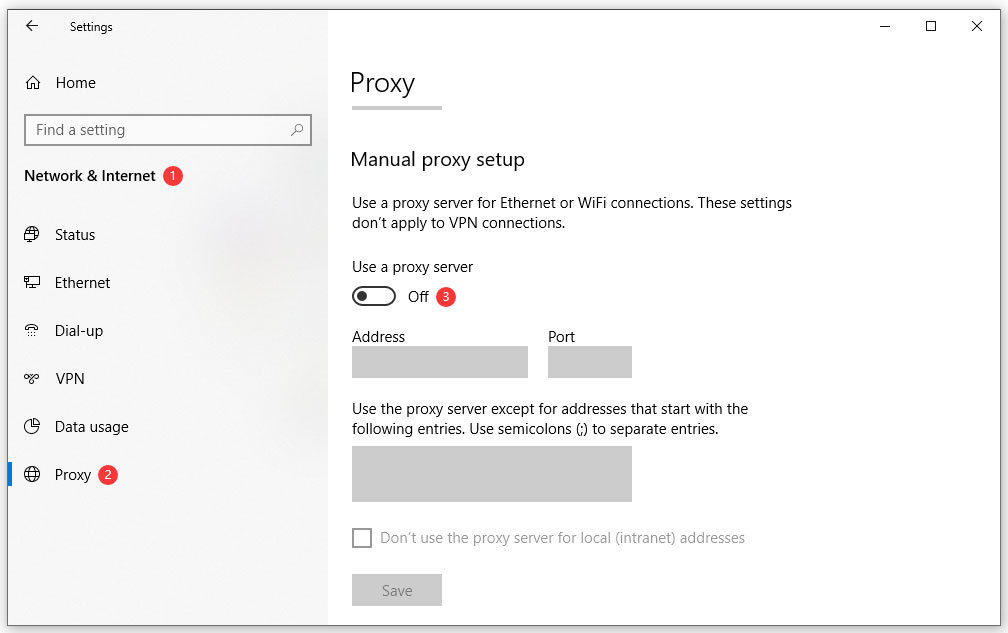
If you are using a Proxy, you will need to remove it from your computer to get rid of the issue. You can go to Start > Network & Internet > Proxy to turn off Use a proxy server under the Manual proxy setup section.
Method 3: Check the Date and Time on Your Computer
If your computer’s date and time are not set correctly, you can also encounter Netflix keeps freezing when you use the Netflix app to stream videos. So, just go to check if everything is right. If not, you can correct your computer’s date and time.
Method 4: Reinstall the Microsoft Silverlight Plug-in
The Microsoft Silverlight plugin plays an important role in video streaming on the Netflix app. If this plugin is outdated, you may encounter the Netflix keeps freezing issue.
To rule out this issue, you can follow these steps to reinstall this plug-in:
- Press Win+R to open Run.
- Type cpl in Run and press Enter. Alternatively, you can also go to Control Panel > Uninstall a program to enter Programs and Features.
- Find Microsoft Silverlight plug-in and right-click on it. Then, select uninstall.
- Wait until the uninstallation process ends. Then, restart your computer.
- Go to the download page of Microsoft Silverlight and then download & install it on your computer.
Method 5: Update the Graphics Card Drivers
If the graphics card drivers are outdated, the Netflix freezes issue can also happen. In a situation like this, you need to update the graphics card drivers:
- Press Win+R to open Run.
- Type msc and press Enter to open the Device Manager.
- Expand Display adapters.
- Right-click on the graphics card driver you want to update and select Update driver.
You can follow the onscreen wizard to complete the update process. Then, you still need to reboot your PC.
Method 6: Temporarily Disable the Interfering Third-Party Applications
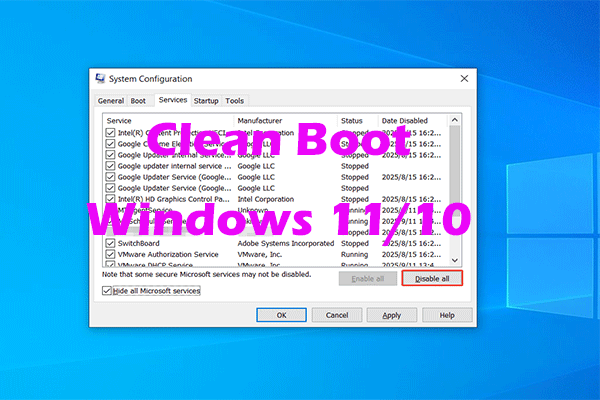
It is reported that some third-party programs, such as the anti-virus programs, are interfering with the Netflix app. So, you need to temporarily disable such software to get rid of the Netflix freezes issue. The best method is to use Clean Boot.
Method 7: Re-install the Netflix APP
If all of the above methods don’t work for you, you need to reinstall the Netflix app to have a try.
- Press Win+R to open Run.
- Type cpl in Run and press Enter. Alternatively, you can also go to Control Panel > Uninstall a program to enter Programs and Features.
- Right-click on Netflix and select Uninstall.
- After the uninstallation, you need to go to Google Play to search for Netflix and then download the Netflix app on your computer. Then install it on your computer.
Bottom Line
After using the methods mentioned in this post, the Netflix keeps freezing issue should disappear and you can use Netflix normally again.
Should you have any related issues, you can let us know in the comment.
About The Author

Position: Columnist
Stella has been working in MiniTool Software as an English Editor for more than 8 years. Her articles mainly cover the fields of data recovery including storage media data recovery, phone data recovery, and photo recovery, videos download, partition management, and video & audio format conversions.
User Comments :