
You should have gotten used to experiencing various problems after installing a Windows update such as network devices missing to some extent. What counts is how to fix network devices not showing after Windows update. You can get some answers in this MiniTool post.
Network Devices Not Showing After Windows Update
Some people who have installed the Windows 11/10 update report that the computer or other devices fail to appear in the network list. As a result, you are unable to share files between different PCs.
However, we don’t yet know what causes this to happen, but it appears that the network discovery in Windows 11/10 does not detect local network devices properly after the update. Here’s a list of solutions you can try to resolve the issue.
How to Fix Windows 11 Network Devices Not Showing
Solution 1. Adjust Your Network Settings
First of all, you should make sure that all the computers on your network have Network discovery and file sharing and have been enabled. Here are the steps that you can follow:
Step 1. Click on the Start icon and select the gear icon to open Settings.
Step 2. Go to Network & Internet > Advanced network settings > Advanced sharing settings.
Step 3. Under this page, turn on Network discovery and File and printer sharing.
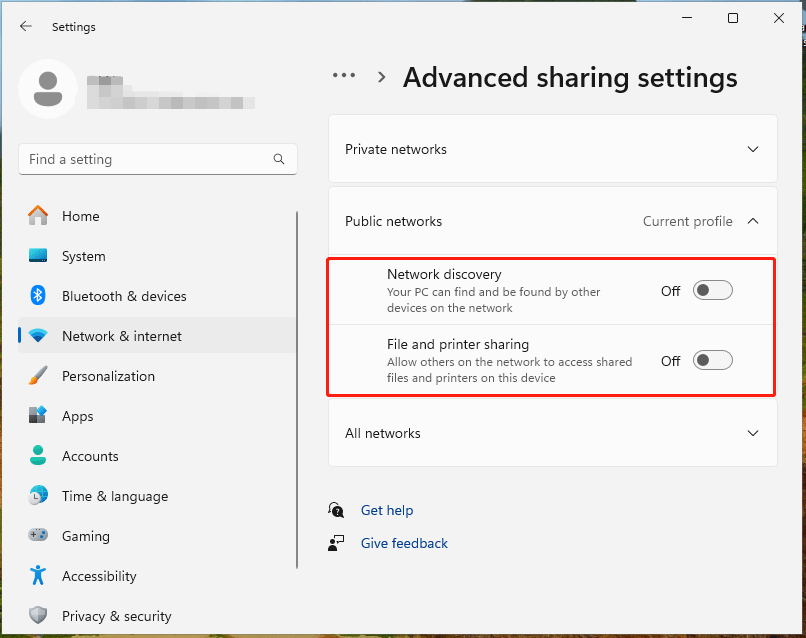
After that, repeat these steps on all computers that you connected in the same network and check whether your connected devices show up or not.
MiniTool System Booster TrialClick to Download100%Clean & Safe
Solution 2. Check Network Drivers
A faulty network driver could also result in network devices not showing after Windows update, so you should consider checking for your network drivers. Take the following steps:
Step 1. Right-click on the Windows icon and choose Device Manager.
Step 2. Navigate to the Network adapters directory and expand it to see if there are any drivers with a yellow mark – this mark indicates that the driver is problematic.
If yes, you have to download and install new network drivers from the manufacturer’s website; or, your driver is working correctly.
Related article: Download/Update Intel Network Drivers Windows 11 & Fix Issue
Solution 3. Uninstall Recent Update/Roll Back to Previous Update
If the above methods do not work, you can consider uninstalling the recent update or going back to the previous version of Windows. By doing so, your computer will work fine and be able to detect network devices.
To uninstall the recent update:
Step 1. Press Win + I to fire up Settings.
Step 2. Head to Windows Update > Update history > Uninstall updates.
Step 3. It will show you a list of updates found and you can select the recently installed one and click on Uninstall.
When finishing, check if the network computers missing issue is fixed in your network sharing settings.
MiniTool ShadowMaker TrialClick to Download100%Clean & Safe
Wrapping Up
What can you do to fix network devices not showing after Windows update? You can try to check your network settings, check your network drivers, and uninstall the new update in turn. Hope this guide is helpful. Appreciate your support!
User Comments :