
You may receive the Not enough system resources to display completely error in Excel for several reasons. Additionally, there are other similar error messages in the same situation:
- Excel out of memory
- There isn’t enough memory to complete this action. Try using less data or closing other applications.
- Excel cannot complete this task with available resources. Choose less data or close other applications.
If you receive these messages, it informs you that you lack system storage to support Excel spreadsheets, probably because there are too many opened programs, too large Excel files, outdated Excel versions, Excel software bugs, and more. Then, you can check out some workarounds to fix not enough system resources to display completely in Excel.
Fix 1: Close Unnecessary Programs
If you run too many programs in the background, occupying too many storage resources, Excel may fail to work properly. Hence, you will get the Excel out of memory error. You can prevent apps from running in the background to avoid this error.
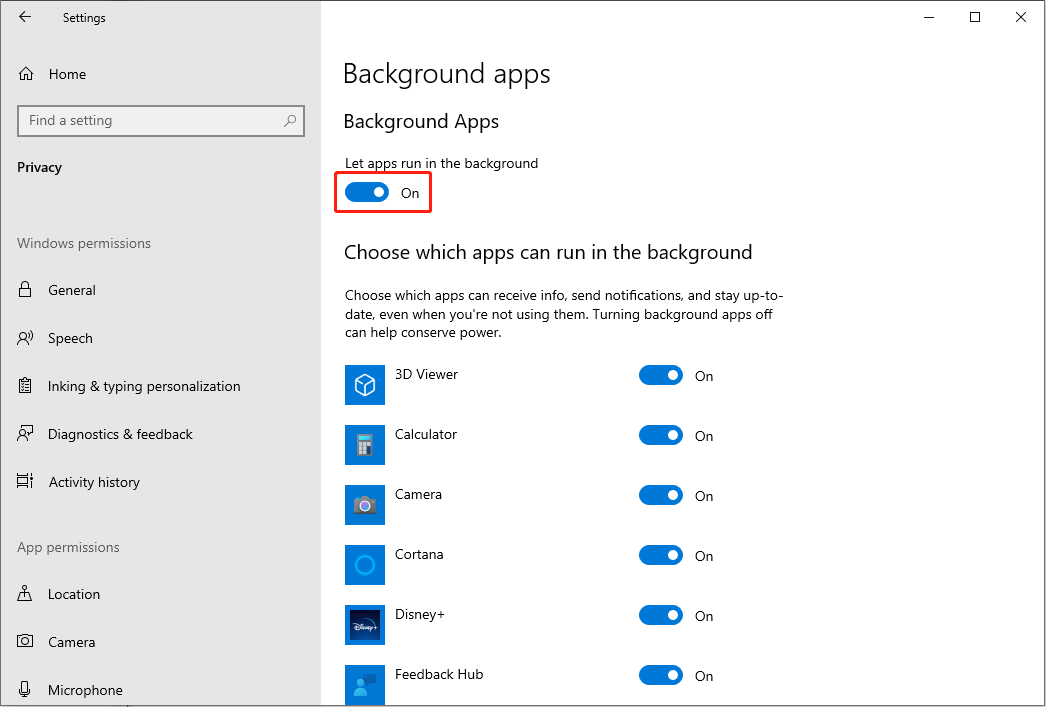
Step 1: Press Win + I to open the Settings window.
Step 2: Type Background apps into the search bar and choose the best-matched option.
Step 3: Turn off the switch to prevent apps from running in the background.
Fix 2: Install Latest Version of Excel & Windows
An outdated version of Excel or Windows may trigger numerous problems. You can check whether your Excel or Windows requires an update and complete the update with the following steps.
>>Update Excel
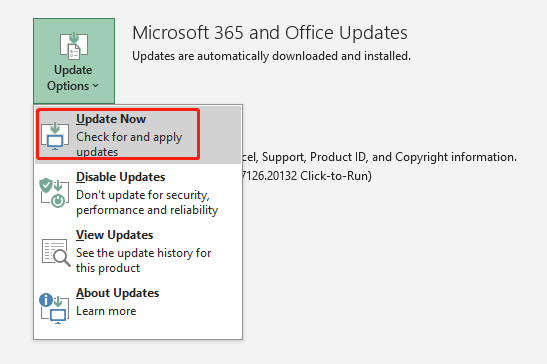
Step 1: Open an Excel file and choose File on the top toolbar.
Step 2: Choose Account at the left sidebar. Then you can click on the Update Options on the right pane and select Update Now from the dropdown menu.
>>Update Windows
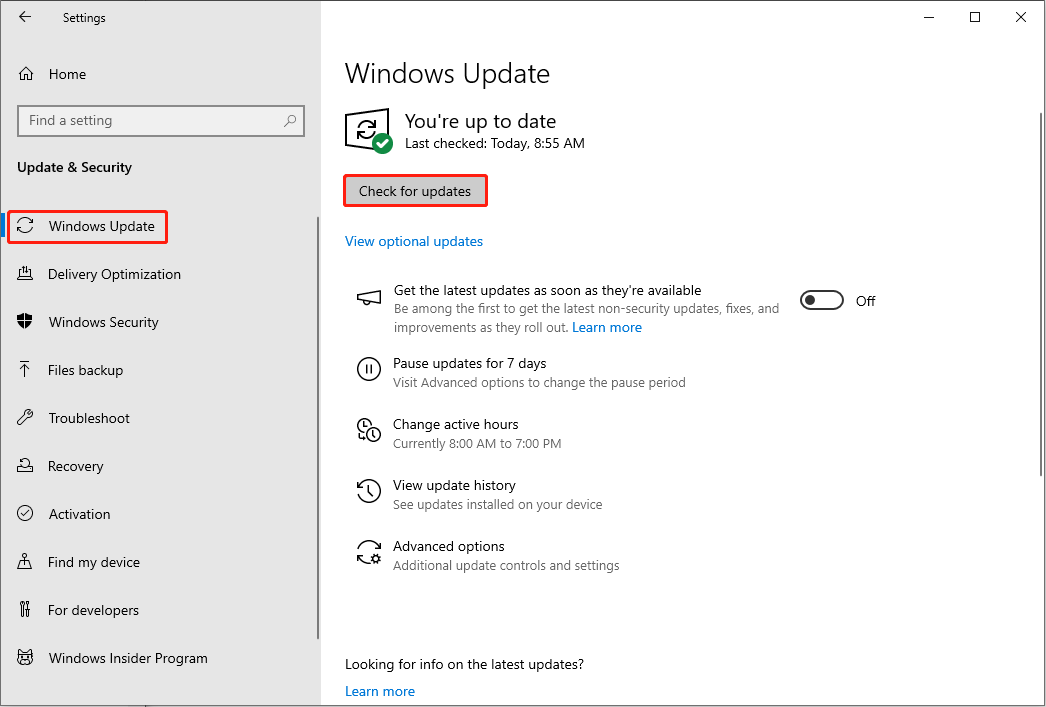
Step 1: Press Win + I to open Windows Settings.
Step 2: Choose Update & Security and click Check for updates under the Windows Update tab.
Fix 3: Remove Redundant Add-ins in Excel
Sometimes, the not enough system resources to display completely error may be triggered by installed add-ins in Excel. You can check add-ins in Excel and remove unnecessary ones to try to fix this problem. Here is how to do it.
Step 1: Open an Excel worksheet and head to File > Options > Add-ins.
Step 2: Click Go in the Manage section at the right pane.
Step 3: Uncheck Add-ins you don’t need and click OK to save changes.
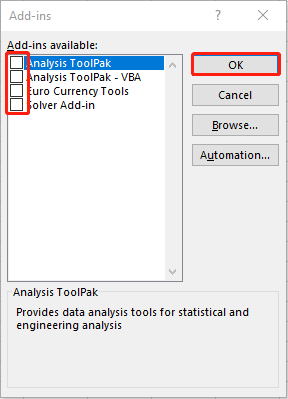
After this, you need to relaunch Excel to fully apply the change, and then check if this problem is resolved.
Fix 4: Repair Excel
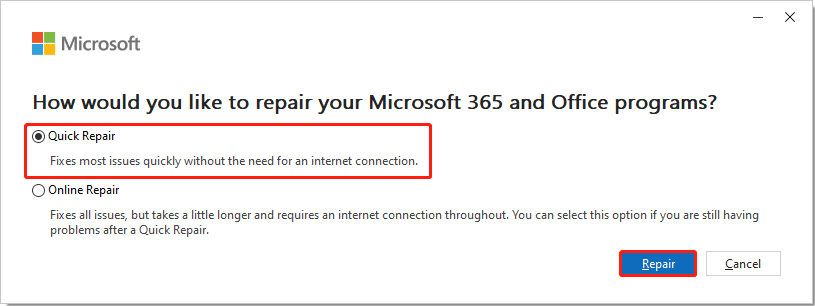
Software bugs may also lead to this problem. You can try to repair Excel to fix some glitches.
Step 1: Press Win + S to type Control Panel and hit Enter to open the window.
Step 2: Shift to Programs > Programs and Features. Look through the list to find Microsoft Office.
Step 3: Right-click on it and choose Change from the context menu then click OK.
Step 4: In the prompt window, choose Quick Repair and click Repair to start the process.
Bonus Tip: Recover Missing Excel Files with MiniTool Power Data Recovery
Digital files are always facing the risk of lost due to various reasons. What if useful Excel files are lost? Don’t worry, you can safely recover files with MiniTool Power Data Recovery, one of the best secure data recovery services.
You can run this software to restore lost files in various scenarios, including mistaken deletion, virus infection, device corruption, and so on. Furthermore, there are plenty of useful features to ensure the accuracy of data recovery. You can get MiniTool Power Data Recovery Free to recover 1GB of files without any charge.
MiniTool Power Data Recovery FreeClick to Download100%Clean & Safe
Bottom Line
You are supposed to know how to fix not enough resources to display completely in Excel after reading this post. In addition to fixing Excel problems, pay attention to data security as well. If needed, try MiniTool Power Data Recovery to get files back!
User Comments :