
NVIDIA OpenGL driver error code 3 can block you from playing your games on a Windows 11/10 PC. How can you fix the error code 3 (subcode 2) or (subcode 7)? From the comprehensive guide on MiniTool, you know how to troubleshoot your issue via several fixes.
NVIDIA OpenGL Driver Error Code 3
OpenGL is an industry-standard graphics Application Programming Interface (API) that is used to render 3D and 2D graphics. NVIDIA supports OpenGL to give users maximum performance on their GPUs. However, NVIDIA OpenGL driver error code 3 breaks everything. You cannot play games and use video & image-editing software.
The NVIDIA OpenGL driver error shows different messages, as follows:
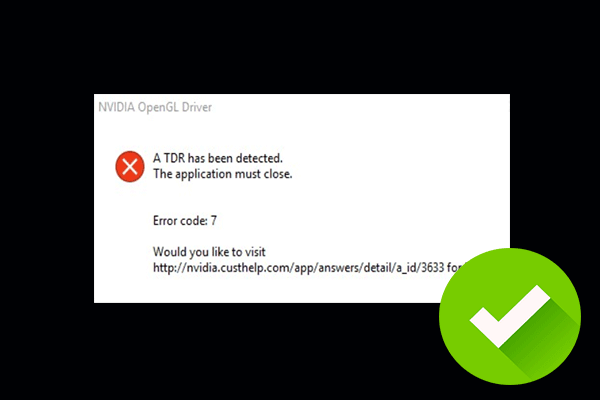
- The NVIDIA OpenGL driver detected a problem with the display driver and is unable to continue. The application must close. Error code: 3
- NVIDIA OpenGL Driver Unable to recover from a kernel exception. The application must close. Error code: 3 (subcode 2) or (subcode 7)
Fortunately, it is not a difficult problem to solve. Fix it through the following methods.
Tip 1: Change NVIDIA Control Panel Settings
Incorrect settings likely lead to NVIDIA OpenGL driver error code 3 (subcode 2) or (subcode 7). In this case, consider tweaking the settings.
To do that:
Step 1: Right-click on the desktop and then select NVIDIA Control Panel.
Step 2: In the left pane, click Manage 3D settings under 3D Settings to continue.
Step 3: Under the Global Settings tab, choose High-performance NVIDIA processor from Preferred graphics processor if you use two GPUs.
Step 4: In the Settings section, click Power management mode, and choose Prefer maximum performance.
Step 5: Hit Apply and then launch your game or app to see whether NVIDIA OpenGL driver error code 3 persists.
Besides, some users have addressed the issue by choosing the visual simulation option. You cannot see this option if you don’t use an NVIDIA Quadro graphics card. Just go to Global Settings and choose 3D App – Visual Simulation from the Global presets drop-down menu.
Tip 2: Roll back NVIDIA Graphics Card Driver
Have you recently updated the NVIDIA GPU driver on the PC? The new driver may be the culprit to NVIDIA OpenGL driver error code 3 (subcode 7) or (subcode 2). Rolling back to a previous version will do the trick.
So, perform the rollback via these steps:
Step 1: Open Device Manager by typing devmgmt.msc into Search and pressing Enter.
Step 2: Right-click on your GPU under Display adapters and then choose Properties.

Step 3: Tap Roll Back Driver under Driver.
Step 4: Tick My apps don’t work with this driver and then click Yes.
Upon completing the driver rollback, restart your PC and check if you solve the error code 3.
Tip 3: Clean Install NVIDIA Driver
Sometimes the Roll Back Driver option is grayed out, this means your PC doesn’t have an available earlier version of the GPU driver. In this case, visit the official website of NVIDIA, download a stable driver version, and run the executable file to finish the installation.
Before the installation, you had better completely uninstall your old graphics card driver with Display Driver Uninstaller (DDU).
Tip 4: Reinstall the Affected App or Game
The NVIDIA OpenGL driver error code 3 sometimes appears due to a problem with the app or game itself that has corrupted DLL files. Reinstalling the affected game or software may help.
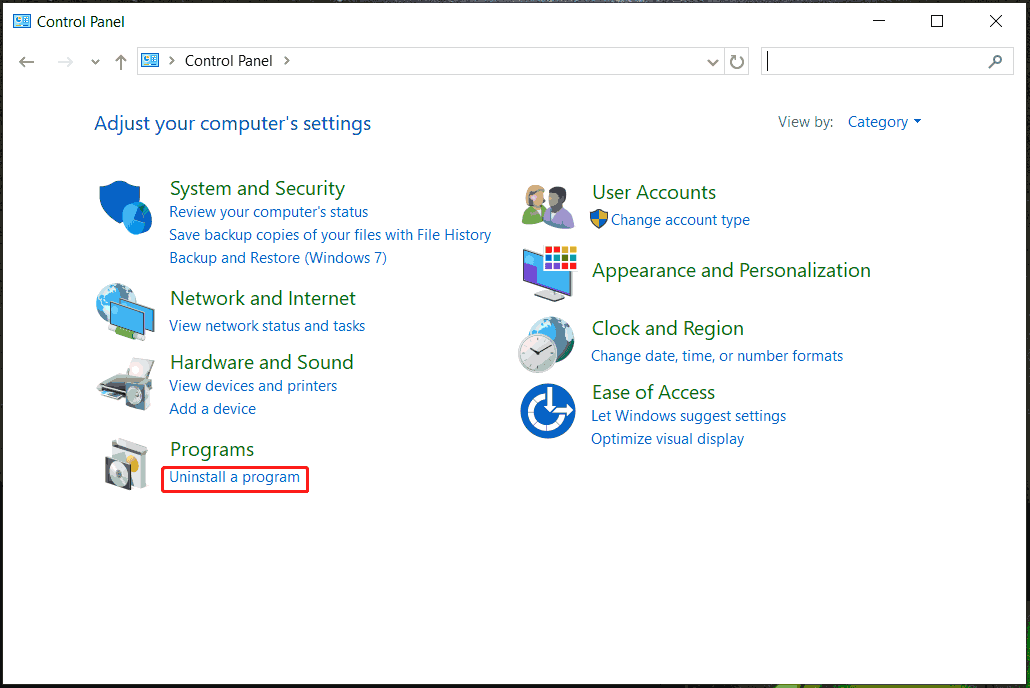
Step 1: In Windows, access Control Panel and view by Category.
Step 2: Click Uninstall a program under Programs.
Step 3: Right-click the problematic game or application and choose Uninstall.
Step 4: Follow the prompts.
MiniTool System Booster TrialClick to Download100%Clean & Safe
Tip 5: Reinstall Windows
Windows installation can be the last resort to fix NVIDIA OpenGL driver error code 3 if none of the fixes above work. This will erase all third-party software or games you have installed. If you ever saved data to the C drive, it will be deleted.
Before this major operation to Windows, we suggest backing up your important files and folders with the backup software, MiniTool ShadowMaker. It features file, folder, disk, system, partition, and disk backup with several steps.
MiniTool ShadowMaker TrialClick to Download100%Clean & Safe
Then, follow the guide on how to reinstall Windows 11.
The End
Has the NVIDIA OpenGL driver detected a problem or does your PC show NVIDIA OpenGL error code 3 (subcode 2 or 7)? You should get out of trouble after applying these given methods.
About The Author

Position: Columnist
Vera has been working at the MiniTool Team for over 10 years as a technical editor and content writer. She mainly focuses on disk and partition management, data recovery, Windows backup and restore, and PC troubleshooting. Through in-depth software testing and hands-on experience, she has helped users solve a wide range of computer problems and better protect their data on Windows devices.
User Comments :