
What is OneDrive files on Demand? What causes the OneDrive couldn’t start files on Demand error on your computer? Are there any solutions for this error? Don’t fret! This guide from MiniTool will demonstrate all the steps for the OneDrive error.
OneDrive Couldn’t Start Files on Demand
The OneDrive Files On-Demand feature enables you to access all the files in OneDrive without having to download them and without occupying device storage space. It displays all your files in the File Explorer and provides new information for each file. However, some users report that OneDrive is not working perfectly, throwing an error message saying Microsoft OneDrive Couldn’t start files on Demand please restart your computer and try again with error code 0xffffffea or 0x801f000f. In this post, we will guide you through the steps to fix OneDrive files on-Demand not working.
Solution 1. Update Your OneDrive and Computer
Make sure you have installed the latest Windows and Office updates. Additionally, you should also ensure that OneDrive is updated to the latest version. If not, follow the steps to update your OneDrive:
Step 1. Click the OneDrive cloud icon in your notification area > select Help & Settings or gear icon > choose Settings.
Step 2. Go to the Sync and back up tab > expand the Advanced settings section.
Step 3. Under File On-Demand, select either Free up disk space or Download all files.
Step 4. Then on the OneDrive release notes page that opens, download the latest release for your Windows.
Solution 2. Update Antivirus Software
In some cases, outdated or improperly configured filters in your antivirus software may cause some issues, like OneDrive couldn’t start files on Demand. Updating the software may solve this problem, as new software versions usually include updates for various components, such as filters.
Solution 3. Reinstall OneDrive
If the above two methods don’t work, then you can follow the steps below to reinstall your OneDrive, which helps many users get rid of the OneDrive couldn’t start files on Demand error. Here’s how to do it:
Step 1. Uninstall OneDrive
First, you need to uninstall OneDrive on your PC:
- In Windows Search, type Control Panel and press Enter.
- Navigate to Programs and Features > locate Microsoft OneDrive > right-click on it > tap Uninstall.
- Then follow the on-screen instructions to complete the uninstallation.
Step 2. Delete OneDrive Local Files
Second, it’s necessary to clear out the leftover of OneDrive:
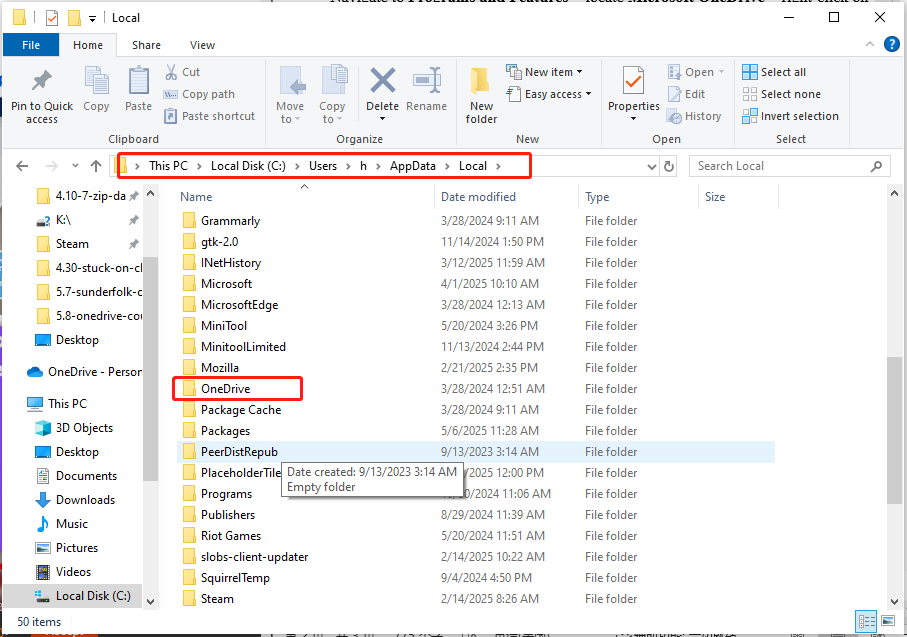
- Press Win + E to open File Explorer.
- Delete the OneDrive folder under the path: C:\Users\username\AppData\Local\.
Step 3. Clear Windows Temp Cache
Some temporary files on your computer may also be associated with OneDrive. To remove them, in File Explorer, go to the following path to delete the temporary files:
- C:\Users\username\AppData\Local\Temp
- C:\Users\username\AppData\LocalLow\Temp
- C:\Windows\Temp
Step 4. Download and Install OneDrive
Finally, you can restart your computer and visit the Official Microsoft site to download the latest version. During setup, it will ask you if you are sure that you want to use the same folder since there are already files there. Select Yes.
With the same OneDrive folder, you will only need to resync everything, but not download it again. Once OneDrive is installed, verify that the settings are the way they should be. Now, you should no longer be bothered by OneDrive error 0xffffffea or error 0x801f000f.
Solution 4. Run Command Prompt
Some users have reported that simply restarting the computer does not solve the problem; instead, executing the following command helps before restarting. To do so:
Step 1. Type Command Prompt in the search bar and run it as an administrator.
Step 2. Copy & paste these commands and hit Enter.
- netsh int ip reset
- netsh winsock reset
- ipconfig /release
- ipconfig /renew
- ipconfig /flushdns
Step 3. Restart your computer.
In the End
That’s all proven and useful solutions to OneDrive couldn’t start files on Demand error. Now, you may understand what OneDrive Files On-Demand is and how to work with these fixes.
Besides, you may want to try another tool to sync & back up important files. MiniTool ShadowMaker comes in handy, supporting file sync, system or file backup, disk cloning, and more. Have a try!
User Comments :