
Many users report that Windows 11 LTSC 2024 has OneDrive in the system tray and File Explorer, but it is kind of half integrated. Thus, they are unwittingly caught up in the OneDrive dilemma in Windows 11 LTSC 2024 and Server 2025. If you are one of them as well, you can fix the issue by this MiniTool guide.
OneDrive Dilemma in Windows 11 LTSC 2024
The Windows 11 LTSC 2024 version (as well as other LTSB/LTSC versions and Server editions) by default does not include Microsoft Store application or OneDrive cloud storage. Although installing OneDrive Client is possible, there are some issues.
For example, you cannot open the OneDrive folder from the left-side navigation bar in File Explorer. Or, logging into your account might result in two OneDrive navigation menus appearing.
If you want to use OneDrive normally in Windows 11 LTSC 2024 and Windows Server 2025, the following paragraph is about to introduce several workarounds to pull out of the OneDrive failure.
Get Rid of OneDrive Dilemma in Windows Server 2025 and Win11 LTSC 2024
Fix 1: Install OneDrive from Official Site
Since the OneDrive client in Windows 11 LTSC 2024 is half integrated, downloading and installing it from the official website should be the easiest way to break free from the dilemma.
Related article: OneDrive Download for Windows 10/11 PC, Mac, Android, iOS
Fix 2: Modify Registry Editor
As we mentioned before, there is a scenario that two OneDrive options appear in File Explorer. To fix this problem, you can try to delete other surplus registry keys not related to OneDrive.
Here’s how to do it:
Step 1. Press Win + R to open the Run dialog.
Step 2. In the address bar, type regedit and click on OK to fire up Registry Editor.
Step 3. Navigate to HKEY_CURRENT_USER\Software\Microsoft\Windows\CurrentVersion\Explorer\Desktop\NameSpace.
Step 4. Expand the NameSpace directory and you may see two or more subfolders. Check each folder and its description in the data column, which may include OneDrive or OneDrive – Personal.
The OneDrive – Personal is the option for Microsoft 365 personal and family editions. Thus, delete any folders under NameSpace not related to OneDrive – Personal to remove those surplus OneDrive entries.
Step 5. After deleting, relaunch File Explorer and inside you should now view only one OneDrive option with your Microsoft account username.

Fix 3: Merge the Specific Registry File
As for inability to click on OneDrive in File Explorer, it’s a good option to download and merge a specific registry file. To do so, download the .reg registry file, right-click on Merge, and then follow the instructions on the screen to finish the process.
When completing the combination, restart your computer and the OneDrive dilemma in Windows 11 LTSC 2024, Server 2025, or other versions should be solved.
Fix 4: Try OneDrive Alternative – MiniTool ShadowMaker
The main function of OneDrive should be to back up your data and protect it from unexpected system crashes, among other issues. But now, its regular use comes to a problem. Some people speculate that this is Microsoft’s evil strategy, aiming to make more consumers sign up Microsoft account in Windows 11 in a semi-coercive way and thereby put you in front of upsells (to OneDrive storage, paid Outlook, Microsoft 365, and more).
If you are sick of being tied to these bundling of Microsoft, consider using third-party software like MiniTool ShadowMaker to protect your precious data. It is a PC backup software, enabling file & folder backup, disk & partition backup, and supporting file sync and disk cloning in Windows 11/10/8/8.1/7. External hard drive, shared folders, USB flash drive, network drive are all supportive.
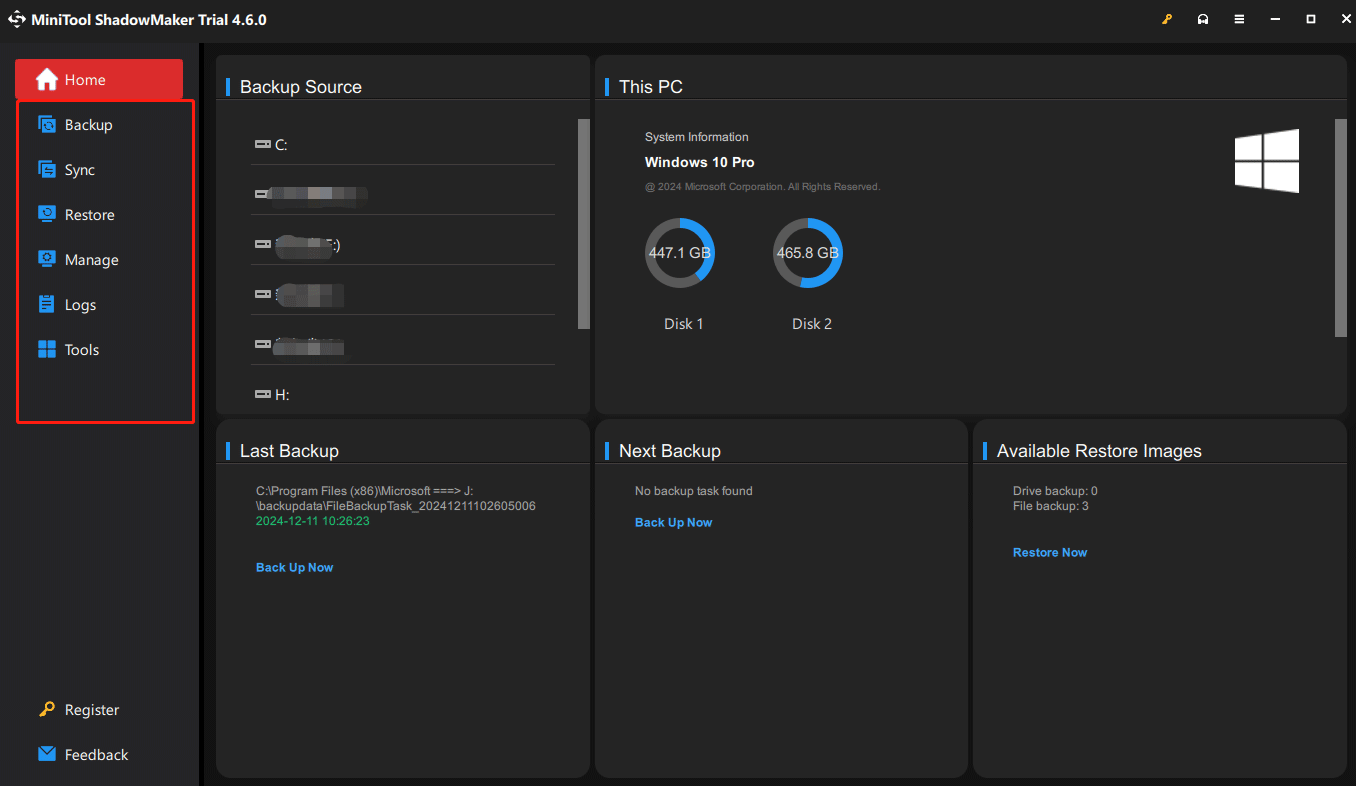
Its free trial edition lets you fully enjoy its services within 30 days. Give it a try!
MiniTool ShadowMaker TrialClick to Download100%Clean & Safe

Wrapping Up
According to different cases of OneDrive dilemma in Windows 11 LTSC 2024 and Server 2025, this guide shares some effective methods for you. Hope they are helpful.
User Comments :