
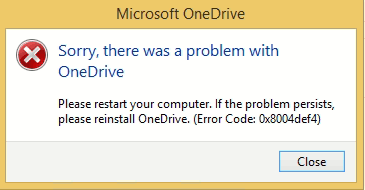
It is said that OneDrive fails to sync files with the OneDrive error 0x8004def4 in Windows. This issue usually happens when the internet connection is unstable, OneDrive becomes corrupted, synced folders are in the same name, and other reasons. Here are some possible solutions for you to resolve this issue. You can try them one by one to find one that works for your situation.
Solution 1. Restart OneDrive
As the error message informs, you can first try to restart OneDrive on your computer to check if OneDrive Error Code 0x8004def4 is triggered by software glitches.
Step 1. Right-click on the Windows icon at the bottom left and choose Task Manager.
Step 2. Look through the process list to find Microsoft OneDrive. Right-click on it and choose End Task to close OneDrive completely.
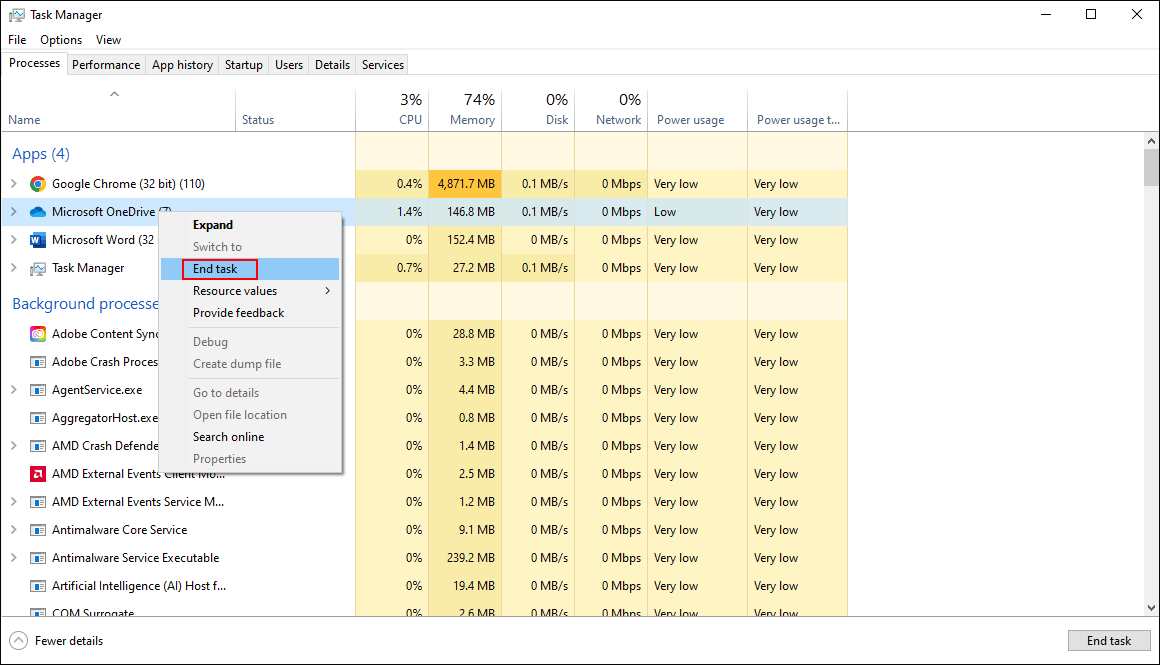
After that, you can reopen OneDrive to see if the error 0x8004def4 is resolved.
Solution 2. Reset OneDrive
On some occasions, the problem happens due to improper application settings. You can try to fix OneDrive error 0x8004def4 by resetting OneDrive to its default settings. Generally, resetting helps to resolve most issues.
Step 1. Press Win + R to open the Run window.
Step 2. Copy and paste the path below to the dialog and hit Enter:
%localappdata%\Microsoft\OneDrive\onedrive.exe /reset
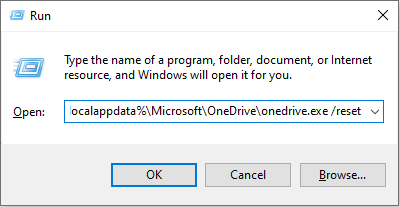
You can wait for the OneDrive to complete the resetting process. Afterward, sign in with your account. OneDrive will return to the default settings. Check if the problem is resolved.
Solution 3. Reinstall OneDrive
OneDrive Error Code 0x8004def4 probably occurs because of a corrupted OneDrive. If you are in such a situation, reinstalling this application might work. You need to uninstall it in the Control Pane first. Here is how to do it.
Step 1. Type Control Panel into the Windows search box and hit Enter to open the window.
Step 2. Click Uninstall a program under the Programs option.
Step 3. Browse the program list to find Microsoft OneDrive. Right-click on it and choose Uninstall.
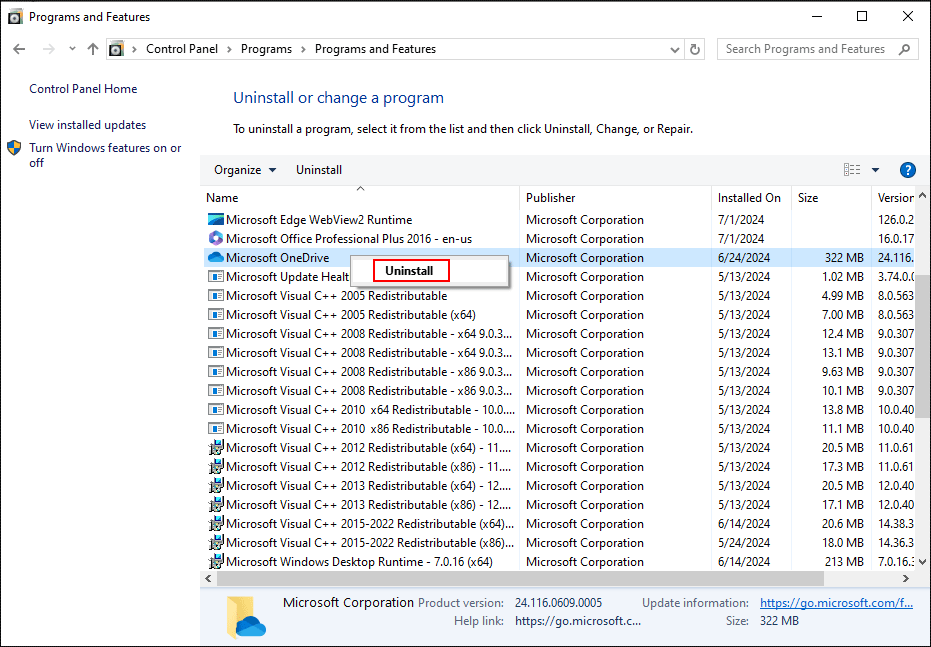
Step 4. In the prompt window, click Yes to confirm.
When your computer completes the uninstallation process, you can go to the Microsoft Store to reinstall OneDrive on your computer.
Solution 4: Seek Help from Microsoft 365 Support and Recovery Assistant
The last method is to ask for help with the Microsoft application. Microsoft 365 Support and Recovery Assistant helps detect and fix issues for Office, OneDrive, Outlook, and other applications.
Step 1. You can download and install Microsoft 365 Support and Recovery Assistant from the official download page.
Step 2. After installing, you need to launch the software and choose OneDrive for Business > Next. In the following window, choose I need help syncing my OneDrive files > Next to start the scan process.
Wait for the process to complete and check if this helps fix OneDrive error 0x8004def4 on your computer.
In addition to resolving issues that occur in OneDrive, you should also check whether your files are lost from OneDrive. If there are any files lost from OneDrive, you can read this post to get methods to recover files missing from OneDrive. Furthermore, MiniTool provides one practical data recovery software to retrieve files effectively. You can get MiniTool Power Data Recovery Free to try to restore lost files.
MiniTool Power Data Recovery FreeClick to Download100%Clean & Safe
Bottom Line
Various reasons can lead to OneDrive error 0x8004def4 in Windows. If you are unfortunately facing this issue, you can read and try the methods explained in this post. Hope this post gives you useful information in time.
User Comments :