
Sometimes, you will receive such a notification - This PC is in battery saver mode, which is used to inform you that OneDrive has paused syncing to preserve battery. Read this post from MiniTool to get the solutions to stop OneDrive sync pausing.
OneDrive is a cloud-based storage service included in Microsoft accounts, and integrated into Windows 10 and you can view, browse, upload, and share the files you saved online to OneDrive from any PC, tablet, or phone.
OneDrive will sync your chosen files and folders with your PC automatically once you set up OneDrive and run it. You can manually pause syncing of files and folders on OneDrive as needed.
Windows 10 will automatically pause sync by default when your computer is in battery saver mode.
Then, I will show you how to stop OneDrive sync pausing in battery saver mode.

How to Fix OneDrive Sync Pausing in Battery Saver Mode
Solution 1: Turn Off Battery Saver Mode
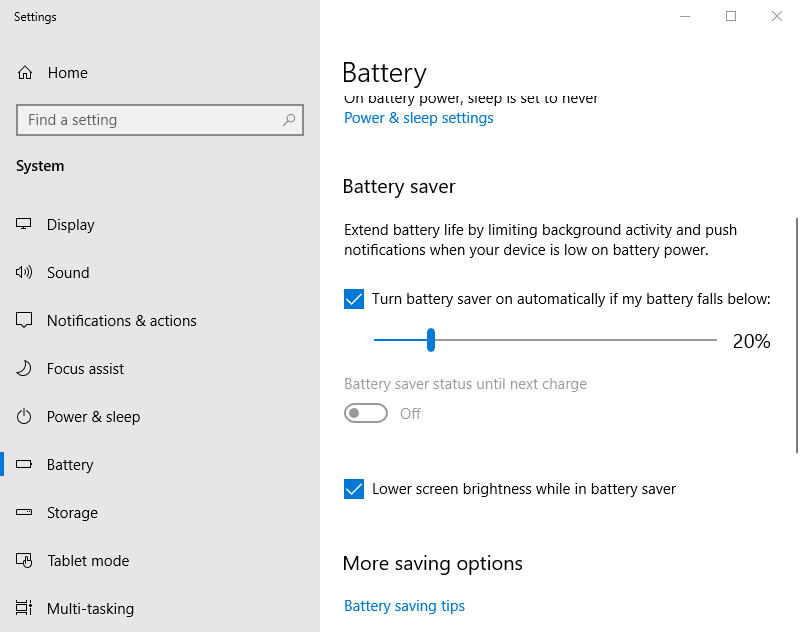
If you don’t need battery saver mode, you can turn it off to stop OneDrive’s sync pausing. Here is the tutorial.
Step 1: Type Settings in the Search box and search for it, then open the Settings application.
Step 2: Click the Battery tab in this Settings interface.
Step 3: Then uncheck Turn battery saver on automatically if my battery falls below.
Solution 2: Uncheck the Automatically Pause Sync Option
If OneDrive has paused syncing to preserve battery and you want to fix it, you should uncheck the automatically pause sync setting in OneDrive.
Step 1: Click the OneDrive system tray icon and click the More button.
Step 2: Then click Settings to open the window and select the Settings tab.
Step 3: Then uncheck the Automatically pause sync when this device in battery saver mode option.
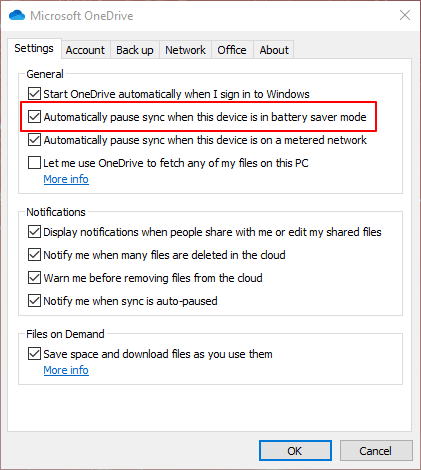
Step 4: At last, press the OK button to exit the window.
Solution 3: Edit the Registry
You can also stop OneDrive sync pausing in battery saver mode by editing the registry. Here are the steps:
Step 1: Press the Windows key + R key at the same time to open the Run box. Then input regedit and click the OK button.
Step 2: Open the following registry path:
Computer\HKEY_CURRENT_USER\Software\Microsoft\OneDrive
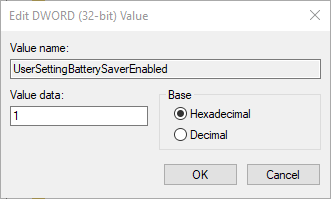
Step 3: Double-click UserSettingBatterySaverEnabled to open the Edit DWORD window.
Step 4: Then input 1 in the Value data box, and click the OK button.
Step 5: At last, you should close the Registry Editor.

Final Words
That is all information on how to stop OneDrive’s sync pausing in battery saver mode. After you try these solutions, the “This PC is in battery saver mode” notification will not appear on your computer.
User Comments :