
Password Hint Not Showing Up
Nowadays, in addition to digital devices, many applications need passwords for access. Having unique passwords for each can make it difficult to remember these passwords all and keep them in mind continuously. It can be quite frustrating to forget a password, as it may prevent access to a device or an application, particularly a computer password.
Luckily, Windows PCs and some applications set the password hint to jog users’ memory and recall their correct passwords when a wrong password is entered at the Windows logon screen in Windows 11/10. That small push can be a life-saver – unless it has disappeared. The issue of the password hint not showing up in Windows 11/10 has confused many users.
Help: I have created a password and hint for my account. The strange thing is the password comes up but the hint doesn’t. Any suggestions? Thanks.www.sevenforums.com
What causes the password hint not working issue in Windows 11? It might just be a minor mistake, such as the hint not being saved correctly related to an issue that occurred during a system update, a corrupted user profile, or even a security setting that is blocking it for some reason. Whatever the issue may be, it’s an inconvenience that disrupts the normal login process.
Let’s dive into the methods to tackle this vexing problem.

How to Fix Password Hint Not Showing Up in Windows 11/10
Way 1. Use a Local Account
An issue with syncing a Microsoft account could obscure the hint, and switching to a local account can help you reset it. Here’s how to do it:
- Press Win + I together to access Windows Settings.
- Next, go to Account > Your info.
- Under the Account Settings section, click Sign in with a local account instead and follow the instructions to input the username password, and the hint for the password.
- Click Next and then opt for Sign out and finish.
Way 2. Verify the Hint Was Set
Sometimes, the hint may not have been saved properly during its creation, so checking or resetting it could fix the password hint not showing up issue on Windows.
- Right-click on the Start button and select Settings.
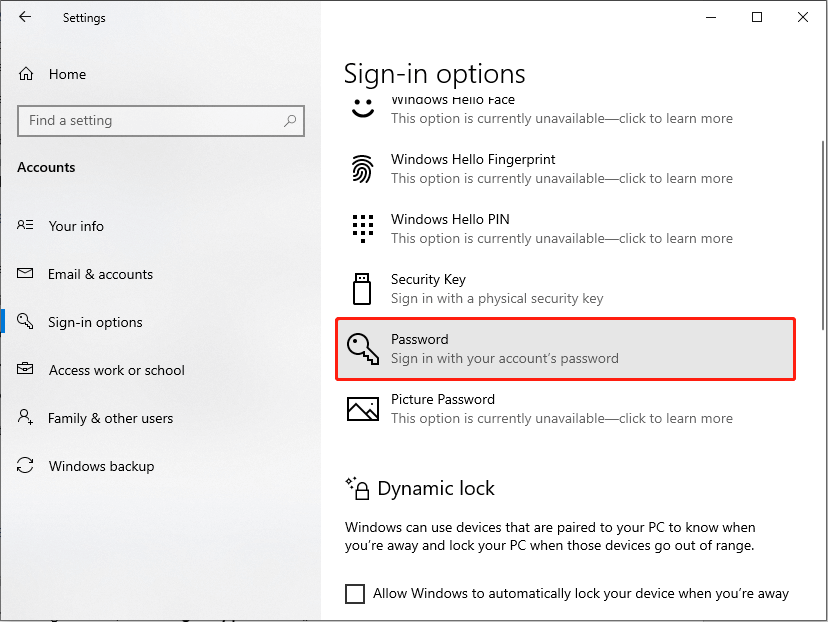
- Navigate to Accounts, then choose Sign-in options.
- Under the Password section, click on Change and verify if a hint is present.
- If it’s absent or empty, create a new hint and save it.
Way 3. Reset Password via Microsoft account
If you find yourself unable to access your account and the password hint isn’t visible, you can reset your password online to create a new hint. By initiating a password reset, you will be guided through the necessary steps to create a new password, allowing you to establish a fresh password hint for future reference.
- On the login screen, select the I forgot my password option.
- Follow the instructions to confirm your identity.
- Then, create a new password and provide a new hint when asked. Ensure you have successfully saved the hint on your PC.
- Finish the password reset procedure.
- Sign in using the new password to see if the hint shows up.
Way 4. Check the Registry for Hint Settings
A corrupted registry entry might trigger the password hint not showing up issue. Therefore, consider verifying or correcting the entry can restore the ability to see the password hint feature.
Step 1. Log in using an alternate account.
Step 2. Press Win + S to open the Windows Search bar, type regedit in the box, and hit Enter.
Step 3. In the pop-up UAC window, click the Yes button.
Step 4. Navigate to this path: HKEY_LOCAL_MACHINE\SOFTWARE\Microsoft\Windows\CurrentVersion\Hints.
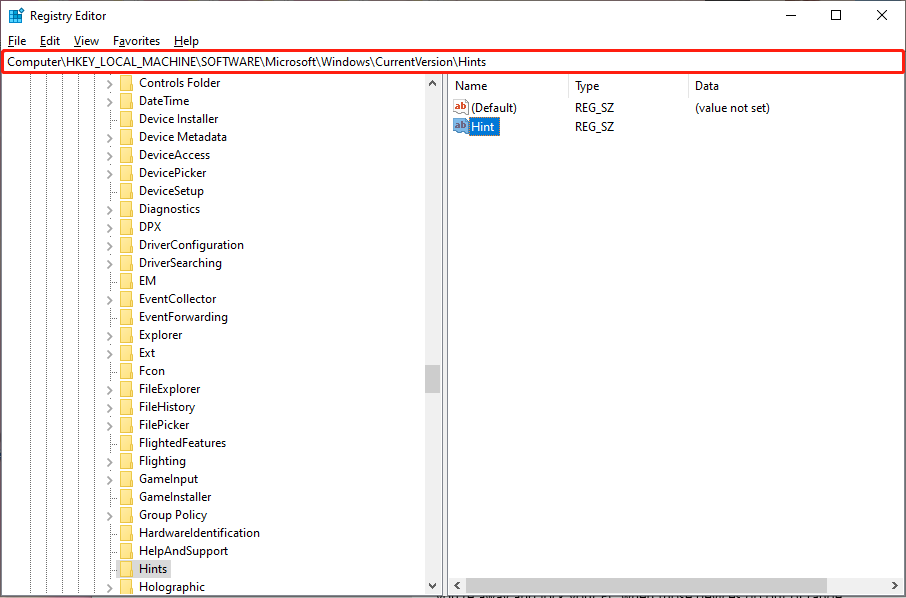
Step 5. Locate your username, right-click on it, and check that a Hint string value is present.
Step 6. If it’s absent, right-click the space, choose New > String Value, name it Hint, and input your hint text.
Way 5. Repair System files
Corrupted system files can disrupt the login screen, leading to the password hint not showing up. Utilizing both the System File Checker (SFC) and the DISM tool can fix damaged files and restore the integrity of the system.
Step 1: Type cmd in the Windows search bar.
Step 2: Right-click on Command Prompt and choose the Run as administrator option.
Step 3: When the User Account Control prompt appears, click Yes.
Step 4: Next, copy and paste the following command and press Enter:
sfc /scannow
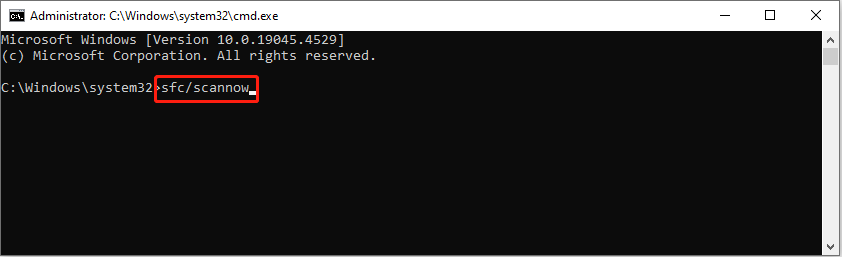
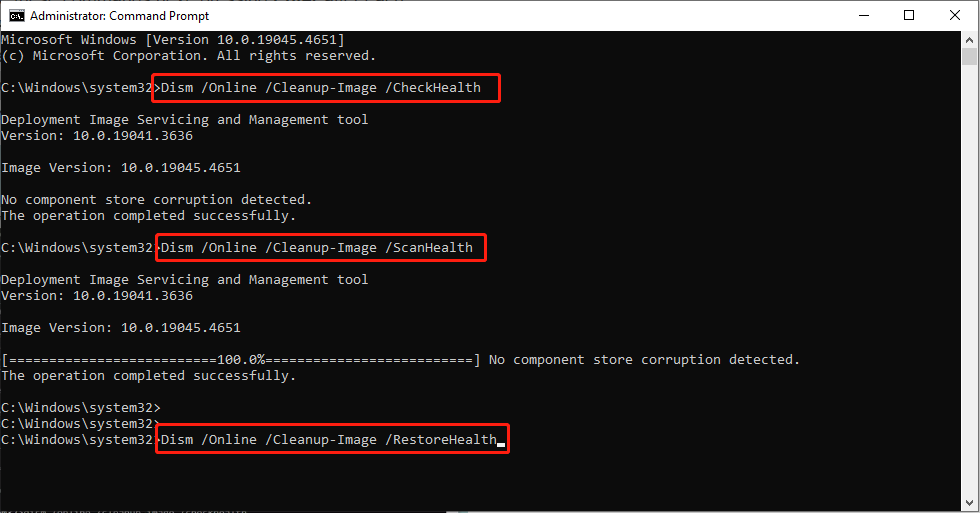
Step 5: Wait for the scan to complete. If Windows detects any violations of system file integrity, it will attempt to rectify them. Following this, execute the next set of commands, pressing Enter each time:
DISM /Online /Cleanup-Image /CheckHealth
DISM /Online /Cleanup-Image /ScanHealth
DISM /Online /Cleanup-Image /RestoreHealth
Step 6: Close the Command Prompt and restart your computer.
Way 6. Create a New User Profile
A corrupted user profile can lead to various issues within the operating system, such as the inability to display the password hint. This problem can be particularly frustrating for users who rely on the hint to remember their passwords. One effective solution to this issue is to create a new user profile.
Step 1. Log in using an admin account or another method.
Step 2. Press Win + I to access Windows Settings.
Step 3. Navigate to Accounts, followed by Family & other users.
Step 4. In the Other users section, select Add account/Add someone else to this PC.
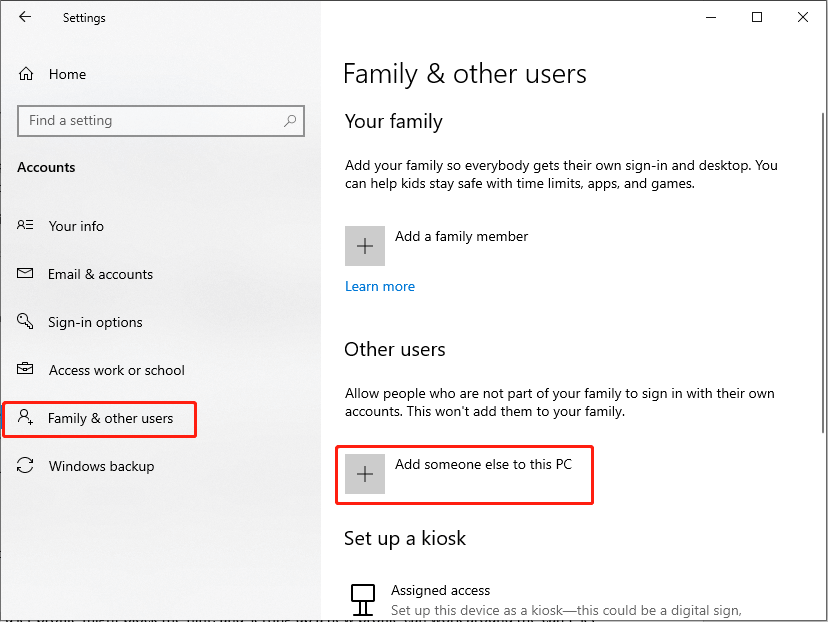
Step 5. Follow the instructions to set up a new user account. If you lack Microsoft account details, you can opt for I don’t have this person’s sign-in information followed by Add a user without a Microsoft account.
Step 6. Provide a username and password for the new account and finish the setup process.
Step 7. Then, return to the Accounts section. Under Family & other users, choose the newly created account and click on Change account type.
Step 8. In the Account type dropdown, select Administrator and click OK.
Way 7. Disable Credential Manager Service
The Credential Manager service could potentially disrupt the display of password hints, so temporarily disabling it may help determine if it’s the reason the password hint isn’t visible.
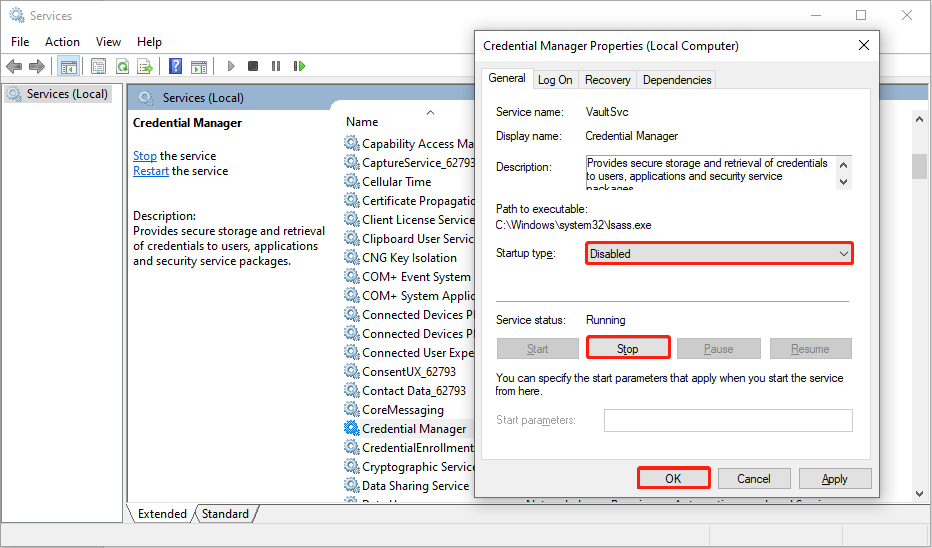
Step 1. Press Win + S to open the Windows Search bar, type Services in the box, and press Enter.
Step 2. Locate Credential Manager, right-click it, and choose Properties.
Step 3. Change the Startup type to Disabled, click Stop, and then click OK to confirm the change.
Step 4. Log out and see if the hint reappears.
Bonus Tips: Recover Your Password on Windows (If Necessary)
If you haven’t successfully recalled your password even after seeing the password hint and want to find your password file, consider using a professional data recovery tool to get your password file back on Windows.
MiniTool Power Data Recovery is a professional data recovery program for Windows 11/10/8/7. You can use this application to recover any deleted or lost documents, photos, videos, and any other files from a Windows PC or laptop, USB flash drive, memory card, external hard drive, SSD, and more. Additionally, this data recovery tool allows users to recover forgotten Windows 11 passwords easily and safely.
MiniTool Power Data Recovery FreeClick to Download100%Clean & Safe
The Last Words
This post provides seven solutions to fix the password hint not showing up issue in Windows 11/10 and a robust data recovery tool to recover your lost password file. Hope everything is good for you.
User Comments :