
Portcls.sys is one of the stop errors that you might run into when running Windows 10/11. It will freeze your computer and after a while restarts without any warning to you. If you wonder what to do now, then this post on MiniTool Website is for you.
Portcls.sys Blue Screen of Death
Portcls.sys refers to the Microsoft Class Driver for the Port-Miniport device’s system. It is responsible for the activities, launches, and launches of many applications. As soon as portcls.sys is damages, it will trigger issues with the PC. You might receive one of the following error messages:
- sys could not be found.
- sys failed to load.
- The file portcls.sys is missing or corrupted.
- Windows failed to start – portcls.sys.
Once portcls.sys failure crops up, your computer will crash and restart. What’s worse, you will lose some data on your computer. Therefore, why not back up your critical files as a precaution? Here, you might need the help of the Windows backup software – MiniTool ShadowMaker to back up your data with ease.
MiniTool ShadowMaker TrialClick to Download100%Clean & Safe
How to Fix Portcls.sys Blue Screen of Death Windows 10/11?
Fix 1: Uninstall Problematic Device Drivers
In most cases, uninstalling the problematic device drive can solve most problems including portcls.sys DRIVER_IRQL_NOT_LESS_OR_EQUAL. Here’s how to do it:
Step 1. Right-click on the Start icon and select Device Manager from the drop-down menu.
Step 2. Expand Sound, video, and game controllers or Audio inputs and outputs and right-click on the problematic device to choose Uninstall device.
Step 3. Next, tick Delete the driver software for this device and hit Uninstall.

Step 4. Reboot your system.
Fix 2: Remove the Recently Installed Computer
If you receive portcls.sys failure after installing certain software, it might be the culprit. In this case, consider removing them with the steps below:
Step 1. Press Win + R to open the Run dialog box.
Step 2. Type appwiz.cpl and hit Enter to open Programs and Features.
Step 3. Now, you can view all the programs installed on your computer. Scroll down from the list to find the newly installed programs and right-click on it to choose Uninstall.
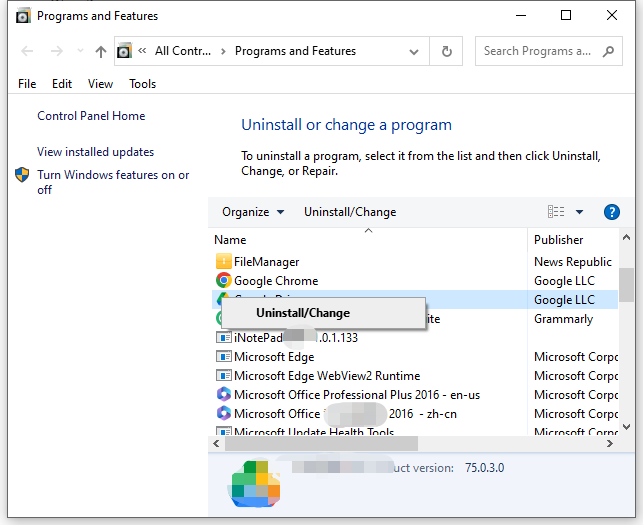
Step 4. After it is removed from your PC, reboot your computer to see if portcls.sys failure is gone.
Fix 3: Scan for Malware
Malware or viruses will also threaten your system and causing some errors like portcls.sys blue screen Windows 10. If this is the case, performing a full scan of your system via Widows Defender is a good choice. Here’s how to do it:
Step 1. Press Win + I to open Windows Settings.
Step 2. Go to Update & Security > Windows Security > Virus & threat protection.
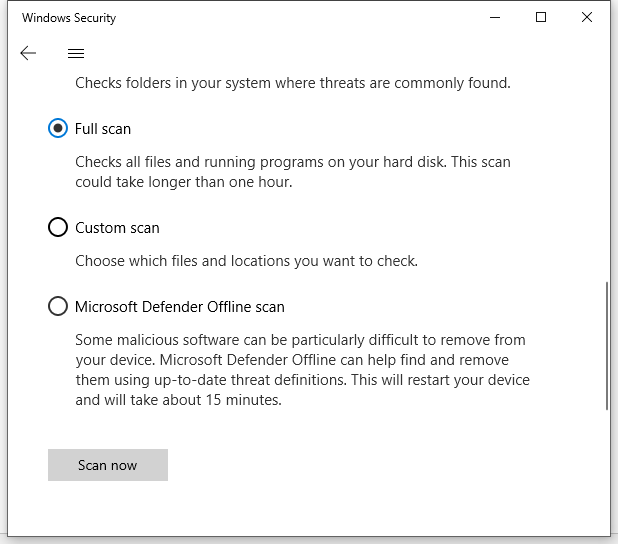
Step 3. Click on Scan options > tick Full scan > hit Scan now.
Fix 4: Perform SFC Scan
The occurrence of portcls.sys blue screen of death can be caused by file system corruption. You can use System File Checker to detect and repair the corrupted system files. Here’s how to do it:
Step 1. Type cmd in the search bar to locate Command Prompt.
Step 2. Right-click on it to choose Run as administrator.
Step 3. In the command window, type sfc /scannow and hit Enter.
Step 4. After the process is down, reboot your computer.
![CHKDSK vs ScanDisk vs SFC vs DISM Windows 10 [Differences]](https://images.minitool.com/minitool.com/images/uploads/2020/03/chkdsk-vs-scandisk-vs-sfc-vs-dism-thumbnail.jpg)
User Comments :