
Is your browser starting to redirect you to a website called Potterfun? If you are wondering why this occurs and how to remove Potterfun virus, this guide from MiniTool is for you!
What Is Potterfun Virus?
When your search queries redirect to the Potterfun website rather than your preferred search engine like Google Chrome, Microsoft Edge, Firefox Mozilla and so forth, your computer might have been infected by Potterfun virus. This is a type of malicious browser hijacker that forcefully promotes undesirable websites without your permission.
Similar to other browser hijackers, Potterfun virus sends all searches to advertisement links by modifying all your browser’s configuration. As a result, additional measures need to be taken to remove this threat from your computer.
MiniTool ShadowMaker TrialClick to Download100%Clean & Safe

How to Remove Potterfun Virus on Windows 10/11?
Way 1: Uninstall Problematic Apps
Problematic applications are a main source of Potterfun redirect virus. As a result, you can go to Programs and Features to check if there are any unknown programs that you didn’t install. Follow these instructions:
Step 1. Open Control Panel.
Step 2. Go to Programs > Programs and Features.
Step 3. Now, you can see all the programs installed on your computer. Right-click on any unknown or strange program and hit Uninstall.
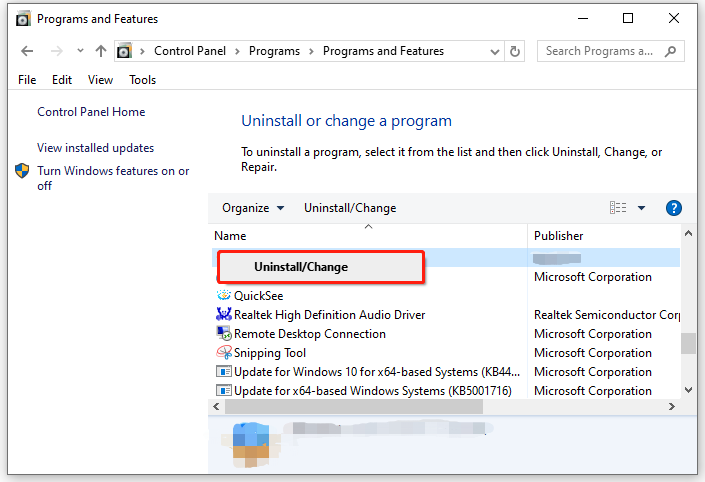
Step 4. Follow the prompts on the screen to finalize the uninstallation.
Way 2: Remove Malicious Extensions
Usually, browser extensions are designed to level up the fundamental capabilities of your browser. Malicious extensions might function as search hijacker, routing all the searches and requests to undesirable websites. Therefore, removing harmful extensions might work for Potterfun virus infection.
Step 1. Open your browser settings.
Step 2. Go to the Extensions to disable and remove any newly installed extensions.

Way 3: Reset Your Browser
Another way is to reset your browser to the factory default. This will undo all the changes that Potterfun search hijacker made to your browser. Here, we will show you how to reset your Google Chrome as an example:
Step 1. Open your Google Chrome.
Step 2. Click on the three-dot icon in the top right and select Settings.
Step 3. In the Reset settings section, click on Restore settings to their original defaults.
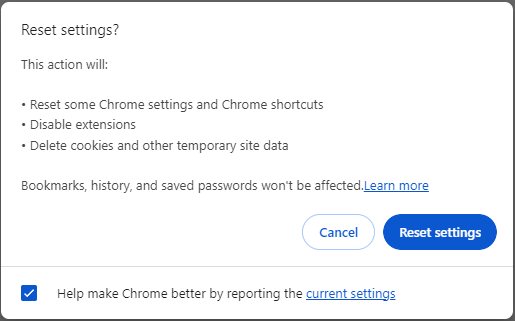
Step 4. Then, a prompt will pop up to inform you of what this action will do. If you are sure to perform a reset, click on Reset settings.

Way 4: Modify Search Engines and Site Search
As mentioned earlier, once Potterfun virus takes control of your browser, it will change your homepage and redirect you to unwanted websites. As a result, you can change the default search engine and remove Potterfun virus from site search manually.
Step 1. Go to Settings of your browser.
Step 2. In the left-hand pane, select Search engine and then hit Manage search engines and site search.
Step 3. Under Search engines, click on the 3-dot icon beside your preferred search engine and select Make default.
Step 4. Under Site search, click on the 3-dot icon next to the Potterfun website and select Delete.
Step 5. Go back to the Settings page. In the On startup page, check if there is a potterfun-related URL. If yes, click on the three-dot icon and select Remove.
Way 5: Update Your OS & Other Programs
Outdated programs or operation system are more vulnerable to virus infection, so you had better update everything to the latest version. Follow these steps to update your Windows 10:
Step 1. Open Windows Settings and select Update & Security.
Step 2. In the Windows Update tab, click on Check for updates to search for, download and install available Windows updates.

# More Tips to Prevent Future Infection
- Update your browser in time.
- Download files or programs from trustworthy sources.
- Never hit suspicious links.
- Scan your computer with antivirus software like Malwarebytes periodically.
Final Words
How to remove Potterfun virus to reduce further damage to your data and system? In this guide, we offer 5 solutions to get rid of this threat and recommend a useful tool called MiniTool ShadowMaker to protect your computer. Hopefully, you can run everything on your computer smoothly again.
User Comments :